25EN
10 Sync with PC
music library
through Philips
Songbird
With Philips Songbird, you can do the following:
Manage your music collection on a PC;
Sync VIBE with your PC music library;
Register VIBE on www.philips.com/
welcome;
Songbird' on page 33);
Repair VIBE (see 'Repair the player
through Philips Songbird' on page 34).
Install Philips Songbird
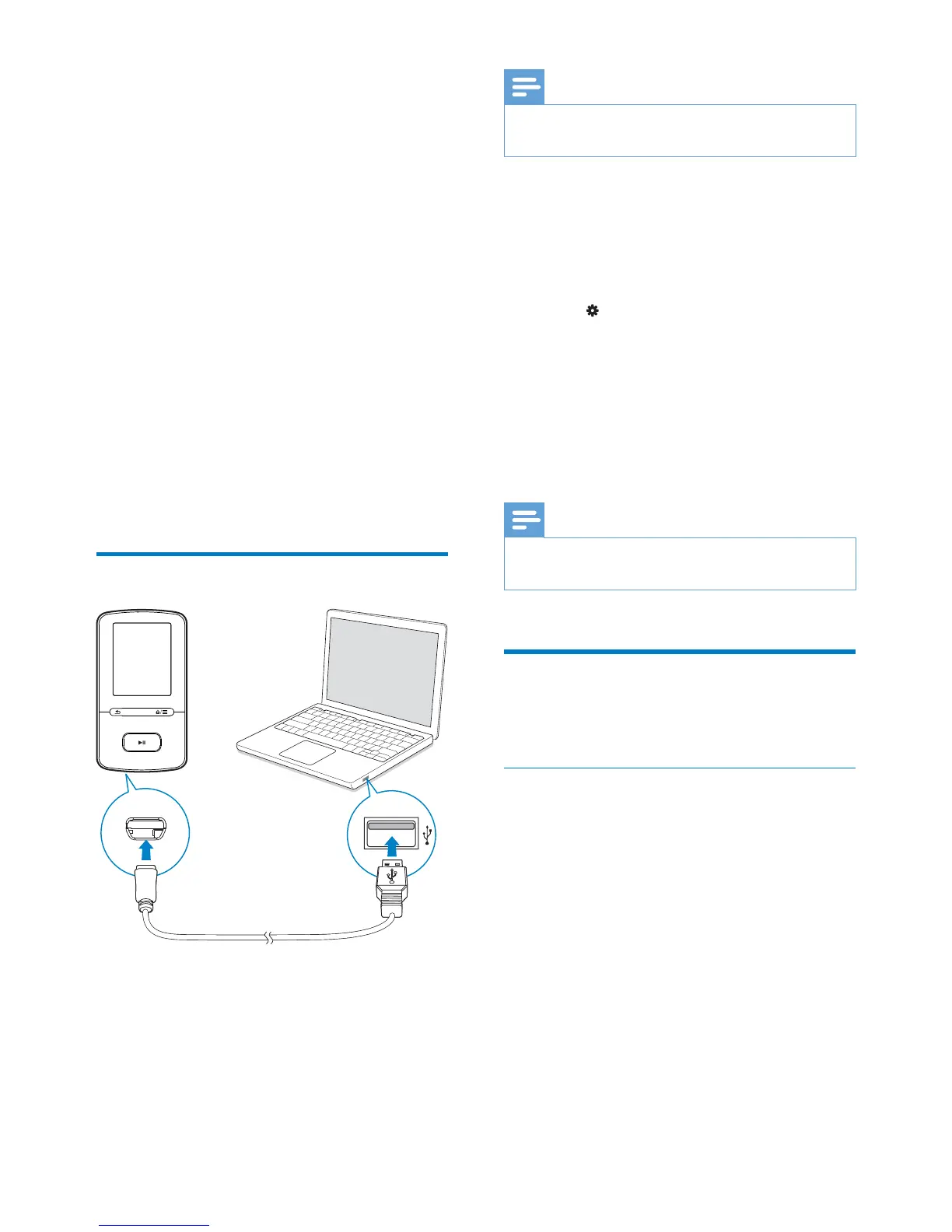
When you connect VIBE
time, a pop up screen is displayed:
1 Select your language and country.
2 Follow the onscreen instructions to
complete the installation.
Note
The installation requires you to agree to the license
terms.
If the pop up screen is not displayed
automatically:
1 On the player, make sure that you have
selected the following options:
In
> [CD installer], select [Enable].
2 On the PC, select My Computer
(Windows XP / Windows 2000) /
Computer (Windows Vista / Windows 7).
» The Philips Songbird drive is displayed.
3 To install Philips Songbird, double click
Setup.exe in the Philips Songbird drive.
Note
The installation requires you to agree to the license
terms.
PC
Set the watch folder
Create a central folder
to your library when you copy them to a folder.
Creating a central folder is recommended. In
Philips Songbird, set the central folder as the
watch folder. Each time you launch Philips
Songbird, songs are added to/ removed from
Philips Songbird as they are on the central
folder.
On the PC, create a central folder to save all



 To Next Page