EasyManua.ls Logo

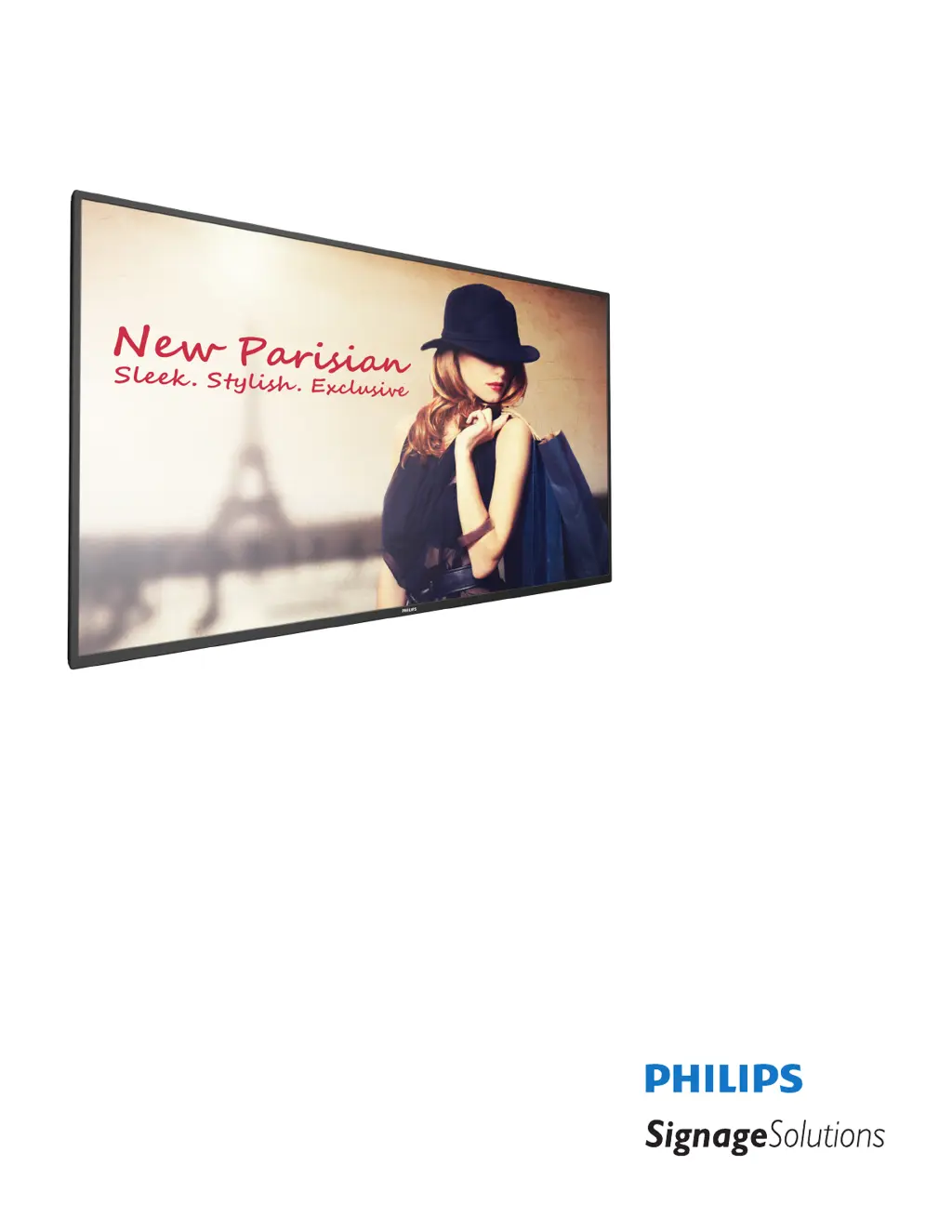
Philips Signage Solutions 49BDL4050D/00 - User Manual

Philips Signage Solutions 49BDL4050D/00
72 pages
Print Icon
To Next Page IconTo Next Page
Loading...
www.philips.com/welcome
49BDL4050D
V1.00
User Manual (English)

Table of Contents

Questions and Answers

  • S
    Steven DanielAug 5, 2025
    Why is there no picture on my Philips LED TV?
    • J
      Jeremy PaulAug 5, 2025
      If your Philips LED TV displays no picture, here are a few things to check: 1. Ensure the power cord is properly plugged in. 2. Verify that the main power switch on the back of the TV is turned on. 3. Confirm that the selected input has a signal connection. 4. Check if the TV is in standby mode.
  • L
    Linda MartinezAug 10, 2025
    What to do if my Philips LED TV has picture but no sound?
    • G
      Gina AlvaradoAug 10, 2025
      If you can see the picture but no sound is coming from your Philips LED TV, there are several things to check: * Ensure that both video and audio input cables are correctly connected. * Make sure the volume isn't turned down completely. Use the volume buttons to increase it. * Check if the mute function is enabled and, if so, disable it using the mute button. * If you are relying on external speakers, ensure they are properly connected and the volume is at a suitable level.
  • J
    Jordan AndersenAug 14, 2025
    What causes picture distortion on a Philips LED TV?
    • G
      Greg KellerAug 14, 2025
      If your Philips LED TV displays a distorted picture with abnormal patterns, it could be due to these reasons: * The signal cable might not be connected properly; ensure it is firmly attached. * The input signal might be beyond the display's capabilities. Check the video signal source to see if it is within the specified range for your display, referring to the specifications section.
  • J
    Jason FisherAug 18, 2025
    How to adjust screen size on Philips Signage Solutions 49BDL4050D/00?
    • L
      Leah FernandezAug 19, 2025
      If the display image on your Philips LED TV doesn’t fill the full screen, it could be due to the zoom mode not being set correctly. Use the Zoom mode or Custom zoom function in the Screen menu to fine-tune the display geometry and time frequency parameter.
  • R
    Randy BurnettAug 22, 2025
    What causes interference on Philips LED TV?
    • C
      Chelsea ReyesAug 22, 2025
      If you notice interference or hear audible noise on your Philips LED TV, it might be caused by surrounding electrical appliances or fluorescent lights. Try moving the display to another location to see if the interference is reduced.
  • T
    twoodAug 27, 2025
    Why are some pixels not lighting up on my Philips Signage Solutions 49BDL4050D/00 LED TV?
    • R
      Rebecca LeeAug 27, 2025
      This Philips LED TV is manufactured using high-precision technology. However, some pixels may not turn on. This is not a malfunction.
  • C
    Charles AndersonAug 31, 2025
    What causes after-images on a Philips Signage Solutions 49BDL4050D/00 screen?
    • M
      Michael DavisAug 31, 2025
      If you see after-images on your Philips LED TV screen after it's powered off, it's likely because a still image was displayed for an extended period. Avoid displaying still images for long durations, as this can cause a permanent after-image to remain on the display.

Summary

Safety Instructions and Precautions

Unpacking and Installation Guide

Wall Mounting Instructions

Mounting on a Wall

Guidelines for attaching the display to a wall using standard mounting kits.

Display Parts and Functions Overview

Control Panel Overview

Description of the display's control panel buttons and their functions.

Input;Output Terminals Identification

Remote Control Operations

General Remote Control Functions

Explains the primary functions of the remote control buttons.

Connecting External Equipment

Audio and Daisy-Chain Connectivity

Display Operation and Media Management

Watching Connected Video Sources

How to select and switch between different input signals.

Media Player and Browser Usage

Media Player Functionality Guide

Instructions for playing media files, creating playlists, and managing slideshows.

SmartCMS Content Management

Custom Application Setup

Custom App OSD Menu Operation

Selecting and configuring custom applications via the OSD menu.

Signage Display System Settings

Signage Display System Configuration Details

General Settings Details

Fine-tuning display name, boot logo, and screenshot settings.

Server Settings Configuration

Setting up email notifications and FTP server parameters.

Source Settings Configuration

Configuring media players, browser, SmartCMS, PDF player, and custom applications.

Server and FTP Configuration

Email Notification Setup

Configuring SMTP server, Gmail account, and manager email for alerts.

FTP Server Setup and Configuration

Setting up FTP accounts, passwords, storage paths, and port numbers.

Source Settings for Media and Browsing

Media Player Playlist and Effect Settings

Customizing media playback playlists and slideshow effects.

SmartCMS Server Setup Details

Configuring SmartCMS server address, account, PIN code, and version.

System Tools and PDF Player Configuration

System Tools Functions

Managing storage, performing factory resets, and importing/exporting settings.

OSD Menu Navigation and Overview

Navigating OSD Menu with Remote Control

Step-by-step instructions for using the remote to navigate OSD menus.

Navigating OSD Menu with Display Buttons

Guide to using the physical buttons for OSD menu navigation.

OSD Picture and Screen Settings

Picture Menu Adjustments

Configuring image settings like brightness, contrast, sharpness, and color.

Screen Menu Adjustments

Adjusting image position, clock, zoom, and overscan settings.

OSD Audio and Picture-in-Picture Settings

Audio Menu Adjustments

Configuring audio settings such as volume, balance, and audio source.

PIP Menu Configuration

Setting up picture-in-picture modes, sizes, positions, and audio sources.

PIP, Configuration, and Rotation Settings

PIP Functionality and Settings

Details on PIP modes, selection, position, and reset options.

Advanced Options and Tiling Functionality

Advanced Options Menu

Settings for input resolution, IR control, keyboard control, and tiling.

Tiling Functionality for Video Walls

Creating large screen matrices by arranging multiple displays.

USB Device Compatibility and Codecs

Supported Video Codecs

Lists video formats, codecs, and containers supported via USB.

Input Signal Standards and Resolutions

Pixel Defect Policy and Definitions

Pixel Defect Tolerances and Mura Phenomenon

Cleaning and Troubleshooting Guide

Troubleshooting Common Display Issues

Technical Specifications Overview

Philips Signage Solutions 49BDL4050D/00 Specifications

General IconGeneral
Display TypeLED
Brightness350 cd/m²
Contrast Ratio1200:1
Viewing Angle (Horizontal/Vertical)178°/178°
Response Time8 ms
Aspect Ratio16:9
HDMI Input2
USB Ports2
Resolution1920 x 1080
PortsVGA, Ethernet (RJ45)

Related product manuals