EasyManua.ls Logo

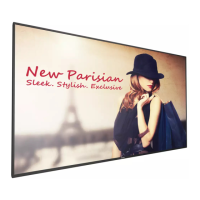
Philips Signage Solutions 49BDL4050D - User Manual

Philips Signage Solutions 49BDL4050D
72 pages
Print Icon
To Next Page IconTo Next Page
Loading...
www.philips.com/welcome
49BDL4050D
V1.00
User Manual (English)

Table of Contents

Questions and Answers

  • H
    Hannah HarperAug 2, 2025
    Why is there no picture on my Philips Signage Solutions 49BDL4050D?
    • H
      hlinAug 2, 2025
      If your Philips LED TV displays no picture, here are a few things to check: 1. Ensure the power cord is properly plugged in. 2. Verify that the main power switch on the back of the TV is turned on. 3. Confirm that the selected input has a signal connection. 4. Check if the TV is in standby mode.
  • P
    Peggy GomezAug 6, 2025
    What to do if my Philips Signage Solutions 49BDL4050D has picture but no sound?
    • S
      Stephanie PowellAug 6, 2025
      If you can see the picture but no sound is coming from your Philips LED TV, there are several things to check: * Ensure that both video and audio input cables are correctly connected. * Make sure the volume isn't turned down completely. Use the volume buttons to increase it. * Check if the mute function is enabled and, if so, disable it using the mute button. * If you are relying on external speakers, ensure they are properly connected and the volume is at a suitable level.
  • S
    shaun04Aug 10, 2025
    What causes picture distortion on a Philips LED TV?
    • R
      Robert SchultzAug 10, 2025
      If your Philips LED TV displays a distorted picture with abnormal patterns, it could be due to these reasons: * The signal cable might not be connected properly; ensure it is firmly attached. * The input signal might be beyond the display's capabilities. Check the video signal source to see if it is within the specified range for your display, referring to the specifications section.
  • F
    fordkaylaAug 15, 2025
    How to adjust screen size on Philips Signage Solutions 49BDL4050D?
    • N
      Nicole RamosAug 15, 2025
      If the display image on your Philips LED TV doesn’t fill the full screen, it could be due to the zoom mode not being set correctly. Use the Zoom mode or Custom zoom function in the Screen menu to fine-tune the display geometry and time frequency parameter.
  • P
    paustinAug 19, 2025
    What causes interference on Philips Signage Solutions 49BDL4050D?
    • E
      edwinnelsonAug 19, 2025
      If you notice interference or hear audible noise on your Philips LED TV, it might be caused by surrounding electrical appliances or fluorescent lights. Try moving the display to another location to see if the interference is reduced.
  • M
    Michelle HowellAug 23, 2025
    Why are some pixels not lighting up on my Philips Signage Solutions 49BDL4050D LED TV?
    • L
      lgomezAug 23, 2025
      This Philips LED TV is manufactured using high-precision technology. However, some pixels may not turn on. This is not a malfunction.
  • K
    kwilliamsAug 27, 2025
    What causes after-images on a Philips Signage Solutions 49BDL4050D screen?
    • A
      Austin HartmanAug 28, 2025
      If you see after-images on your Philips LED TV screen after it's powered off, it's likely because a still image was displayed for an extended period. Avoid displaying still images for long durations, as this can cause a permanent after-image to remain on the display.

Summary

Safety Instructions and Warnings

Safety Precautions and Maintenance

Essential safety measures for operation, connection, and upkeep of the display.

CE Declaration of Conformity

Statement of compliance with European Union directives and harmonized standards.

ESD Warnings

Cautionary advice regarding electrostatic discharge and its potential effects.

Federal Communications Commission (FCC) Notice

FCC statement regarding digital device interference and compliance for U.S. users.

Electromagnetic Fields and Regional Information

Electric, Magnetic and Electromagnetic Fields (EMF)

Information regarding the product's emission and reception of electromagnetic signals.

Information for U.K. only

Specific safety information or regulations pertaining to users in the United Kingdom.

End-of-Life Disposal and Environmental Compliance

End-of-Life Disposal

Guidance on how to dispose of the product responsibly at the end of its life.

Waste Electrical and Electronic Equipment-WEEE

Guidance on proper disposal of electronic waste according to EU directive.

Restriction on Hazardous Substances (India)

Statement on product compliance with India's hazardous substances regulation.

E-Waste Declaration for India

Declaration regarding proper disposal of electronic waste in India.

Battery Disposal Information

Instructions for proper disposal and recycling of batteries used with the product.

Unpacking and Installation Guide

Unpacking and Package Contents

Procedures for safely unpacking and verifying all package contents.

Installation Notes

Important considerations and guidelines for installing the display safely and effectively.

Installing and Removing Table Stands

Step-by-step instructions for attaching and detaching the optional table stands.

Mounting on a Wall

Guidance on safely mounting the display to a wall using appropriate kits.

Mounting in Portrait Position

Instructions for orienting and installing the display in a portrait (vertical) position.

Edge Alignment Kit Instructions

Guidance on installing the edge alignment kit for multi-display setups.

Parts and Functions Overview

Control Panel

Identification and function of the physical control buttons on the display unit.

Input;Output Terminals

Description of all available ports for connecting external devices and signals.

Remote Control General Functions

Detailed explanation of the primary functions of the remote control buttons.

Remote Control ID Setup

Instructions for setting up remote control ID for multi-display management.

Remote Control for Android Source

Specific remote control functions applicable when using the Android source.

Remote Control Battery and Handling

Guidelines for battery installation, handling, and operating range of the remote.

Connecting External Equipment

Connecting Video Sources (DVD;VCR;VCD)

Instructions for connecting DVD, VCR, or VCD players to the display.

Connecting a PC

Guide for connecting a PC using DVI-I, DVI, HDMI, or DisplayPort inputs.

Connecting Audio Equipment

Instructions for connecting external audio devices, such as amplifiers.

Daisy-chain Configuration

How to link multiple displays together for video wall applications.

IR and Signal Connections

Information on IR connections and pass-through for remote control signals.

Display Operation and Software Features

Watching Connected Video Sources

How to select and view content from connected external devices.

Changing Picture Format

Adjusting the display's aspect ratio and picture format for optimal viewing.

Android Launcher Overview

Overview of the Android interface, including home and application pages.

Media Player Introduction

Introduction to the Media Player application for playing various media files.

Browser Manual

Guide to using the built-in web browser for internet access.

PDF Reader Play

Instructions for playing PDF files using the integrated reader.

SmartCMS Configuration

Information on configuring and using the SmartCMS content management system.

Custom App Setup

How to set up and use custom applications for specific source needs.

Display Configuration and Settings

Network Settings (Wi-Fi & Ethernet)

Configuring Wi-Fi and wired Ethernet network connections.

DHCP and Static IP Configuration

Setting up automatic or manual IP addressing for network connection.

General Signage Display Settings

Basic display settings including name, boot logo, and screenshot options.

Server Settings Configuration

Configuration of email notifications, FTP, and remote control server settings.

Source Settings Management

Managing default sources like Media Player, Browser, SmartCMS, and PDF Player.

System Tools Operations

Utilities for clearing storage, factory reset, and data import/export.

Date, Time, and Developer Options

Setting system clock and accessing advanced developer options.

Supplementary Display Features

Additional display features like rotation and screen settings.

USB Compatibility and Input Modes

USB Device Compatibility

Supported video, audio, and image formats for USB playback.

Input Mode Specifications

Details on supported VGA, SDTV, and HDTV resolutions.

Pixel Quality and Troubleshooting

Pixel Defect Policy

Explanation of pixel types, defects, and acceptable tolerance levels.

Dark Dot Defects and MURA

Description of dark dots, Mura, and methods to minimize their appearance.

Cleaning Procedures

Instructions and precautions for safely cleaning the display's front panel and cabinet.

Troubleshooting Common Issues

Solutions for common display problems like no picture, abnormal color, or sound issues.

Technical Specifications

Display and Terminal Specifications

Technical details of the display panel, resolution, and input/output ports.

General and Environmental Specifications

Information on internal memory, power, dimensions, weight, and operating conditions.

Philips Signage Solutions 49BDL4050D Specifications

General IconGeneral
Panel life- h
Pixel pitch0.55926 x 0.55926 mm
Response time12 ms
Display diagonal48.5 \
Display brightness450 cd/m²
Display technologyLED
Native aspect ratio16:9
Native refresh rate60 Hz
Supported video modes480i, 480p, 576i, 576p, 720p, 1080i, 1080p
Contrast ratio (dynamic)500000:1
Contrast ratio (typical)1100:1
Display number of colors16.78 million colors
Display diagonal (metric)123.2 cm
Supported graphics resolutions640 x 480 (VGA), 800 x 600 (SVGA), 1024 x 768 (XGA), 1280 x 768 (WXGA), 1280 x 800 (WXGA), 1360 x 768 (WXGA), 1366 x 768, 1440 x 900 (WXGA+), 1920 x 1080 (HD 1080)
AUX inYes
RS-232 input ports1
AC input voltage100 - 240 V
AC input frequency50 - 60 Hz
Power consumption (standby)0.4 W
Power consumption (typical)67 W
Compatible memory cardsMicroSD (TransFlash)
VGA (D-Sub) input ports0
OrientationHorizontal/Vertical
Product colorBlack
Product designDigital signage flat panel
Bezel width (side)9.5 mm
Bezel width (bottom)15.6 mm
Panel mounting interface400 x 400 mm
Sustainability certificatesRoHS, ENERGY STAR
Operating altitude0 - 3000 m
Storage temperature (T-T)-20 - 60 °C
Operating temperature (T-T)0 - 40 °C
Operating relative humidity (H-H)20 - 80 %
RMS rated power20 W
Cables includedAC, RS-232
Multi-display supported-
On Screen Display (OSD) languagesARA, CHI (SIMPL), CHI (TR), DAN, DEU, DUT, ENG, ESP, FIN, FRE, ITA, JPN, NOR, POL, POR, RUS, SWE, TUR
Internal memory2 GB
Processor cores4
Processor modelA9
Processor familyARM Cortex
Processor frequency1.8 GHz
Audio formats supportedAAC, AIFF, ASF, LPCM, M4A, MP3, MP4, WAV, WMA
Image formats supportedBMP, GIF, JPEG, JPG
Video formats supportedM2TS, M4V, MKV, MP4, MPEG, MPG, MTS, TS, VOB, WMV
Internal storage capacity16 GB
Operating system installedAndroid
CertificationCE, FCC, Class B, UL/cUL, CCC, C-Tick, GOST, BSMI, CB, J-Moss, PSE, VCC
Harmonized System (HS) code85285210
Weight and Dimensions IconWeight and Dimensions
Depth45.72 mm
Width1097.28 mm
Height632.46 mm
Weight14700 g

Related product manuals