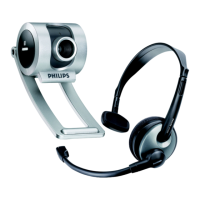
Note: Please check your PC to determine possible availability of a microphone jack. If the
jack is not available, then a USB microphone is also an option. If USB ports are all in use,
then a hub will allow expansion of available USB ports.
PICTURE QUALITY SETTING
You can always adjust the picture quality setting of your webcam during the video
chatting. Select “Webcam Setting” by right clicking your mouse at the live video
picture. Below settings are available:
- Brightness
- Contrast
-
White Balance
-
Saturation
-
Gamma
-
Backlight compensation
-
Hue
HELPFUL HINTS AND CAMERA MAINTENANCE
Troubleshooting:
1. The camera does not work:
*Make sure you have connected the camera correctly into an available USB port or hub.
2. “No capture device found” message appears:
*Make sure the camera is connected properly to the computer.
*Select [My Computer] Æ right click your mouseÆ select [Properties] Æ [Device] Æ
[Device Manager] Æ [Image Device]. Check to see if the PC camera device name
“Phillips Webcam” (on Vista) or “USB Composite Device” (on XP) is listed. If not,
try reconnecting the camera to the computer.
If there is a [?] appears on the name [Phillips Webcam], it means the USB device is
not installed properly. Select the [Phillips Webcam] device and right click your mouse
and select [Uninstall]. Then reconnect the webcam.
3. “Camera not connected” message appears:
*Try removing the driver and follow the steps as described in 2 above.
3


 To Next Page