Chapter
EN
9
Or:
Select the second option if you wish to continue installation.
Click ‘Next’ to continue.
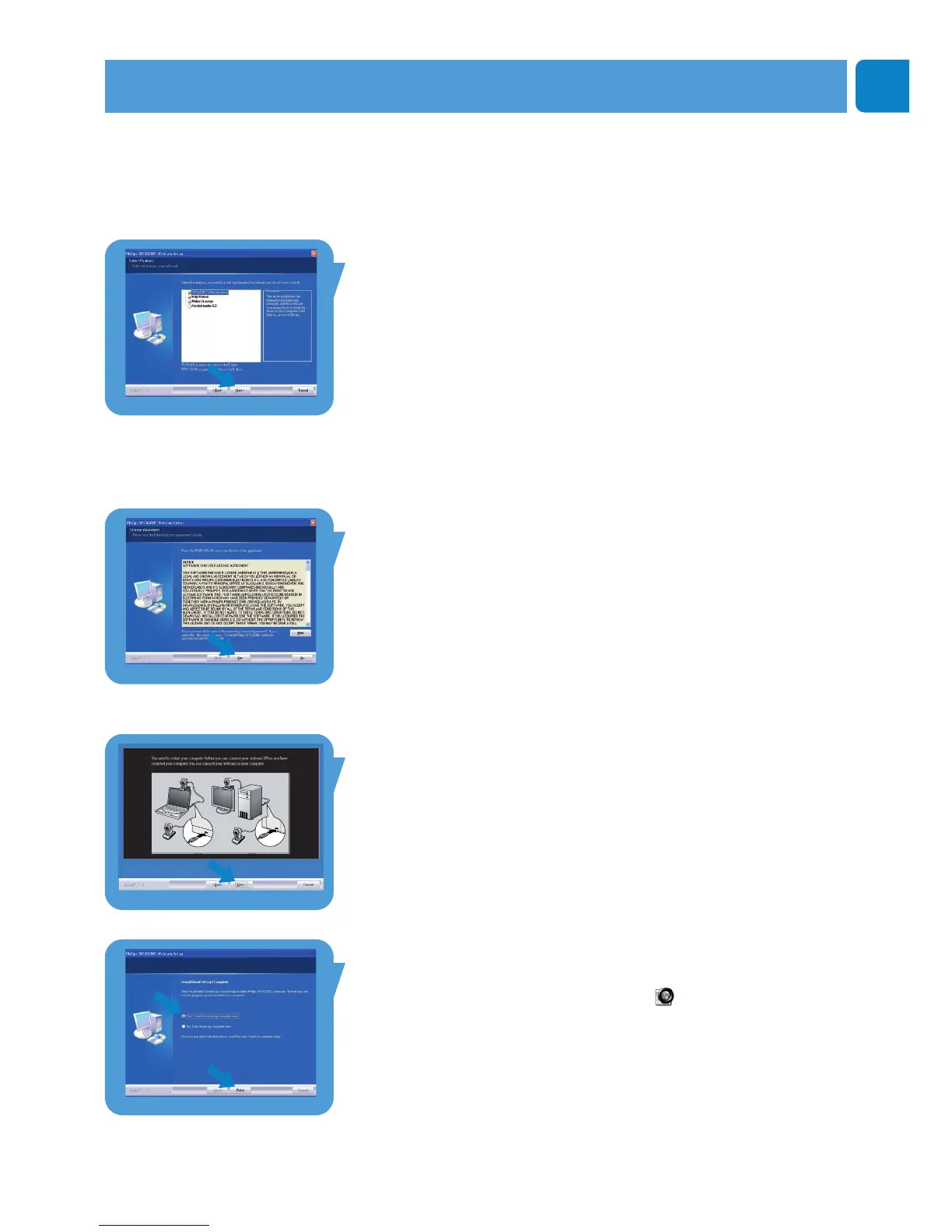
> The ‘Installation’ screen appears.The items that can be installed
are shown on the left side of the screen.
An explanation of each item is given on the right side.
All required items are selected by default.
5 Click the 'Next' button if you wish to install all items.
Or:
If there are certain items you do not wish to install, check
the boxes before these items.
Select at least ‘SPC620NC WebCam Driver’ and ‘Philips
VLounge’. Click the 'Next' button.
> The following software license agreement appears.
6 Click on 'Ye s' to continue the installation.
> The following screen appears.
7 Click 'Next' to continue.
> The ’Reboot’ screen appears.
8 Select ‘Ye s’, then click ‘Finish’ to restart your PC / laptop.
> The V(ideo)-Lounge desktop shortcut ‘ ‘ will be installed after
installation.
> Via VLounge you have access to all camera-related software.
See ‘Operating the WebCam’.
9 You can now connect your WebCam.
Installation


 To Next Page