This document describes the Philips SRP2018 universal remote control, designed to operate up to 8 different devices. It provides comprehensive instructions for setting up and using the remote, as well as important notices regarding compliance and disposal.
Function Description
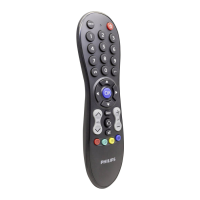
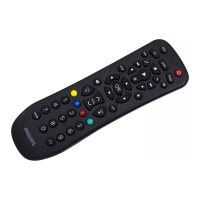
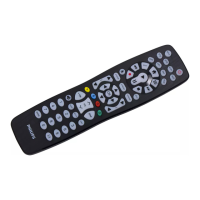
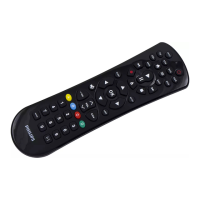
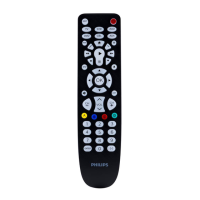
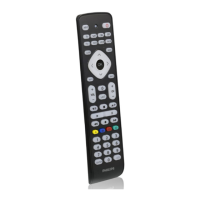
The Philips SRP2018 is a universal remote control capable of operating a wide range of electronic devices. Its primary function is to consolidate the control of multiple devices into a single unit, reducing clutter and simplifying home entertainment systems. The remote features dedicated device selection buttons, allowing users to switch between controlling a TV, satellite/cable box, Blu-ray/DVD player, streaming device, VCR, or auxiliary equipment.
The remote includes standard control functions such as power on/off, input selection, volume adjustment, channel navigation, and mute. For more advanced control, it offers a program guide display (GUIDE), on-screen channel information (INFO), and menu navigation (MENU, BACK, OK, and directional arrows). Playback controls (play, pause, stop, rewind, fast forward, record) are also integrated for media devices. Additionally, context-sensitive buttons (A, B, C, D) provide access to specific functions depending on the device being controlled, and a full set of digit buttons (0-9) allows for direct channel entry and other numerical inputs. The remote also features an LED indicator to provide visual feedback during operation and setup.
Usage Features
The Philips SRP2018 offers two primary methods for setting up the universal remote to control specific devices: manual registration and auto registration.
Manual Registration:
- Power On Device: Begin by switching on the device you wish to control (e.g., your TV).
- Select Device Button: Press and hold the corresponding device selection button on the universal remote (e.g., "TV") for 5 seconds. The red LED indicator on the remote will illuminate, signaling that it is ready for code entry.
- Look Up Code: Consult the provided code list to find the 5-digit code specific to your device's brand and type. The code list is organized by device type and brand name, with the most popular codes listed first for convenience.
- Enter Code: Use the digit buttons on the remote to enter the 5-digit code.
- Save Code: If the code is valid, the red LED will turn off, indicating that the code has been successfully saved. If the LED flashes once and remains on, it means the code was not valid, and you should re-enter the code.
- Test Device: Attempt to operate your device using the universal remote. If the device responds correctly, the setup is complete. If it only responds to some buttons or not at all, repeat the process from step 2, trying the next code on the list for your brand.
Auto Registration:
- Power On Device: Ensure the device you want to control is switched on.
- Select Device Button: Press and hold the relevant device selection button (e.g., "TV") for 5 seconds until the red LED illuminates.
- Start Code Search: Point the universal remote at your device and press and release the power button. The remote will begin searching for the correct code by sending a different infrared signal every 2 seconds, indicated by a red flash from the LED.
- Save Code: When your device turns off, immediately press and release the "OK" button on the remote to save the code. The red LED indicator will turn off, confirming the code has been saved.
- Test Device: Operate your device with the universal remote to confirm that the correct code has been saved and the device responds as expected.
Important Usage Notes:
- Battery Polarity: Always ensure batteries are inserted with the correct polarity to prevent damage to the product.
- Battery Life: To maximize battery life, avoid mixing different brands or types of batteries.
- Code Responsiveness: If your device only responds to some buttons after setup, try the next code in the code list for your brand.
- Device Button Flexibility: Any device button on the remote can be used to set up any device. For example, you could set up a TV using the "BD" (Blu-ray/DVD) device button if desired.
- Auto Registration Reversal: During auto registration, if you miss the chance to press "OK" within 2 seconds after the device turns off, you can reverse the process by pressing and releasing the power button once more. Ensure the device is powered on again before attempting to save the code.
- Multiple Devices: Repeat the setup procedures for each device you wish to control with the universal remote.
Maintenance Features
The Philips SRP2018 is designed for straightforward maintenance, primarily focusing on battery management.
Battery Replacement:
- The remote uses batteries (not included). When the battery level is low, the remote's performance may degrade. Replace the batteries promptly to ensure optimal functionality.
- When replacing batteries, all user settings (saved device codes) will be retained in the remote's memory for approximately 5 minutes. This allows for battery changes without losing your programmed configurations, provided the replacement is done within this timeframe.
- Always check the battery polarity when inserting new batteries into the battery compartment to prevent damage to the product.
- Safety Precaution: Keep batteries away from heat, sunshine, or fire to avoid the risk of explosion. Never discard batteries in fire.
Disposal:
- Product Disposal: The product is manufactured with high-quality materials and components that can be recycled and reused. Do not dispose of the product with normal household waste. Inform yourself about local regulations for the separate collection of electrical and electronic products. Correct disposal helps prevent negative environmental and health consequences.
- Battery Disposal: The product contains batteries that should not be disposed of with normal household waste. Consult local rules for the separate collection of batteries. Proper battery disposal helps prevent potential negative consequences on the environment and human health. Additional information on recycling centers can be found at www.recycle.philips.com.
- Packaging Disposal: The packaging materials (cardboard box, polystyrene foam buffer, polyethylene bags/protective foam sheet) are designed to be easily separated for recycling. Observe local regulations for packaging material disposal.
Troubleshooting and Support:
- "My universal remote does not work at all."
- Verify that the device was correctly set up with the right code.
- Ensure the corresponding device key on the remote was pressed.
- Check for proper battery insertion and replace if the level is low.
- Confirm that the device you are trying to control is powered on.
- "If several device codes are listed under the brand of my device, how can I select the correct device code?"
- Test the codes one by one. The codes are sorted by popularity, with the most popular listed first.
- "My device responds only to some of the commands."
- This indicates that the current code only partially works. Try other codes for your device until most keys function properly.
For further assistance, users are advised to consult the user manual thoroughly. If additional information or support is needed regarding setup, usage, warranty, or other issues, Philips customer support can be contacted. When calling, have the SRP2018 remote at hand to facilitate troubleshooting. Online support is also available at www.philips.com/support.

 Need help?
 General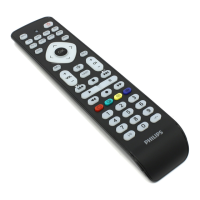



 To Next Page