EasyManua.ls Logo

Philips VR355/50 - Page 13

Philips VR355/50
29 pages
Print Icon
To Next Page IconTo Next Page
To Previous Page IconTo Previous Page
Loading...
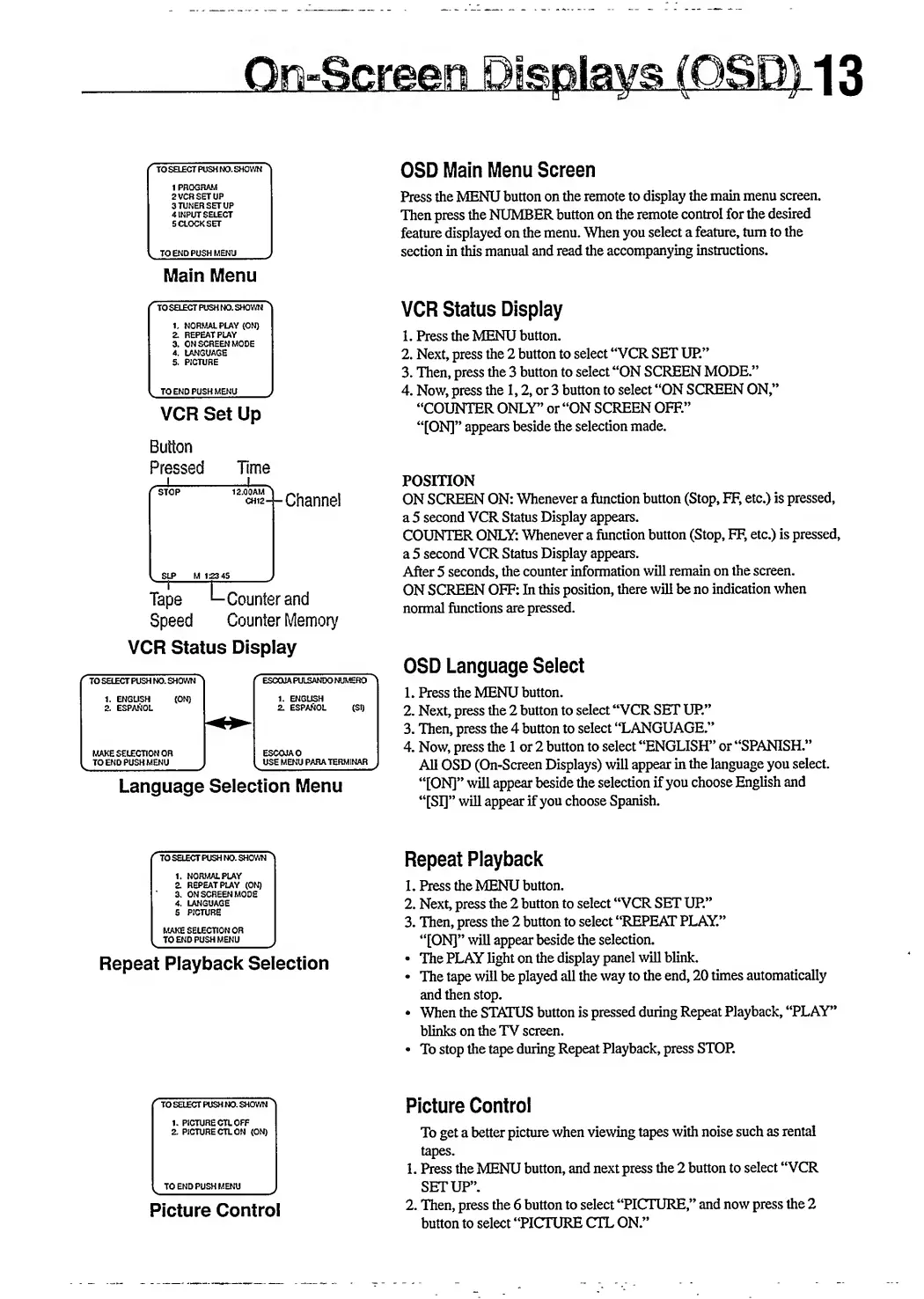
OSD
Main
Menu
Screen
Press
the
MENU
button
on
the
remote
to
display
the
main
menu
screen.
Then
press
the
NUMBER
button
on
the
remote
control
for
the
desired
feature
displayed
on
the
menu.
When
you
select
a
feature,
turn
to
the
section
in
this
manual
and
read
the
accompanying
instructions.
Main
Menu
r
TO
SELECT
PUSH
NO.
SHOWN
A
1
PROGRAM
2
VCR
SET
UP
3
TUNER
SET
UP
4
INPUT
SELECT
5
CLOCK
SET
l
TO
END
PUSH
MENU
r
TO
SELECT
PUSH
NO,
SHOWN
^
1.
NORMAL
PLAY
(ON)
2.
REPEAT
PLAY
3.
ON
SCREEN
MODE
4.
LANGUAGE
5.
PICTURE
l
TO
END
PUSH
MENU
VCR
Set
Up
Button
Pressed
Time
_
'"-“-(-Channel
v
SLP
M
123
45
Tape
L
Counter
and
Speed
Counter
Memory
VCR
Status
Display
r
TO
SELECT
PUSH
NO.
SHOWN
1
r
ESeaiAPULSANDONUMERO
1
1.
ENGLISH
(ON)
1.
ENGLISH
Z
ESPANOL
Z
ESPANOL
(SI)
MAKE
SELECTION
OR
ESCOJAO
TO
END
PUSH
MENU
USE
MENU
PARA
TERM1NAR
V_
s
\_
_X
Language
Selection
Menu
VCR
Status
Display
1.
Press
the
MENU
button.
2.
Next,
press
the
2
button
to
select
“VCR
SET
UP.”
3.
Then,
press
the
3
button
to
select
“ON
SCREEN
MODE.”
4.
Now,
press
the
1,2,
or
3
button
to
select
“ON
SCREEN
ON,”
“COUNTER
ONLY”
or
“ON
SCREEN
OFF.”
“[ON]”
appears
beside
the
selection
made.
POSITION
ON
SCREEN
ON:
Whenever
a
function
button
(Stop,
FF,
etc.)
is
pressed,
a
5
second
VCR
Status
Display
appears.
COUNTER
ONLY:
Whenever
a
function
button
(Stop,
FF,
etc.)
is
pressed,
a
5
second
VCR
Status
Display
appears.
After
5
seconds,
the
counter
information
will
remain
on
the
screen.
ON
SCREEN
OFF:
In
this
position,
there
will
be
no
indication
when
normal
functions
are
pressed.
OSD
Language
Select
1.
Press
the
MENU
button.
2.
Next,
press
the
2
button
to
select
“VCR
SET
UP.”
3.
Then,
press
the
4
button
to
select
“LANGUAGE
4.
Now,
press
the
1
or
2
button
to
select
“ENGLISH”
or
“SPANISH.”
All
OSD
(On-Screen
Displays)
will
appear
in
the
language
you
select.
“[ON]”
will
appear
beside
the
selection
if
you
choose
English
and
“[SI]”
will
appear
if
you
choose
Spanish.
Repeat
Playback
1.
Press
the
MENU
button.
2.
Next,
press
the
2
button
to
select
“VCR
SET
UP”
3.
Then,
press
the
2
button
to
select
“REPEAT
PLAY.”
“[ON]”
will
appear
beside
the
selection.
Repeat
Playback
Selection
The
PLAY
light
on
the
display
panel
wUl
blink.
The
tape
will
be
played
all
the
way
to
the
end,
20
times
automatically
and
then
stop.
When
the
STATUS
button
is
pressed
during
Repeat
Playback,
“PLAY”
blinks
on
the
TV
screen.
To
stop
the
tape
during
Repeat
Playback,
press
STOP.
Picture
Control
To
get
a
better
picture
when
viewing
tapes
with
noise
such
as
rental
tapes.
1.
Press
the
MENU
button,
and
next
press
the
2
button
to
select
“VCR
SETUP”.
Picture
Control
2
*
Th
en
’P
ress
the
^
button
t0
select
“PICTURE,”
and
now
press
the
2
button
to
select
“PICTURE
CTL
ON.”
r
TO
SELECT
PUSH
NO.
SHOWN
A
1,
PICTURE
CTL
OFF
2.
PICTURE
CTL
ON
(ON)
(
TO
END
PUSH
MENU
TO
SELECT
PUSH
NO.
SHOWN
1.
NORMAL
PLAY
Z
REPEAT
PLAY
(ON)
3.
ON
SCREEN
MODE
4.
LANGUAGE
5
PICTURE
MAKE
SELECTION
OR
TO
END
PUSH
MENU

Related product manuals