EasyManua.ls Logo

Philips VR355/50 - Page 15

Philips VR355/50
29 pages
Print Icon
To Next Page IconTo Next Page
To Previous Page IconTo Previous Page
Loading...
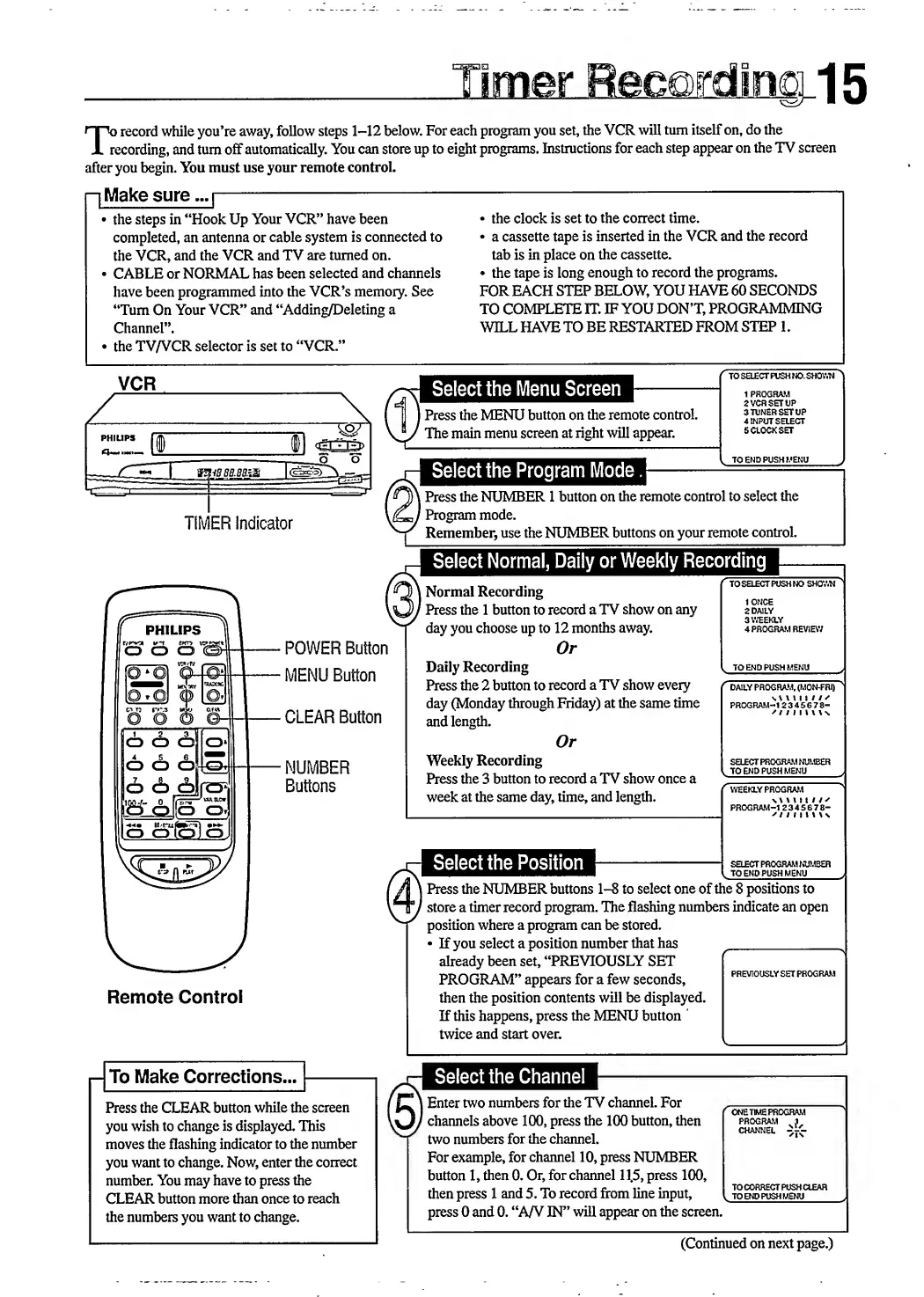
T
o
record
while
you’re
away,
follow
steps
1-12
below.
For
each
program
you
set,
the
VCR
will
turn
itself
on,
do
the
recording,
and
turn
off
automatically.
You
can
store
up
to
eight
programs.
Instructions
for
each
step
appear
on
the
TV
screen
after
you
begin.
You
must
use
your
remote
control.
p
Make
sure,
the
steps
in
“Hook
Up
Your
VCR”
have
been
completed,
an
antenna
or
cable
system
is
connected
to
the
VCR,
and
the
VCR
and
TV
are
turned
on.
CABLE
or
NORMAL
has
been
selected
and
channels
have
been
programmed
into
the
VCR’s
memoiy.
See
“Turn
On
Your
VCR”
and
“Adding/Deleting
a
Channel”.
the
TV/VCR
selector
is
set
to
“VCR.”
the
clock
is
set
to
the
correct
time.
a
cassette
tape
is
inserted
in
the
VCR
and
the
record
tab
is
in
place
on
the
cassette.
the
tape
is
long
enough
to
record
the
programs.
FOR
EACH
STEP
BELOW,
YOU
HAVE
60
SECONDS
TO
COMPLETE
IT.
IF
YOU
DON’T,
PROGRAMMING
WILL
HAVE
TO
BE
RESTARTED
FROM
STEP
1.
VCR
—ipsa]
ss
TIMER
Indicator
j
1
2
3
o
o
o
4
5
6
o
o
o
0*1
6
6
6
1
GO-/—
0
[(
o
olio
j3
'vwac*
O'!
llo
ololoJ
POWER
Button
MENU
Button
CLEAR
Button
NUMBER
Buttons
Remote
Control
i—I
To
Make
Corrections.,
Press
the
CLEAR
button
while
the
screen
you
wish
to
change
is
displayed.
This
moves
the
flashing
indicator
to
the
number
you
want
to
change.
Now,
enter
the
coiTect
number.
You
may
have
to
press
the
CLEAR
button
more
than
once
to
reach
the
numbers
you
want
to
change.
Select
the
Menu
Screen
I
Press
the
MENU
button
on
the
remote
control.
The
main
menu
screen
at
right
will
appear.
TO
SELECT
FUSH
NO.
SHOWN
1
PROGRAM
2VCRSETUP
3
TUNER
SET
UP
4
INPUT
SELECT
5
CLOCK
SET
l
TO
END
PUSH
MENU
Select
the
Program
Mode
i
Press
the
NUMBER
1
button
on
the
remote
control
to
select
the
'
Program
mode.
Remember,
use
the
NUMBER
buttons
on
your
remote
control.
Select
Normal,
Daily
or
Weekly
Recording
j
Normal
Recording
'
Press
the
1
button
to
record
a
TV
show
on
any
day
you
choose
up
to
12
months
away.
Or
Daily
Recording
Press
the
2
button
to
record
a
TV
show
every
day
(Monday
through
Friday)
at
the
same
time
and
length.
Or
Weekly
Recording
Press
the
3
button
to
record
a
TV
show
once
a
week
at
the
same
day,
time,
and
length.
TO
SELECT
PUSH
NO
SHOWN
t
ONCE
2
DAILY
3
WEEKLY
4
PROGRAM
REVIEW
TO
END
PUSH
MENU
DAILY
PROGRAM,
(MON-FRi)
]
\
\
v
v
i
i
I
i
s
PROGRAM-1
2 3 4 5 6 7
8-
//JlllllN
SELECT
PROGRAM
NUMBER
TO
END
PUSH
MENU
(
WEEKLY
PROGRAM
\
\
1
1
I
t
l/
PROGRAM-1
2345
6
78-
'
I
I
I
I
I
\
\\
SELECT
PROGRAM
NUMBER
TO
END
PUSH
MENU
Select
the
Position
I
Press
the
NUMBER
buttons
1-8
to
select
one
of
the
8
positions
to
'
store
a
timer
record
program.
The
flashing
numbers
indicate
an
open
position
where
a
program
can
be
stored.
If
you
select
a
position
number
that
has
y
_
already
been
set,
“PREVIOUSLY
SET
PROGRAM”
appears
for
a
few
seconds,
then
the
position
contents
will
be
displayed.
If
this
happens,
press
the
MENU
button
twice
and
start
over.
PREVIOUSLY
SET
PROGRAM
Select
the
Channel
l
Enter
two
numbers
for
the
TV
channel.
For
'
channels
above
100,
press
the
100
button,
then
two
numbers
for
the
channel.
For
example,
for
channel
10,
press
NUMBER
button
1,
then
0.
Or,
for
channel
11,5,
press
100,
then
press
1
and
5.
To
record
from
line
input,
press
0
and
0.
“A/V
IN”
will
appear
on
the
screen.
(
ONE
TIME
PROGRAM
PROGRAM
.1
channel
-'
T
r-
TO
CORRECT
PUSH
CLEAR
TO
END
PUSH
MENU
(Continued
on
next
page.)

Related product manuals