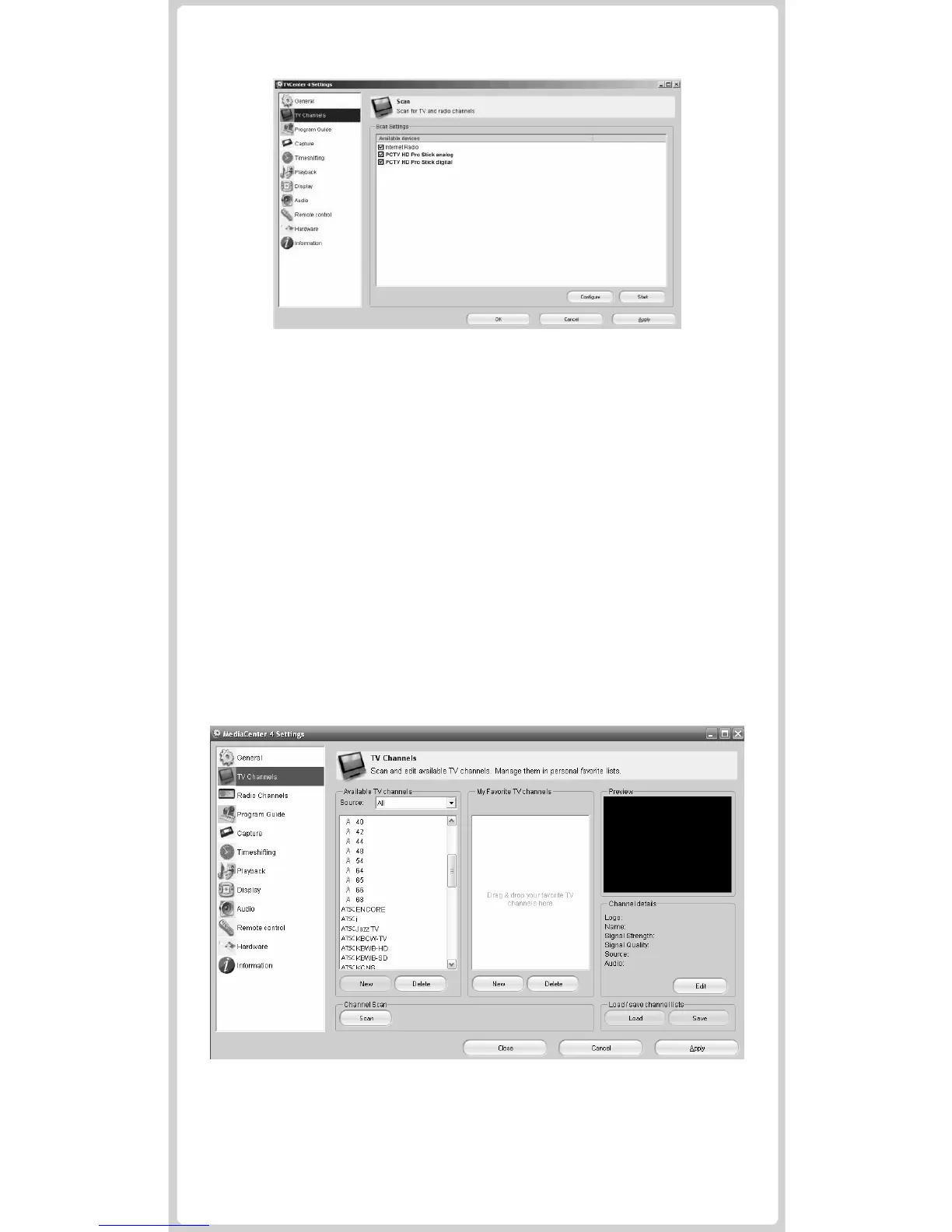
c.) If you have connected a set-top box via the A/V adapter cable (Option 3),
please only select “Internet Radio”.
3. Click “Next” to get to the scan settings dialog. In the “Input Type” drop down
menu, please select the antenna type according to your configuration. You can
leave the other settings at default. Please press “Next” to initialize the scan.
Note: If you are using an antenna configuration (Option 1) and Pinnacle
MediaCenter does not find any digital TV (ATSC) channels, please read the
following:
a.) Check on http://www.antennaweb.org whether ATSC reception should be
possible in your region.
b.) Try to improve the signal reception by repositioning or changing the antenna
(see II. Option 1).
c.) After having finished the Pinnacle MediaCenter set up wizard, repeat the
channel scan: double-click the Pinnacle MediaCenter Settings icon on your
desktop. Go to TV Channels and press the “Scan” button.
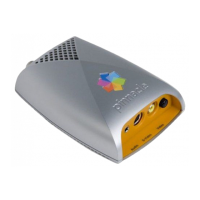
4. The results of the channel scan will appear in the Available TV Channels list.
By dragging and dropping channels to My Favorite TV Channels, you can
organise the channels according to your preference. In the My Favorite TV
Channels box, you can also sort or rename channels. Double-clicking on a
channel name will start the preview of the respective channel.
When using a set-top box configuration (Option 3): once having opened Pinnacle
MediaCenter, you will want to click on the Channel Name/Number field to pull up
the channel list. Select S-Video or Composite video feed at the bottom of this list.


 To Next Page