EasyManua.ls Logo

Pioneer AVH-X5650BT - User Manual

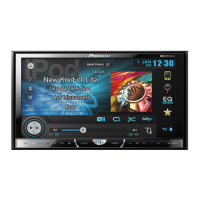
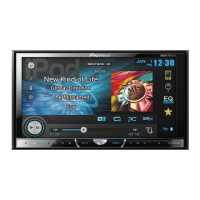
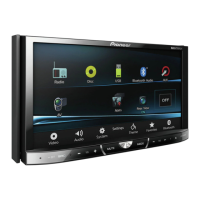
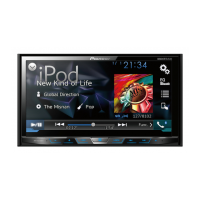
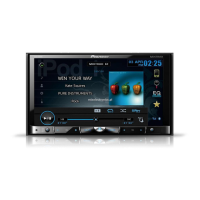
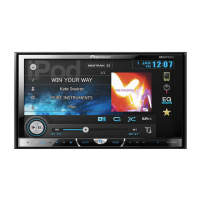
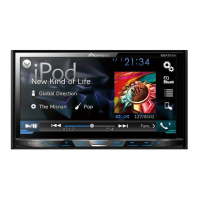
Pioneer AVH-X5650BT
116 pages
Print Icon
To Next Page IconTo Next Page
Loading...
Black plate (1,1)
Owners Manual
戶手
DVD RDS AV RECEIVER
DVD RDS AV
AVH-X5650BT
AVH-X4650DVD
AVH-X2650BT
AVH-X1650DVD
<CRD4759-A>1
English

Table of Contents

Questions and Answers

Summary

Precautions

IMPORTANT SAFEGUARDS

Essential safety instructions for safe operation and vehicle system integrity.

To ensure safe driving

Guidelines and warnings to maintain safe driving practices while using the unit.

To avoid battery exhaustion

Recommendations to prevent unnecessary battery drain during unit operation.

Before you start

About this unit

General information and cautions about the product's laser classification and handling.

About this manual

Guidance on how to use the operation manual for maximum benefit.

If you experience problems

Instructions on what to do if the product fails to operate properly.

Use and care of the remote control

Instructions for installing batteries and handling the remote control.

Demo mode

Explanation of the automatic feature demonstration and how to cancel it.

Whats what

Head unit

Identification of buttons and ports on the main unit for AVH-X5650BT/DVD models.

Using the remote control

Instructions on how to point and operate the remote control, and important handling tips.

Home display

Description of the main screen icons and their functions.

Turning the source ON;OFF

Procedures for powering the unit on and off using the SRC/OFF button.

Selecting a source

Methods for choosing different audio and video sources available on the unit.

Adjusting the volume

How to use the +/- buttons to control the audio volume level.

Remote control

Detailed explanation of the functions of each button on the remote control.

Common operations

Common operations for menu settings;lists

General methods for navigating menu settings and lists within the unit's interface.

Operating the scroll icon and the scrubber bar

Techniques for using scroll icons and scrubber bars to navigate hidden items.

Activating the touch panel keys

How to switch between different touch panel key layouts on the display.

Using the rear view

Instructions on how to display and operate the rear view camera image.

Using the rear monitor

Information on viewing images and videos on a connected rear monitor.

Using sound retriever

How the sound retriever function enhances compressed audio.

Changing the wide-screen mode

Selecting the appropriate screen ratio for playback video for optimal viewing.

Basic operations

Adjusting the angle of the LCD panel and ejecting media

Procedures for adjusting the LCD panel angle and ejecting discs from the unit.

Setting the clock

Steps to set the correct date and time on the unit.

Tuner

Tuner operations

How to use the touch panel keys for basic tuner functions like band selection and tuning.

Storing and recalling stations

Steps to store and recall up to six radio stations for each band using preset tuning keys.

Displaying radio text

Viewing RDS radio text data such as station information.

Storing and recalling radio text

How to store and recall up to six radio text transmissions.

Storing the strongest stations

Using BSM to automatically store the six strongest stations by signal strength.

Tuning in to strong signals

Using local seek tuning to tune only strong radio stations for better reception.

Receiving traffic announcements

How to receive traffic announcements automatically with TA standby.

Tuner

Using PTY functions

Tuning into stations using PTY (program type) information.

Searching for an RDS station by PTY information

Searching for general types of broadcasting programs using PTY information.

Setting the FM tuning step

Adjusting the FM tuning step between 50 kHz and 100 kHz.

RDS setting

Setting up RDS options like limiting stations to regional programming.

Selecting alternative frequencies

Automatically searching for a different station within the same network when reception is poor.

Switching Auto PI Seek

Enabling Auto PI Seek for automatic station searching.

Setting the AM tuning step

Selecting the AM tuning step between 9 kHz and 10 kHz.

Disc (CD;DVD)

Introducing movie operations

How to use the unit to view DVD/DVD-R/RW/CD/CD-R/CD-RW movie files.

Touch panel keys

Identifying the touch panel keys for DVD video playback.

Basic operations

Steps for playing back videos from discs, including automatic playback.

Ejecting a disc

Instructions for ejecting discs from the unit for different models.

Selecting a chapter using the buttons

Using buttons to select specific chapters during disc playback.

Sound playback operations

How to use the unit to listen to DVD-R/DVD-RW/CD/CD-R/CD-RW sound files.

Touch panel keys

Identifying touch panel keys for sound playback operations.

Switching the media file type

Switching between media file types on a DVD or CD containing mixed formats.

Operating the DVD menu

Using the DVD menu to make selections from disc contents.

Using the arrow keys

Using arrow keys to navigate and operate the DVD menu.

Random play (shuffle)

Playing disc files in a random order within the repeat range, folder, or disc.

Repeating playback

Setting repeat playback for disc, chapter, title, track, file, or folder.

Searching for the part you want to play

Using the search function to find specific titles, chapters, or tracks on a disc.

Selecting audio output

Switching audio output for LPCM audio discs or stereo/monaural for VCDs.

PBC playback

Operating PBC playback for Video CDs.

Selecting tracks from the track title list

Selecting tracks for playback from a list of recorded tracks on a disc.

Selecting files from the file name list

Selecting files from a list of file or folder names.

Playing DivXâ VOD content

Information on playing DivX Video on Demand content with time restrictions.

iPod

iPod control

Information on iPod models supported and basic control.

Sound playback operations

Using the unit to listen to iPod sound files.

Touch panel keys

Identifying touch panel keys for iPod audio control and App Mode.

Sound retriever key

Using the sound retriever key for audio enhancement.

iPod control mode key

Switching to iPod control mode for operating the iPod via the car's speakers.

Shuffle key

Playing songs on the iPod in random order.

Repeat key

Selecting the repeat range for iPod playback.

Change speed key

Changing the playback speed of audiobook files on the iPod.

Genre

Displaying the Genres list on the iPod.

Album title

Displaying the Albums list on the iPod.

Pause and play key

Pausing and starting playback of iPod content.

Unit operation key

Operating the unit to listen to iPod music through car speakers.

Screen mode key

Changing the screen mode for iPod playback.

Sound playback operations for Bluetooth

How to enjoy audio from a Bluetooth audio player through the unit.

Moving images operations

Viewing iPod movie files on the unit's display.

Using this units iPod function from your iPod

Listening to iPod applications through car speakers in App Mode.

Shuffle play

Playing songs or videos in random order from the iPod.

Repeating playback

Repeating playback of songs or videos on the iPod.

Playing videos from your iPod

Playing video files from a connected iPod with video capabilities.

Browsing for a video;music on the iPod

Easy searching and operations for controlling an iPod with the unit.

Searching the list by alphabet

Finding videos or songs by searching alphabetically within iPod menus.

Changing audiobook speed

Adjusting the playback speed for audiobooks on the iPod.

Displaying lists related to the song currently playing (link search)

Opening a list of songs on the current album by touching the artwork.

AppRadio Mode operation

AppRadio Mode operation

Switching to AppRadio Mode to display and operate iPhone applications on the unit's screen.

Setting the Keyboard

Setting the language for the keyboard input in AppRadio Mode.

Starting procedure

Step-by-step instructions to set up and start AppRadio Mode on the iPhone.

Smartphone link adaptor operations

Starting procedure

Connecting and starting the smartphone link adaptor for MirrorLink functionality.

USB

Information on USB connectivity and file compatibility for MSC and MTP modes.

Moving images operations

Viewing USB storage device files on the unit's display.

Touch panel keys

Identifying touch panel keys for USB media playback.

Slow-motion playback key

Moving the selection one frame at a time during playback.

Stop key

Stopping playback and resuming from the stopped point.

Screen mode key

Changing the screen mode for USB media playback.

Pause and play key

Pausing and starting playback of USB media.

Basic operations

Steps for playing back videos and tracks from a connected USB device.

Sound playback operations

Listening to USB audio files through the unit.

MTP connection

Connecting MTP-compatible Android devices for MP3/WMA/AAC files.

Random play (shuffle)

Playing USB files in random order.

Repeating playback

Setting repeat playback for folders or all files on a USB device.

Selecting files from the file name list

Selecting files from a list of file or folder names for playback.

Still image playback operations

Viewing still images saved on a USB storage device.

Switching the media file type

Switching between media file types on a USB device.

Playing DivXâ VOD content

Information on playing DivX VOD content, same as for Disc.

Capture an image in JPEG files

Capturing image data from a slideshow to use as wallpaper on the unit.

Bluetooth Audio

Sound playback operations

Listening to Bluetooth audio files through the unit's speakers.

Touch panel keys

Identifying touch panel keys for Bluetooth audio playback.

Setting up for Bluetooth audio

Establishing a Bluetooth wireless connection between the unit and audio player.

Random play (shuffle)

Playing Bluetooth audio files in random order.

Repeating playback

Setting repeat playback for Bluetooth audio tracks.

Using MIXTRAX

MIXTRAX operation

Overview of MIXTRAX technology for creating non-stop DJ mixes with effects.

MIXTRAX EZ operation

Using MIXTRAX EZ to play iPod/USB audio files with sound effects.

Starting MIXTRAX EZ operation

Initiating MIXTRAX EZ operation.

Setting MIXTRAX mode

Configuring MIXTRAX mode for playing audio files.

Setting the effect

Changing settings for sound effects and sound combinations in MIXTRAX.

Fixed sounds

Descriptions of available fixed sounds for MIXTRAX playback.

Sound effects

Descriptions of available sound effects for MIXTRAX playback.

Setting sounds and sound effects as presets using the preset key

Setting desired sound combinations and effects as presets using the Custom key.

Bluetooth telephone

Bluetooth telephone operations

Using the Bluetooth telephone function of the unit.

Touch panel keys

Identifying touch panel keys for telephone standby and entering phone number modes.

Volume key

Adjusting the other party's listening volume.

Private mode key

Turning private mode on or off for direct conversation.

Off-hook key

Accepting calls, making calls, or switching between callers on hold.

Voice control key

Using voice commands for phone operations if the cellular phone supports it.

Incoming call notice

Indicator for incoming calls that have not been checked.

Setting up for hands-free phoning

Initial connection and volume adjustment for hands-free phone use.

Calling a number in the phone book

Making calls by selecting numbers from the phone book.

Selecting a number by alphabet search mode

Searching the phone book alphabetically to find contacts.

Inverting names in phone book

Changing the order of first and last names in the phone book.

Using the missed, received and dialed call lists

Browsing and calling from recent call history lists.

Adjusting the other party’s listening volume

Adjusting the volume of the other party's voice and ring tone.

Switching the ring tone

Selecting whether to use the unit's ring tone or the phone's.

Using the preset dial lists

Storing and using up to six preset phone numbers for quick dialing.

Making a call by entering phone number

Dialing a phone number directly using the keypad.

Setting the private mode

Switching to private mode for direct conversation on the cellular phone.

Voice control

Using voice commands for phone operations, including Siri Eyes Free.

TV tuner

TV tuner operations

Operating the TV tuner, including changing channels and screen modes.

Changing the wide-screen mode

Selecting the appropriate screen ratio for TV playback.

Storing stations

Automatically storing listened-to stations.

Setting the video signal

Selecting suitable video signal settings for AV equipment.

Settings

Menu operations

Navigating the unit's menus using touch panel keys.

Audio adjustments

Adjusting audio settings for sound quality and balance.

Using fader;balance adjustment

Adjusting front/rear and left/right speaker balance for optimal listening.

Using balance adjustment

Adjusting the balance between left/right sound output.

Using the equalizer

Adjusting the unit's equalization to match interior acoustics.

Recalling equalizer curves

Recalling and applying stored equalizer curves.

Adjusting the 8-band graphic equalizer

Adjusting the level of each band in the 8-band graphic equalizer.

Using the auto-equalizer

Turning the auto-equalizer on or off, requiring a microphone.

Using sonic center control

Creating sound suited for the listening position using sonic center control.

Adjusting loudness

Compensating for low-frequency and high-frequency deficiencies at low volumes.

Using subwoofer output

Turning the subwoofer output on or off and adjusting its level and phase.

Boosting the bass

Increasing the bass level.

Using the high pass filter

Listening only to high-frequency sounds by adjusting the high-pass filter cutoff.

Adjusting source levels

Adjusting volume levels of different sources to prevent significant differences.

Setting up the video player

Configuring settings for video playback, including subtitles and audio languages.

Setting the subtitle language

Setting a desired subtitle language for DVD playback.

Setting the audio language

Setting the preferred audio language for DVD playback.

Setting the menu language

Setting the preferred language for disc menus.

Setting the multi-angle DVD display

Enabling or disabling the angle icon for multi-angle scenes.

Setting the aspect ratio

Selecting the correct TV aspect ratio for the display.

Setting the slideshow interval

Setting the interval between JPEG images for slideshow playback.

Setting parental lock

Restricting children from viewing violent or adult-oriented scenes on DVD discs.

Setting the code number and level

Registering a code number to enable parental lock functionality.

Changing the level

Changing the set parental lock level.

If you forget your code number

Instructions for what to do if the parental lock code number is forgotten.

Setting the DivX subtitle file

Selecting whether to display DivX external subtitles.

Displaying the DivXâ VOD registration code

Generating and displaying the DivX VOD registration code for unit registration.

Displaying the deregistration code

Entering the deregistration code to deregister the device.

Automatic playback of DVDs

Automatically cancelling menus and starting playback from the first chapter of a DVD.

System settings

Configuring various system settings for the unit's operation.

Switching the auxiliary setting

Activating the auxiliary setting for connected devices.

Setting AV input

Activating the AV input setting for external video components.

Setting the navigation system

Activating settings for a connected Pioneer add-on navigation system.

Selecting MirrorLink Mode

Selecting the MirrorLink Mode for smartphone connectivity.

Updating the firmware for the smartphone link adaptor

Updating the smartphone link adaptor firmware with the latest version.

System settings

Important

Key points regarding USB storage device usage for updates.

Displaying the smartphone link adaptor firmware version

Checking the firmware version of the smartphone link adaptor.

Updating firmware

Updating the unit's firmware with the latest version from Pioneer's website.

Displaying the firmware version

Checking the current firmware version of the unit.

Setting MIXTRAX mode

Setting MIXTRAX mode for audio playback.

Changing the picture adjustment (Brightness, Contrast, Color, Hue, Dimmer and Temperature)

Adjusting picture settings for sources and rear view cameras.

Selecting the system language

Selecting the system language for menus and text information.

Setting Demo Mode

Turning the Demo Mode on or off to display the demonstration screen.

Switching sound muting;attenuation

Muting or attenuating sound when a signal from external equipment is received.

Setting the rear output and subwoofer controller

Configuring rear speaker output for full-range or subwoofer connection.

Using the keyboard

Information on keyboard usage, available only in AppRadio Mode.

Setting the ever scroll

Enabling or disabling continuous scrolling of text information on the display.

Setting the Bluetooth audio

Activating the Bluetooth Audio source to enable Bluetooth audio player usage.

Clearing Bluetooth memory

Deleting paired Bluetooth device memory.

Updating Bluetooth software

Updating the unit's Bluetooth software with the latest version.

Displaying the Bluetooth software version

Checking the version of the unit's Bluetooth module software.

Setting the rear view camera (back up camera)

Configuring settings for the rear view camera, including polarity and image reversal.

Auto EQ (auto-equalizing)

Automatically measuring and adjusting audio settings based on car acoustics.

Performing auto EQ

Step-by-step guide to performing the auto EQ measurement process.

Selecting the video format

Switching the video output format between NTSC and PAL.

Setting the steering wheel control

Configuring steering wheel control settings for operating the unit.

SOURCE

Cycling through and turning off available audio/video sources.

BAND;ESC

Selecting tuner bands and cancelling control modes.

VOLUME+;-

Increasing or decreasing volume levels.

Left, Right, Up, Down

Navigating tracks, folders, and radio presets.

PLAY;PAUSE, STOP, FF, REV, MUTE, ATT, MODE

Basic playback and audio control functions.

Off Hook, On Hook, VR

Phone call management and voice control functions.

Favorite menu

Using the Favorite menu

Registering and accessing frequently used menus from a dedicated favorite menu.

Bluetooth connection menu

Bluetooth connection menu operations

Performing operations related to Bluetooth device connections.

Pairing from this unit

Initiating Bluetooth device pairing from the unit.

Connecting to a Bluetooth device automatically

Enabling automatic connection between the unit and Bluetooth devices.

Switching visible unit

Setting whether the unit is visible to other Bluetooth devices.

Entering PIN code for Bluetooth wireless connection

Entering the PIN code to verify Bluetooth device connections.

Displaying Bluetooth Device address

Displaying the unit's Bluetooth device address.

Theme menu

Selecting the illumination color

Choosing from preset or custom illumination colors for the unit.

Customizing the illumination color

Customizing the illumination color by adjusting the color bar.

Selecting the OSD (on-screen display) color

Changing the color of the on-screen display elements.

Selecting the background display

Switching the background image displayed during audio playback.

Other functions

Adjusting the response positions of the touch panels (Touch Panel Calibration)

Calibrating touch panel response positions for accurate touch input.

Using an AUX source

Connecting and using an auxiliary device or portable player.

Resetting the microprocessor

Resetting the unit's microprocessor to initial settings for troubleshooting.

Operating the sound mixer

Listening to audio from the unit and a connected iPhone/smartphone simultaneously.

Connection

WARNING

General warnings regarding image viewing legality and potential hazards.

CAUTION

Cautions about drilling holes, cable routing, and battery connections.

WARNING

Warning regarding speaker wattage and impedance requirements.

Important

Important notes on ACC position and vehicle grounding for installation.

Connecting the power cord

Detailed diagram and instructions for connecting the power cord and associated wires.

When connecting to separately sold power amp

Diagram for connecting to an external power amplifier using RCA cables.

When connecting the external video component and the display

Diagram for connecting external video components and displays, including AV input settings.

WARNING

Warning against installing rear displays where the driver can see them.

When connecting with a rear view camera

Instructions for connecting a rear view camera, including polarity settings.

WARNING

Warnings about using the rear view camera input only for specific camera types.

CAUTION

Cautions regarding the use of mirror-reversed images and camera function limitations.

iPod with lightning connector

Connecting an iPod with a lightning connector using optional cables.

When connecting with optional CD-IV203 cable

Connecting an iPod with a lightning connector using the CD-IV203 cable.

iPod with 30-pin connector

Connecting an iPod with a 30-pin connector using optional cables.

When connecting with optional CD-IU201 V cable

Connecting an iPod with a 30-pin connector using the CD-IU201V cable.

When connecting with optional CD-IU201 S cable

Connecting an iPod with a 30-pin connector using the CD-IU201S cable.

Optional Smartphone link adaptor (CD-ML100) connection

Connecting the optional CD-ML100 smartphone link adaptor.

Connection for updating Smartphone link adaptor firmware

Connecting for updating the firmware of the smartphone link adaptor.

Installation

Notes

General notes and cautions regarding the installation process.

Installation using the screw holes on the side of the unit

Instructions for mounting the unit using side screw holes and factory brackets.

Installing the microphone

Procedures for installing the microphone on the sun visor or steering column.

Adjusting the microphone angle

Adjusting the angle of the microphone for optimal voice recognition.

Additional information

Troubleshooting

Common issues and solutions for power, operation, remote control, and playback problems.

DVD

Troubleshooting specific to DVD playback, including region codes and parental locks.

Playback is not performed with the audio language and subtitle language settings selected in Video Setup menu.

Issues related to audio/subtitle language settings not matching disc content.

The viewing angle cannot be switched.

Troubleshooting when multi-angle viewing is not possible.

The image is extremely unclear;distorted and dark during playback.

Issues with playback image quality potentially due to copy protection signals.

Video CD

Troubleshooting specific to Video CD playback, particularly PBC issues.

Repeat play and track;time search are not possible.

Issues with repeat play and search functions on PBC-enabled Video CDs.

iPod

Troubleshooting iPod connectivity and playback issues.

Sound from the iPod cannot be heard.

Issues with iPod audio output, possibly due to Bluetooth/USB conflicts.

Bluetooth audio;telephone

Troubleshooting Bluetooth audio and telephone sound playback.

The sound from the Bluetooth audio source is not played back.

Issues when Bluetooth audio sound is not heard, possibly due to active calls.

Error messages

Common error messages displayed by the unit and their meanings.

AMP Error

Error message related to amplifier output or speaker connection issues.

Tuner

Troubleshooting messages related to tuner reception and data display.

DVD

Troubleshooting messages related to DVD playback, including region codes and disc errors.

Unplayable Disc

Error message when a disc cannot be played due to format or compatibility issues.

Protect

Error message indicating files are protected by DRM.

Skipped

Error message when DRM-protected files are skipped.

TEMP

Error message indicating the unit is operating outside normal temperature range.

This DivX rental has expired.

Error message for expired DivX VOD content.

Video resolution not supported

Error message for unsupported video resolutions on inserted discs.

It is not possible to write it in the flash.

Error message indicating the unit's flash memory is full.

Your device is not authorized to play this DivX protected video.

Error message when the device is not authorized for DivX VOD content.

Format Read

Message indicating a delay between starting playback and hearing sound.

Video frame rate not supported

Error message for unsupported video frame rates in DivX files.

Audio Format not supported

Error message indicating the audio format is not supported.

External storage device (USB)

Troubleshooting messages related to USB storage devices.

Unplayable File

Error message when a file on a USB device cannot be played.

There are no songs.

Message indicating no songs are available on the iPod or USB device.

Security for the connected USB memory is enabled.

Message indicating USB memory security is active and the unit needs restarting.

Check USB

Troubleshooting USB connection issues like short circuits or overcurrent.

Error-02-9 X;-DX

Error message indicating communication failure with USB devices.

This DivX rental has expired.

Message indicating expired DivX VOD content.

Video resolution not supported

Message indicating unsupported video resolution for DivX/MPEG files.

It is not possible to write it in the flash.

Message indicating the unit's flash memory is full.

Your device is not authorized to play this DivX protected video.

Message indicating DivX VOD authorization issues.

Format Read

Message indicating a delay during format read operations for iPod.

Error-02-6 X;-9 X;-DX

Error message indicating communication failure with iPod devices.

iPod failure.

General error message indicating an iPod malfunction.

Error-02-67

Error message indicating an outdated iPod firmware version.

Stop

Message indicating no songs are available on the iPod.

Not Found

Message indicating no related songs are found for the iPod.

Bluetooth

Troubleshooting Bluetooth error messages.

Error-10

Error message indicating power failure for the Bluetooth module.

MirrorLink

Troubleshooting MirrorLink application list and connection errors.

Communication error occurred.

Error message indicating a communication error with a smartphone.

Launching the application failed.

Error message indicating failure to launch a smartphone application.

USB connection was temporarily disabled for device protection.

Message indicating USB device protection is active and the unit needs restarting.

Understanding auto EQ error messages

Explains common error messages encountered during auto EQ measurement.

Messages

Table translating common messages displayed by the unit.

Indicator list

Explains the meaning of various indicators and icons displayed on the unit.

Handling guidelines

Guidelines for handling discs and the player, including disc types and cleaning.

Discs and player

Information on compatible disc types and discs that cannot be used with the unit.

USB storage device

Potential issues and operations related to USB storage devices.

iPod

Information regarding iPod settings and compatibility.

DVD-R;RW discs

Compatibility information for unfinalized DVD-R/RW discs.

CD-R;RW discs

Compatibility information for finalized CD-R/RW discs.

JPEG picture files

Information on JPEG file compatibility and formats.

DivX video files

Information on DivX video file compatibility and potential playback delays.

Audio compatibility (USB)

Details on supported audio file formats for USB devices (WAV, MP3, AAC).

Compressed file compatibility (disc, USB)

Compatibility details for compressed audio files (WMA, MP3, AAC) on discs and USB.

DivX compatibility

Information on DivX video format compatibility and codecs.

Supplemental information

Notes on file name display limitations and potential issues with WMA files.

Disc (CD;DVD)

Playable folder and file limits for CD/DVD discs.

External storage device (USB)

Playable folder and file limits for USB storage devices.

iPod compatibility

List of compatible iPod and iPhone models.

Sequence of audio files

How to assign playback sequence numbers to audio files.

Using the display correctly

Cautions and guidance on correctly using the unit's display and touch panel.

Handling the display

Precautions for handling and cleaning the LCD screen to prevent damage.

Liquid crystal display (LCD) screen

Notes on potential LCD screen characteristics like dots.

LED (light-emitting diode) backlight

Information on the LED backlight's behavior at low temperatures.

LED (light-emitting diode) backlight

Information on the LED backlight's lifespan and potential issues.

Keeping the display in good condition

Instructions for cleaning the display screen safely.

Bluetooth profiles

List of Bluetooth profiles supported by the unit for wireless technology.

License, Warranty Disclaimer & Limitation of Liability

Legal disclaimers, warranty information, and limitations of liability.

libpng

Information about the libpng software license.

WMA

Information on WMA file compatibility and Microsoft Corporation's terms.

iPod & iPhone

Details about iPod & iPhone compatibility and Apple Inc. trademarks.

Android

Information regarding Android trademark.

Dolby Digital

Information about Dolby Digital manufacturing licenses.

DivX

Information about DivX format, DivX Certified logos, and Rovi Corporation.

ABOUT DIVX VIDEO-ON-DEMAND

Instructions for registering the unit to play purchased DivX VOD movies.

MIXTRAX

Trademark information for MIXTRAX.

MirrorLink

Information on MirrorLink certification marks and trademarks.

Language code chart for DVD

A chart listing DVD language codes and their corresponding input codes.

Specifications

Technical specifications for the unit's hardware and features.

General

General specifications including power source, dimensions, and weight.

Display

Specifications related to the unit's display, such as screen size, pixels, and color system.

Audio

Specifications for audio output, including power, equalizer, and HPF settings.

DVD Player

Specifications for the DVD player, including usable discs, region numbers, and file formats.

USB

Specifications for USB connectivity, including standard, class, and file system compatibility.

FM tuner

Specifications for the FM tuner, including frequency range and sensitivity.

AM tuner

Specifications for the AM tuner, including frequency range and sensitivity.

Bluetooth

Specifications for the Bluetooth module, including version and output power.

Pioneer AVH-X5650BT Specifications

General IconGeneral
ModelAVH-X5650BT
DIN SizeDouble DIN
TouchscreenYes
Resolution800 x 480 pixels
BluetoothYes
USB Ports1
AUX InputYes
DVD PlayerYes
CD PlayerYes
MP3 PlaybackYes
WMA PlaybackYes
AAC PlaybackYes
DivX PlaybackYes
iPod/iPhone CompatibilityYes
Android CompatibilityYes
AppRadio ModeYes
RMS Power Output14 watts
Peak Power Output50 watts
Equalizer13-band graphic equalizer
Rear View Camera InputYes
Steering Wheel Control CompatibilityYes
AM/FM TunerYes
High-Pass FilterYes
Low-Pass FilterYes
Subwoofer ControlYes
Time AlignmentYes
Dimensions (W x H x D)178 x 100 x 165 mm
Preamp Outputs3 pairs (Front, Rear, Subwoofer)
Preamp Voltage4V
Display Size7-inch

Related product manuals