PP
Scrol ling&the&map&to&the&position&you&
want&to&see
1 Press the ,"1 button.
2 Touch anywhere on the map or touch and drag
the map in the desired direction to scroll.
If you place the cursor on the desired location, a brief overview
about the location will appear at the top of the screen, showing
the street name and other information for the location.
3 Touch .
The map returns to the current position.
p
If you press the ,"1 button, the map returns to the current
position.
Control&keys&on&the&scrolled&map
Rotates the map clockwise or
counterclockwise.
Changes the map view mode.
The current map mode is shown on the
control key.
Zooms in or out on the map.
You can also zoom out or in by
pinching or expanding the map.
Cancels map rotation.
Tilts the map angle up or
down.
You can change the vertical view
angle of the map in 3D mode
only.
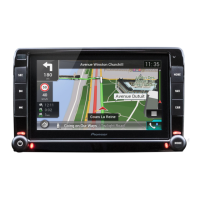
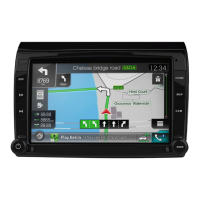
Map screen (scrolled map)
Understanding&the&route&
guidance
Once the route guidance begins, the system provides various
guides by voice, text indications and signs.
Frequently&shown&route&events
The following are some examples of the maneuvers that are
displayed.
Icon Meaning
Turn lef t, t urn rig ht, tu rn back.
3
Go left on the roundabout, 3rd exit
(next manoeuvre).
Enter roundabout (manoeuvre after
the next manoeuvre).
Motorway entrance or motorway exit.
Board ferry or leave ferry.
Approaching the destination or a
waypoint.
Lane&information
When navigating on multilane roads, you will need to make sure
to take the proper lane for the recommended route.
Signposts
Signs are displayed at the top of the map.
Junction&view
If you are approaching a complex intersection, the map is
replaced with a 3D view of the junction.
!"#$%&''()*"+
How5to5use5the5map


 To Next Page
 Loading...