Need help?
Do you have a question about the Pioneer Elite VSX-56TXi and is the answer not in the manual?
Covers cautions regarding electric shock, opening the unit, and using the polarized plug.
Warns against exposing the appliance to rain or moisture to prevent fire or shock.
Highlights the importance of recording the serial number for security and warranty.
Advises caution when handling cords due to potential exposure to lead.
Covers basic usage, cleaning, attachments, and environmental/location advice.
Details grounding, polarization, power cord protection, and object/liquid entry safety.
Covers safety related to lightning, power lines, overloading, mounting, and heat.
Guidelines for servicing, damage requiring service, replacement parts, and safety checks.
Highlights key features like MCACC, i.LINK digital interface, Dolby/DTS, video conversion, and USB.
Lists essential accessories that should be included with the receiver.
Instructions on how to open the front panel to access controls.
Guide for loading batteries into the remote control and a related caution.
Specifies necessary space around the unit for heat dissipation and preventing overheating.
Advice on placing the receiver on a stable surface and avoiding unsuitable locations.
Explains the remote control battery indicator and the process for replacing batteries.
Details the effective range, obstacles, and environmental factors affecting remote operation.
Explains home theater and surround sound principles for audio enjoyment.
Guides for connecting DVD player and TV to achieve surround sound.
Details connecting front, center, surround, and subwoofer speakers, including impedance notes.
Instructions for powering on the receiver and selecting the desired source input.
Guide to initiating the automatic surround sound setup process.
Steps for playing a source, like a DVD, and adjusting the listening volume.
Instructions for connecting the supplied microphone to the front panel.
Steps to navigate the remote control to start the system setup menu.
Navigating the System Setup menu to access Surround Setup and SurrBack options.
Options for configuring the surround back speaker system (Normal, Expert, etc.).
Steps to start the automatic setting and run test tones for speaker calibration.
Verifying detected speaker configurations and finalizing the setup with OK.
Tips for optimal room conditions and addressing potential TV interference during setup.
Checks for correct digital audio output settings on your DVD player.
Steps for playing a source, selecting input, and adjusting the master volume.
Describes i.LINK connectors and digital coaxial audio inputs on the rear panel.
Explains USB audio input, IR input/output, and Pioneer component control jacks.
Details analog audio inputs/outputs and terminals for AM/FM antennas.
Describes digital audio outputs and multi-room audio/video outputs.
Covers A/V inputs, component video I/O, 12V trigger jack, and RS-232C connector.
Explains how the video converter handles composite, S-video, and component inputs.
Describes RCA analog, coaxial digital, and optical digital audio cables.
Describes standard RCA video and S-video cables for picture connections.
Explains component video cables for superior color reproduction.
Advice on routing cables to avoid potential humming noise from magnetic fields.
How to connect the receiver's MONITOR OUT video jack to a TV input.
Connecting the TV's analog audio outputs to the receiver's TV/SAT inputs.
Connecting the TV's optical or coaxial digital audio output to the receiver.
Connecting the coaxial digital audio output from a DVD player.
Connecting analog audio outputs from a DVD player to the receiver.
Connecting composite or S-video outputs from a DVD player to the receiver.
Connecting 5.1, 6.1, or 7.1 channel analog outputs from a DVD player.
Connecting surround back analog outputs from a DVD player.
Connecting analog audio and video from a set-top box to the TV/SAT inputs.
Connecting digital audio output from a set-top box to the DIGITAL 1 input.
Connecting recorder audio/video outputs to the receiver's VCR1/DVR inputs.
Connecting receiver audio/video outputs to a recorder's inputs.
Connecting digital audio output from a recorder to a digital input.
Connecting analog audio and video from various sources to spare receiver inputs.
Connecting digital audio output from sources to spare receiver digital inputs.
Connecting component video outputs from sources to receiver component video inputs.
Configuring the receiver to recognize component video inputs.
Connecting the receiver's component video monitor output to a TV or monitor.
Connecting a coaxial digital audio output from a component to the receiver.
Connecting the receiver's digital outputs to a component's digital inputs.
Connecting analog outputs from tape decks, MD recorders, etc., to receiver inputs.
Connecting a turntable, including its grounding wire and PHONO/LINE setup.
Describes composite video, S-video, analog audio, and optical digital inputs on the front panel.
Explains connecting front, center, surround, surround back speakers, and a subwoofer.
Details on making bare wire and banana plug connections for speakers.
Advice on optimal speaker positioning for the best surround sound effect.
Instructions for assembling and positioning the AM loop antenna.
Connecting the supplied FM wire antenna to the receiver.
Information on connecting an external FM antenna for improved reception.
Suggestion for extending the AM antenna to improve reception.
Instructions for connecting the supplied power cord to the receiver and outlet.
Guidelines for using the switched AC outlet, including power limitations.
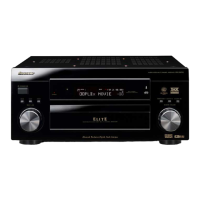
Describes controls like MULTI JOG dial, STANDBY/ON, listening mode buttons, and ENTER.
Explains indicators (STANDBY, MCACC, i.LINK) and ports (MIC, VIDEO INPUT).
Controls for audio modes (STEREO/DIRECT) and listening modes (MOVIE/MUSIC).
Controls for tuner operation (BAND, TUNER EDIT) and multi-room features.
Controls for selecting video inputs and managing speaker output.
Indicators for input signal, Dolby, DTS, STEREO, and digital formats.
Indicators for LOUDNESS, MIDNIGHT, TONE, DNR, SB CH, MULTI-ROOM, HI-BIT.
Indicators for tuner status (STEREO, MONO) and speaker system selection (A/B).
Remote display screen, SOURCE, TV, and MULTI CONTROL buttons.
Buttons for SYSTEM SETUP, SIGNAL SEL, DNR, and HI-BIT functions.
Navigation buttons, AUDIO, and Listening mode controls (MOVIE/MUSIC).
Controls for SYSTEM OFF, MULTI OPERATION, INPUT, and VOLUME.
Tuner controls, ACOUSTIC EQ, and REMOTE SETUP functions.
Describes the Stream Direct feature for automatic source detection and playback.
How to select MOVIE or MUSIC listening modes and adjust settings.
Describes THX CINEMA, Pro Logic IIx MOVIE, Pro Logic, and Neo:6 CINEMA modes.
Lists modes like ACTION, SCI-FI, DRAMA, MUSICAL for enhanced movie sound.
Describes Pro Logic IIx MUSIC, Neo:6 MUSIC, Dolby Digital EX, and DTS-ES music modes.
Lists modes like CLASSICAL, JAZZ, ROCK, DANCE for music listening.
Explains how to adjust Center Width, Dimension, and Panorama parameters.
Adjusting the center image effect for vocals in Neo:6 Music mode.
Setting the emphasis level for advanced sound effects independently for each mode.
Using STEREO or DIRECT modes for front speaker playback.
Connecting headphones for private listening.
How to select multichannel analog inputs as the audio source.
Using Acoustic Calibration EQ settings for room equalization.
Explains how to select the input signal type for optimal playback and recording.
How to enable or disable the surround back channel for 6.1/7.1 audio.
Table showing compatibility of surround modes with different source types.
Using virtual surround back speakers when physical ones are not connected.
Using the audio scaler for improved dynamic range with digital sources.
Using modes for clearer sound at low volumes or boosting bass/treble.
Enabling or disabling the tone controls (bass/treble adjustment).
Fine-tuning the bass and treble levels for desired tone.
Switching on digital noise reduction to improve sound quality from noisy sources.
Specifying playback options for dual mono encoded Dolby Digital soundtracks.
Explains automatic (search) and manual (step) tuning for FM and AM stations.
How to tune directly to a station using the remote control's number buttons.
Switching to mono reception for weak FM stereo signals.
Steps to store up to 30 stations in memory for easy recall.
How to listen to stored radio stations using presets.
Customizing names (up to four characters) for preset stations.
How to enter the System Setup menu via the remote control or front panel.
Lists available setup categories like Surround, THX, Input Assign, Function Rename, etc.
Options for using surround back channels (Normal, Second Zone, Bi-Amp, MR&S).
Manual adjustment of speaker parameters like size, number, and balance.
Setting speaker size (SMALL/LARGE/NO) and subwoofer presence (YES/PLUS/NO).
Detailed guide to setting speaker sizes and subwoofer parameters.
Making detailed adjustments to individual channel volume levels using test tones.
Steps for setting channel levels using manual or automatic test tones.
Setting speaker distance to establish proper sound delay for surround effects.
How to use the remote control to operate other connected Pioneer components.
Steps to select and assign preset codes for controlling various components.
How to teach the remote control new commands from other remotes.
Setting up sequences of commands for multiple components.
Controls for TV power, input selection, channel tuning, and volume adjustment.
Controls for accessing TV menus and navigating through them.
Controls for source selection, playback, recording, and fast playback.
Controls for disc navigation, subtitles, display modes, and menus.
Controls for changing audio tracks, accessing menus, and returning to previous screens.
Controlling one component while playing another, without receiver interference.
Programming sequences to operate multiple components simultaneously or turn them off.
Step-by-step guide for programming multi-operation or shutdown sequences.
Selecting commands for components to include in a multi-operation sequence.
How to start a programmed multi-operation sequence.
Using the SYSTEM OFF button to power down all programmed Pioneer components.
Using the 12V trigger to automatically switch components on/off with input selection.
Linking Pioneer components using SR CONTROL jacks for shared remote sensor use.
How to record audio or video from the tuner or connected sources.
Syncing audio with video playback by adjusting soundtrack delay.
Listening to one audio source while selecting a different video source on your TV.
Using the SACD gain feature to maximize dynamic range for SACD discs.
Choosing between four brightness levels for the front panel display.
Adjusting the receiver's speaker impedance setting for speakers under 8 ohms.
Renaming buttons in the remote control display for easier source identification.
Editing button names for functions or key labels on the remote.
Changing the brightness of the remote control display backlight.
Resetting learned commands or all custom settings from the remote.
Steps to reset the receiver to its original factory default settings.
Using surround back terminals to listen to stereo playback in another room.
Selecting active speaker systems (A, B, or both) for audio output.
Connecting front speakers using separate amplifiers for high and low frequencies.
Wiring speakers using two connections per terminal for improved sound.
How to power two independent audio systems in separate rooms.
Connecting separate amplifiers and TVs for multi-room audio setups.
Using surround back terminals for multi-room audio when the MR&S setting is selected.
Using front panel controls to adjust sub room volume and select sources.
Using an IR receiver for controlling components in closed cabinets.
Adding external amplifiers to channels using the receiver's pre-out terminals.
How to connect i.LINK-equipped components using the specified cable.
Configuring the receiver to recognize and assign i.LINK inputs to source functions.
Explains i.LINK interface, its specifications, and data transmission capabilities.
Describes Pioneer's Precision Quartz Lock System for high-precision digital audio.
How to chain multiple i.LINK components together to form a network.
Steps to connect a PC to the receiver's USB terminal for audio playback.
Installing necessary drivers and selecting USB as the computer's audio output.
Starting audio playback from a computer and adjusting volume levels.
Connecting a PC via RS-232C for graphical analysis of room characteristics.
Operating the MCACC software to analyze and display calibration data.
How to enter the main System Setup menu via remote or front panel.
Lists available setup categories: Surround, THX, Input Assign, Function Rename, SACD, PHONO/LINE, Multi Room, 12V Trigger.
Selecting the decoding method for 2-channel sources in THX Cinema mode.
Accessing the Input Assign menu for digital, component video, and i.LINK cables.
Mapping digital inputs (optical/coaxial) to specific connected components.
Configuring the receiver to recognize component video inputs and assign them to sources.
Mapping i.LINK-equipped components to input functions for selection.
Customizing the display names for input sources on the receiver and OSD.
Bypassing digital processing for direct 1-bit DSD audio from SACD discs.
Setting the PHONO jack for turntables or line-level components.
Configuring volume control and IR receiver type for multi-room setups.
Assigning input functions to automatically switch components on/off via 12V trigger.
How to enter the advanced Expert setup menu for detailed adjustments.
Lists advanced settings: Crossover, Fine Channel Level, Delay, EQ, Bass Peak, D-Range.
Setting the frequency cutoff point to send bass sounds to the subwoofer or LARGE speakers.
Making detailed adjustments to individual channel volume levels for overall balance.
Setting precise delay for speakers based on distance for synchronized sound arrival.
Using automatic EQ settings based on room acoustics for balanced sound.
Manually adjusting EQ settings via custom profiles (CUSTOM1/CUSTOM2).
Fine-tuning frequency response and levels for individual channels.
Copying Auto or custom EQ settings to other custom profiles.
Reviewing the ALL CH ADJUST and FRONT ALIGN EQ settings on the display.
Minimizing room reverberation effects and obtaining graphical frequency response output.
Applying calibration based on room characteristics for optimal sound.
Understanding graphs showing decibels vs. time for frequency response analysis.
Adjusting the analysis time period for frequency adjustment based on room characteristics.
Choosing between Auto Pro, Reverb Measurement, Reverb View, PC Output, Advanced EQ Setup.
Executing the recommended automatic professional calibration.
Measuring room reverb characteristics for each channel and frequency range.
Checking the measured reverb characteristics for each channel on the display.
Setting the time period for frequency adjustment and calibration in Advanced EQ Setup.
Limiting bass output to prevent distortion from the subwoofer.
Specifying dynamic range adjustment for Dolby Digital and DTS movie soundtracks.
Causes and remedies for the receiver not powering on.
Troubleshooting sudden power loss, protection circuit activation, or ventilation issues.
Troubleshooting unresponsive buttons, AMP ERR, and FAN STOP errors.
Diagnosing overheating issues and thermistor errors.
Common causes and solutions for no sound output from the entire system.
Troubleshooting issues specifically related to front speaker audio output.
Diagnosing problems with audio output from surround or center speakers.
Troubleshooting issues related to surround back speaker audio.
Diagnosing problems with subwoofer audio output.
Addressing audio issues affecting only one specific speaker.
Troubleshooting sound problems when using analog vs. digital sources.
Diagnosing problems with Dolby Digital/DTS software playback.
Troubleshooting issues with FM/AM radio reception and static.
Addressing multi-channel sources appearing downmixed during playback.
Resolving noise issues that may occur when scanning DTS CDs.
Troubleshooting issues with video connections, assignments, and player settings.
Reasons why the System Setup screen may not display, including cable connections.
Diagnosing video noise issues, possibly related to mixed cable types.
Resolving errors that occur during the automatic surround sound setup process.
Correcting speaker size (LARGE/SMALL) after Auto Surround setup.
Information on what to do if the key lock feature has been enabled by the dealer.
Adjusting display brightness or addressing the display turning off after adjustments.
Troubleshooting when the DIGITAL signal indicator does not display.
Diagnosing why Dolby/DTS format indicators do not light up during playback.
Explanation for why the receiver display may not show 96kHz for DVD-Audio discs.
Troubleshooting display issues with DTS 96/24 format sources.
Reasons why no format indicators light up for certain discs.
Troubleshooting remote control problems like battery issues, range, obstructions, and IR interference.
Troubleshooting when other components cannot be operated with the system remote.
Diagnosing no sound output or incorrect signal type issues with i.LINK connections.
Troubleshooting the i.LINK indicator not lighting and connection errors.
Understanding PQLS ON/OFF messages and SACD playback status.
Issues with recognizing components and understanding network messages like BUS FULL.
Diagnosing no sound issues when playing audio via the USB interface.
Explains Dolby Digital, Dolby Digital Surround EX, and Dolby Pro Logic IIx technologies.
Explains DTS Digital Surround, DTS-ES, Neo:6, and DTS 96/24 technologies.
Explains THX standards, technologies, and their purpose in home theater.
Details Cinema processing, Re-Equalization, Timbre Matching, and Adaptive Decorrelation.
Explains THX Select criteria and the THX Surround EX technology.
Lists brands for programming the remote control for DVD, LD, CD, STB, Tape, Tuner, VCR, TV.
Details on power output, input sensitivity, frequency response, and tone controls.
Specifications for video input/output and FM/AM tuner performance.
Details on power requirements, dimensions, weight, and furnished parts.
Instructions for cleaning the unit's external surfaces using appropriate materials.
Advice on enjoying audio equipment safely and preventing hearing damage.
Steps to set a safe volume level before hearing adapts to higher sounds.
Provides decibel examples of common sounds for context on safe listening levels.
 General
| Channels | 7.1 |
|---|---|
| Frequency Response | 5 Hz - 100 kHz |
| Total Harmonic Distortion (THD) | 0.09% |
| HDMI Inputs | 2 |
| HDMI Outputs | 1 |
| Component Video Inputs | 3 |
| Component Video Outputs | 1 |
| Composite Video Inputs | 5 |
| Composite Video Outputs | 2 |
| Input Sensitivity | 200 mV |
| Signal to Noise Ratio | 100 dB |
| Audio Formats Supported | Dolby Digital, Dolby Digital EX, DTS, DTS Neo:6, Dolby Pro Logic IIx |

 To Next Page