EasyManua.ls Logo

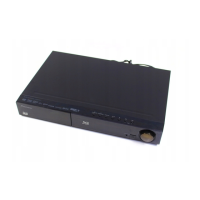
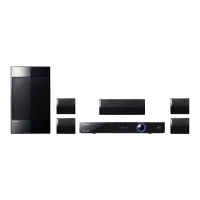
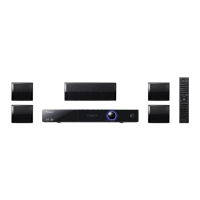
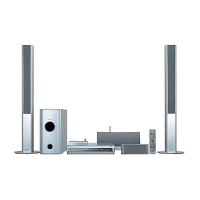
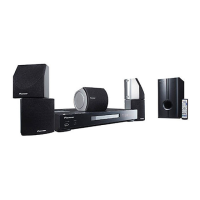
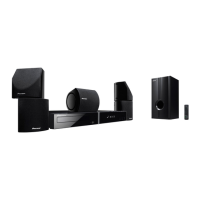
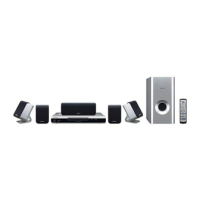
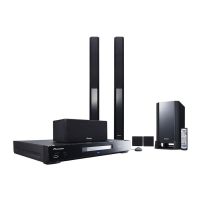
Pioneer HTZ-BD51 - User Manual

Pioneer HTZ-BD51
224 pages
Print Icon
To Next Page IconTo Next Page
Loading...
P/NO: MFL67205127
ENGLISH
FRANÇAIS
ESPAÑOL
HTZ-BD51
XV-BD717W
S-BD50T
S-BD50SW
Blu-ray Disc surround system
Système de cinéma maison Blu-ray Disc
Sistema surround de Blu-ray Disc
Blu-ray Disc receiver | Récepteur Blu-ray Disc
Receptor de Blu-ray Disc
Speaker System | Enceintes acoustiques
Sistemas de parlantes
Speaker System | Enceinte acoustique
Sistema de parlante
l
Protectyournewinvestment
The details of your purchase will be on le for reference in the event of an insurance claim such as loss or theft.
l
Receivefreetips,updatesandservicebulletinsonyournewproduct
l
Improveproductdevelopment
Your input helps us continue to design products that meet your needs.
l
ReceiveafreePioneernewsletter
Registered customers can opt in to receive a monthly newsletter.
Registeryourproductat:
http://www.pioneerelectronics.com(US)
http://www.pioneerelectronics.ca(Canada)
l
Protégezvotrenouveaumatériel
Les reseignements relatifs à votre matériel seront conservés pour
référence en cas de sinistre, tel que la perte ou le vol.
l
Recevezdesconseils,desinformationsd'entretien
etdemiseàjoursurvotrenouveaumatériel
l
Contribuezaudéveloppementdenosproduits
Votre participation nous aide à concevoir des produits qui répondent à vos besoins.
l
Recevezgratuitementlebulletind'informationsdePioneer
Les clients enregistrés peuvent, s'ils le désirent, recevoir un bulletin d'informations mensuel.
EnregistrezvotreproduitsurlesiteWeb:
http://www.pioneerelectronics.com(US)
http://www.pioneerelectronics.ca(Canada)
HB916-MD0_BUSAPPK_ENG.indd 1 2011-09-23 �� 9:02:37

Table of Contents

Questions and Answers

  • R
    Rebecca JonesAug 18, 2025
    Why is my Pioneer HTZ-BD51 remote control not working properly?
    • L
      Laura WoodAug 18, 2025
      The remote control might not be pointed at the unit's remote sensor, or it might be too far away. Ensure there are no obstacles blocking the path between the remote and the unit. Also, the batteries in the remote control may be exhausted and need replacing.
  • D
    Deborah SnyderAug 20, 2025
    What to do if my Pioneer Home Theater System has no picture?
    • B
      brandonarnoldAug 20, 2025
      First, make sure you've selected the correct video input mode on your TV so that the picture from the unit appears. Check that the video connections are securely connected. It is also possible that your TV does not support the current resolution set on the player; try changing the resolution. Verify that the [HDMI Color Setting] in the [Setup] menu is set appropriately for your video connection. Also, the player’s HDMI OUT jack might be connected to a DVI device that does not support copyright protection.
  • D
    Diane McknightAug 22, 2025
    What to do if my Pioneer HTZ-BD51 Home Theater System unit does not start playback?
    • M
      Melinda MoralesAug 23, 2025
      Ensure that you have inserted a playable disc, checking its type, color system, and regional code. Place the disc with the playback side facing down, correctly inside the guide on the disc tray. Clean the disc if it's dirty. Also, cancel the Rating function or change the rating level if it's enabled.
  • W
    weisskarenAug 26, 2025
    Why is my Pioneer HTZ-BD51 BD-LIVE feature not working?
    • L
      Larry LongAug 26, 2025
      The connected USB storage may not have enough space. Connect the USB storage with at least 1GB free space. Ensure the unit is connected to the local area network with internet access. It is possible that your broadband speed may not fast enough to use the BD-LIVE features. The [BD-LIVE connection] option in the [Setup] menu should be set to [Permitted].
  • L
    lthomasAug 28, 2025
    What to do if my Pioneer HTZ-BD51 Home Theater System is plugged in, but the power will not turn on or off?
    • A
      Aaron PerezAug 28, 2025
      You can reset the unit by pressing and holding the STANDBY/ON button for at least five seconds to force it to power off and then back on. If that doesn't work, unplug the power cord, wait at least five seconds, and then plug it back in.
  • C
    Cynthia CastroAug 30, 2025
    Why are streaming video services often stopped or “buffer” during playback on my Pioneer Home Theater System?
    • W
      William ClineAug 31, 2025
      Your broadband service speed may not be fast enough to stream video services. Contact your Internet Service Provider (ISP) and increasing the broadband speed is recommended.
  • M
    Margaret GraySep 2, 2025
    What to do if shared folder or files from PC or media server are not displayed on Pioneer HTZ-BD51 device list?
    • D
      Douglas WatkinsSep 2, 2025
      The firewall or anti-virus software on your media server might be running. Try turning off the firewall or anti-virus software on your PC or media server. Also, ensure that the player is connected to the same local area network as your PC or media server.
  • J
    Janice ColeSep 4, 2025
    Why does my Pioneer Home Theater System have no sound or the sound is distorted?
    • C
      Cody PerezSep 4, 2025
      The unit may be in scan, slow motion, or pause mode. Also, the sound volume might be set too low. Check the speaker cable connections.
  • A
    Anna SharpSep 7, 2025
    What to do if Blu-ray 3D disc playback does not output 3D views on Pioneer HTZ-BD51?
    • T
      Tara WhiteSep 7, 2025
      Ensure that you connect the player to your TV with an HDMI cable (Type A, High Speed HDMI™ Cable with Ethernet). Your TV may not support “HDMI 3D mandatory format.” Also, check that the [3D Mode] option in the [Setup] menu is set to [On].
  • A
    Alex FullerSep 9, 2025
    Why is the access point not displayed on the “Access point name” list of my Pioneer Home Theater System?
    • J
      John BarrettSep 9, 2025
      The access point or wireless LAN router may not be broadcasting its SSID. Set your access point to broadcast its SSID through your computer. Your network device such as access point may not set with available frequency range and channel that this player can support. Try setting the frequency range and channel on the network device setting.

Summary

Safety Information

CAUTION concerning the Power Cord

Safety warnings about power cord use and maintenance.

Battery Safety and Removal

Instructions for safely removing and disposing of batteries.

VENTILATION CAUTION

Instructions for proper unit ventilation to prevent overheating.

FCC Compliance Statement

FCC RF Radiation Exposure Statement

Statement regarding compliance with FCC RF exposure limits.

FCC Radio Frequency Interference Requirements

Restrictions on product use related to FCC frequency interference.

IC Radiation Exposure Statement

IMPORTANT SAFETY INSTRUCTIONS

Hearing Safety Guidelines

Guidance on protecting hearing by setting safe listening levels.

Assemble the speakers

Securing Speakers to Wall

Guidance on securely mounting front and surround speakers using provided hardware.

Additional notes on speaker

Speaker Placement Precautions

Precautions for speaker installation, placement, and magnetic shielding.

Positioning the system

Speaker Placement Guidelines

Recommendations for optimal placement of speakers for surround sound.

Connecting to Your TV

HDMI Connection Guide

Details how to connect the player to a TV using an HDMI cable.

Component Video Connection

Details how to connect the player using component video cables.

Component Video Connection Guide

Details how to connect the player using component video cables.

Additional Information for HDMI

Provides extra details and troubleshooting tips for HDMI connections.

Resolution Setting

Output Resolution Options

Sets the output resolution for Component and HDMI video signals.

Connections with external device

AUX Connection

Instructions for connecting external audio sources via AUX input.

OPTICAL IN connection

Instructions for connecting audio sources via digital optical connection.

PORTABLE IN connection

Instructions for connecting portable audio players via the PORTABLE IN socket.

HDMI IN 1;2 connection

Instructions for connecting video and audio sources via HDMI IN jacks.

Connecting to your Home Network

Wired network connection

Details how to establish a wired network connection for optimal performance.

Wired Network Setup

Wireless Network Connection

Wireless Network Setup

Adjusts network settings for wireless communication.

Wireless Network Setup

Access Point Selection

Scans for and selects available wireless access points.

Notes on Network Connection:

Troubleshooting Network Issues

Provides solutions for common network connection problems and limitations.

USB device connection

Playback content in the USB device

Instructions on how to access and play movie, music, and photo files from a USB device.

Settings

[DISPLAY] Menu Options

Options for adjusting TV aspect ratio and display settings.

Resolution Settings

Sets the output resolution for Component and HDMI video signals.

1080 p Display Mode

Selects the display mode for 1080p resolution, optimizing film material.

HDMI Color Setting

Selects the type of output for HDMI OUT jack (YCbCr or RGB).

3 D Mode Settings

Selects the output mode for Blu-ray 3D disc playback (On/Off).

[NETWORK] Menu

Configures network settings for BD-Live and online content services.

Connection Setting

Guides setting up wired or wireless network connection.

Settings

HD AV Sync Adjustment

Compensates for audio delay by setting sound delay to match video.

[AUDIO] Menu - Speaker Setup

Guides through speaker setup for optimal sound balance and distance.

[LOCK] Menu Options

Settings for parental control and password protection on Blu-ray/DVD playback.

Sound Effect

General Playback

Playing a Disc

Instructions for inserting and playing discs (BD, DVD, Audio CD).

Playing Files from Disc;USB

Plays movie, music, and photo files from discs or USB devices.

Playing Blu-ray 3 D disc

Preparation for 3 D Playback

Requirements for playing Blu-ray 3D titles, including TV compatibility and glasses.

Enjoying BD-Live

BD-Live Setup and Usage

Steps to connect and use BD-Live features, requiring network and USB storage.

Playing a file on a network server

Entering a network user ID and the password

Basic operations for video and audio content

Resume playback

Advanced Playback

Marker Search

Using the search menu

Last Scene Memory

Playback Options

Audio CD Recording

CD Recording Process

Steps to record tracks from an Audio CD to a USB storage device.

Playing the iPod

Radio Operations

Using the Online

Troubleshooting

General Issues

Solutions for common issues like power, playback, remote control, and unit operation.

Network Issues

Troubleshooting network problems like BD-LIVE, streaming, connectivity, and access points.

Picture Issues

Solutions for picture issues like no image, noise, or 3D playback problems.

Sound Issues

Solutions for sound issues like no sound or distorted audio.

Controlling a TV with the Supplied Remote Control

Video Output Resolution

Pioneer HTZ-BD51 Specifications

General IconGeneral
TypeHome Theater System
Number of Channels5.1
Total Power1000W
Blu-ray PlaybackYes
3D PlaybackYes
HDMI Inputs4
HDMI Output1
USB PortYes
Ethernet PortYes
Wireless ConnectivityNo
Audio DecodingDolby TrueHD, DTS-HD Master Audio
4K UpscalingNo
BluetoothNo
Wi-FiNo

Related product manuals