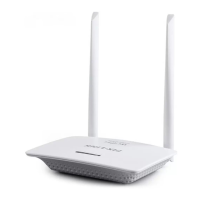
Connect the WAN port of the router to the optical
modem or broadband network port, the WAN LED on.
.
Quick Installation Guide
1200M Wireless Dual Band Router
1 Hardware Descripon
Ports and Buttons:
Power Interface
Connect to power
Reset Button
Press and hold the button more
than 5s system set factory default.
WAN
Connect ADSL cat or broadband network port
LAN
Connect PC
LE D Ex pl an at io n:
LED
Status
Indication
Power
On
Normal power supply
Off
Abnormal power supply or no power supply
WAN
On
Cable accessed
Blinking The port is transmitting of receiving data
Off
WAN port abnormal or cable unplugged
LAN1
On
Cable accessed
Blinking The port is transmitting of receiving data
Off
LAN1 port abnormal or cable unplugged
LAN2
On
Cable accessed
Blinking
Off
LAN2 port abnormal or cable unplugged
The port is transmitting of receiving data
LAN3
On
Cable accessed
Blinking The port is transmitting of receiving data
Off
LAN3 port abnormal or cable unplugged
LAN4
On
Cable accessed
Blinking The port is transmitting of receiving data
Off
LAN4 port abnormal or cable unplugged
2 Installaon Connecon
3 Connect Router
Method 2: Connect the computer to the LAN port
of the router with a cable. The LAN indicator light
is always on.
4 Router Internet Sengs
1、Launch the browser and enter 192.168.7.1 in the address .
2、Enter the login page, enter the password for the device a
dministraon page. The password defaults to admin.
Method 1: The wireless devices such as mobile phones
are connected to the wireless network of the router.
The default wireless name can be viewed on the bottom
label of the router.
PIX-LINK- 2. 4G
PIX-LINK- 5.8G

 Need help?
 General

 To Next Page