EasyManua.ls Logo

Planar PT1545R - User Manual

Planar PT1545R
33 pages
Print Icon
To Next Page IconTo Next Page
Loading...
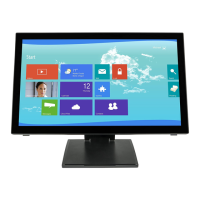
PT1545R / PT1545P
Touch Screen Monitor
USER’S GUIDE
www.planar.com

Other manuals for Planar PT1545R

Questions and Answers

  • A
    Andrea EdwardsAug 15, 2025
    Why is the power indicator blinking amber on my Planar PT1545R?
    • B
      Bryan DeanAug 15, 2025
      If the power indicator on your Planar monitor is blinking amber, it means the monitor is using its power management system. To address this, check the power management utility on your computer.
  • B
    Bradley ColeAug 18, 2025
    What to do if there is no picture and LED is off on Planar PT1545R Monitor?
    • J
      John DixonAug 18, 2025
      If there's no picture on your Planar Monitor and the LED is off, check the power switch. Also, verify that the AC power cord is properly connected to the AC adapter.
  • N
    Nicholas FritzAug 21, 2025
    Why is there no picture and the LED is amber/blinking on my Planar Monitor?
    • B
      Brittany SkinnerAug 22, 2025
      If there's no picture on your Planar Monitor and the LED is amber or blinking, check if the video signal cable is properly connected at the back of the monitor. Also, make sure the computer system is turned on.
  • D
    Dana AndersonAug 25, 2025
    How to resolve scrambled picture on Planar Monitor?
    • C
      Caitlin WilsonAug 25, 2025
      If the picture on your Planar Monitor is scrambled, check the signal cable connection between the computer and the monitor.
  • D
    davischristopherAug 27, 2025
    How to fix picture that bounces on Planar PT1545R Monitor?
    • G
      gonzalezlaurenAug 28, 2025
      If the picture on your Planar Monitor bounces or has wavy oscillations, check the signal cable connection between the computer and the monitor.
  • G
    garrisonbrendaAug 30, 2025
    How to center the image on my Planar PT1545R Monitor?
    • J
      Joshua GibbsAug 30, 2025
      If the image on your Planar Monitor is not centered, adjust the Horizontal and Vertical position settings using the OSD (On-Screen Display).
  • M
    Mathew VaughnSep 2, 2025
    Why does the picture appear to be ghosting on my Planar PT1545R Monitor?
    • D
      Dale CarterSep 2, 2025
      If the picture on your Planar Monitor appears to be ghosting, check the signal cable connection between the computer and the monitor.
  • T
    Tracy KellySep 5, 2025
    How to fix fuzzy picture on Planar Monitor?
    • D
      dsmithSep 5, 2025
      If the picture on your Planar Monitor is fuzzy, perform Auto adjust.
  • M
    Marcus HowardSep 8, 2025
    Why are the colors distorted on my Planar PT1545R Monitor?
    • E
      Ellen SampsonSep 8, 2025
      If the colors on your Planar Monitor are distorted with dark or shadowed areas, adjust the color settings using the color menu.
  • M
    Michael ClarkSep 12, 2025
    How to fix not uniform color on Planar Monitor?
    • P
      pmillerSep 12, 2025
      If the color is not uniform on your Planar Monitor, adjust the color settings using the color menu.

Summary

Usage Notice

General Safety Warnings

Important warnings about fire, shock hazards, moisture, opening the product, and securing the monitor.

Safety Precautions

Guidelines for proper cleaning, operating conditions, and handling potential issues like smoke or abnormal noise.

Introduction

About PT1545 R;PT1545 P

Describes the monitor as a 15" flat panel display with active matrix TFT LCD technology.

Touch Screen for PT1545 R

Touch Screen for PT1545 P

Package Overview

Installation

Product Overview

Shows front and bottom views of the monitor, identifying key ports and the power switch.

VESA Mount Your Monitor

Start Your Installation

Connecting the Display

Kensington Security Slot

User Controls

Side Panel Controls

Describes the function of each button on the side panel and their corresponding OSD menu actions.

How to Use the OSD Menus

Powering off the monitor

Source Select

Factory Mode

On-Screen Display Menus

Appendix

Troubleshooting

Provides solutions for common display problems like no image, flickering, or scrolling issues.

Warning Signal

Explains warning messages related to signal reception, including "No Signal", "Going to Sleep", and "Out of Range".

Product Dimensions (PT1545 R)

Product Dimensions (PT1545 P)

Compatibility Modes

Touch Screen Driver Installation

PT1545 P Optional Calibration Tool Install

Technical Support

Planar PT1545R Specifications

General IconGeneral
Screen Size15 inches
Resolution1024 x 768
Display TypeLCD
TouchscreenYes
Aspect Ratio4:3
Brightness250 cd/m²
Contrast Ratio500:1
Response Time8 ms
ConnectivityVGA, USB
Touch TechnologyResistive
Power Consumption15W (typical)
Input ConnectorsVGA, USB

Related product manuals