6
4. Starting Web Management
The following shows how to start up the Web Management of the NVR-1600.
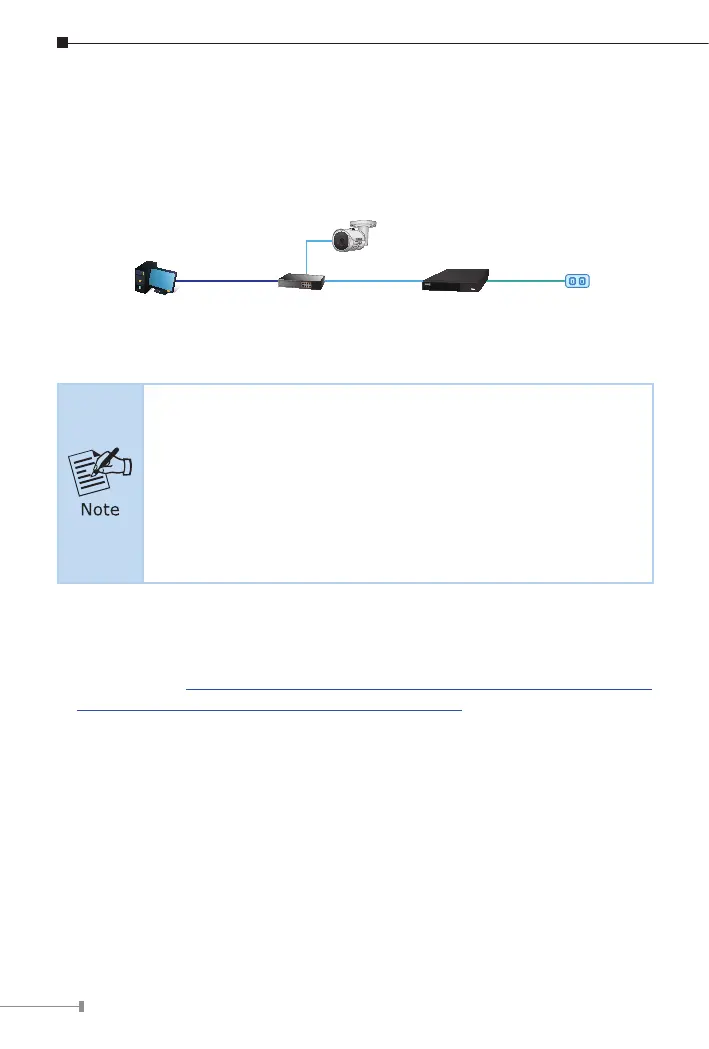
Note the NVR-1600 is congured through an Ethernet connection. Please make
sure the manager PC must be set to the same IP subnet address.
IP cam
User PC
PoE Ethernet Switch
NVR
Figure 4-1: IP Management Diagram
1. Make sure the input voltage matches the NVR consumption.
Connect the device to the monitor and the power adapter (if
available). Plug in the power and switch on the power button
(if available) for the device to boot up.
2. It is recommended that you refer to international standards
for power supply input with stable voltage values and low
ripple interference.
For example, the NVR-1600 default network type is DHCP Client; to search the
current IP address of the NVR-1600, follow the procedure below:
1. Download the “PLANET Search Tools” utility from the following PLANET
website link: http://www.planet.com.tw/en/support/downloads?method=key
word&keyword=PLANET+Search+Tools&view=6#list
2. Install the “PLANET Search Tools” utility.
3. After the utility is launched, all NVRs found in your local area network will
be displayed.
4. The existing NVR-1600 in the local network.
5. Search the NVR-1600 in the network.
6. Modify the IP parameters of the selected NVR-1600.
7. Select the NVR-1600 you want to congure and double-click on it.
8. You will be connected to the NVR-1600 series via web browser automati-
cally.



 To Next Page