The PLANET TSN-6325-8T4S4X is an Industrial Layer 3 Managed TSN Switch designed for robust networking in industrial environments. This Quick Installation Guide provides essential information for setting up and managing the device.
Function Description:
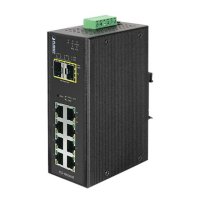
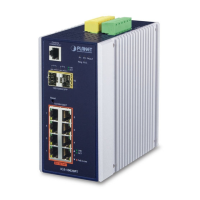
The TSN-6325-8T4S4X is a high-performance, industrial-grade Layer 3 managed switch that supports Time-Sensitive Networking (TSN). It is designed to provide reliable and deterministic data transmission, crucial for real-time industrial applications. As a managed switch, it offers extensive configuration and monitoring capabilities, allowing network administrators to control and optimize network traffic, enhance security, and ensure network stability. The Layer 3 capabilities enable advanced routing functions, facilitating efficient communication across different subnets within an industrial network. Its robust design makes it suitable for deployment in harsh industrial settings where environmental resilience is paramount.
Important Technical Specifications:
- Model: TSN-6325-8T4S4X
- Type: Industrial Layer 3 Managed TSN Switch
- Power Input:
- DC Input: 9-48V, 5A max.
- AC Input: 24V~, 2A max.
- The device supports dual power inputs (Power 1 and Power 2) for redundancy.
- Power connections are made via a 6-contact green terminal block connector.
- Wire gauge for terminal block: 12 to 24 AWG.
- Ports:
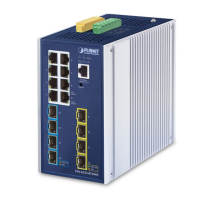
- 8-Port 10/100/1000T (RJ45)
- 4-Port 1G/2.5G SFP
- 4-Port 10G SFP+
- Console Port: RJ45 type serial (RS232) for terminal setup.
- Default IP Address: 192.168.0.100
- Default Subnet Mask: 255.255.255.0
- Default Username: admin
- Default Password: admin
- Fault Alarm Loading: Max. 24V, 1A
Usage Features:
- Terminal Setup (Console Management):
- Connect a serial cable (DB9 to RJ45) from a PC's COM port to the switch's console port.
- Terminal program settings: Baud: 115200, Parity: None, Data bits: 8, Stop bits: 1, Flow control: None.
- Login with default credentials (username: admin, password: admin).
- Commands are entered in lowercase letters.
- IP address configuration via console: Use
configure terminal, interface vlan 1, and ip address <IP_Address> <Subnet_Mask> commands.
- The
show ip interface brief command displays the current IP address.
- Users are strongly advised to change the default password for security reasons after the initial setup.
- Web Management:
- Access the Web interface using a web browser (Chrome 98.0.xxx or above is recommended).
- Enter the default IP address
https://192.168.0.100 in the browser.
- The manager PC must be set to the same IP subnet as the switch (e.g., 192.168.0.x, where x is 1-254, excluding 100).
- Login with default credentials (username: admin, password: admin).
- The Web interface provides a comprehensive menu for managing various aspects of the switch, including System, Switching, Routing, QoS, Security, Ring, and Maintenance.
- The "Help icon" on the Web page provides descriptions for functions and parameters.
- Grounding:
- Users MUST complete grounding the device to prevent fatal damage from sudden lightning. The grounding point is indicated on the upper panel.
- Power Input Wiring:
- Insert positive/negative DC power wires into Contacts 1 and 2 for Power 1, or Contacts 5 and 6 for Power 2 on the terminal block.
- Tighten wire-clamp screws to secure connections.
Maintenance Features:
- Saving Configuration:
- Via Console: Use the
copy running-config startup-config command to save the current configuration, ensuring it persists after a system reboot.
- Via Web Interface: Click the "Save" icon on the top Switch Menu bar or navigate to "Maintenance" -> "Save Startup Config". This saves all applied changes as the startup configuration.
- Recovering to Default Configuration (Hardware Reset):
- If the IP address has been changed or the admin password forgotten, the device can be reset to factory defaults.
- Press the hardware-based reset button on the front panel for approximately 10 seconds.
- After rebooting, the IP address will revert to 192.168.0.100, and the password to "admin".
- Note: All previous configurations will be lost after a factory reset.
- Customer Support:
- PLANET provides online FAQs at
https://www.planet.com.tw/en/support/faq.
- Support team email:
support@planet.com.tw.
- User Manual for TSN-6325-8T4S4X is available at
https://www.planet.com.tw/en/support/downloads?&method=keyword&keyword=TSN-6325&view=3#list.

 Need help?




 To Next Page
 General