Make a call
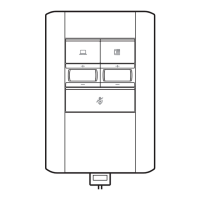
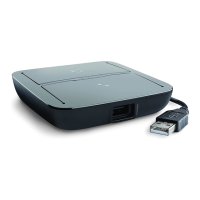
1 Tap an audio button on the audio processor. You hear a dial tone.
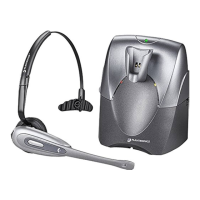
Desk phone only: Press the phone's headset button or manually remove the headset if you don't
have an HL10 lifter or EHS cable.
TIP If you do not hear a dial tone, open the base side panel and adjust the middle switch (A–G). “A”
works for the majority of desk phones. "D" works for Cisco phones.
2 Dial from your softphone or desk phone.
Answer/end a call
To answer or end a call, tap the Audio button on the audio processor.
Desk phone only: Press the phone's headset button or manually remove the headset if you don't
have an HL10 lifter or EHS cable.
While on an active call, roll the appropriate volume wheel up or down.
During a call, press the mute button to mute the microphone. To unmute press the button again.
To put an active call on hold press and hold the call button for 2 seconds. To take a call off hold
press the call button.
While on an active call, press and hold the PC and Desk phone buttons for 2 seconds. The calls will
merge.
To switch from a desk phone call to a computer call (or visa versa) press the other call button to
answer incoming call or place an outgoing call.
Daily Use
Make, answer, end calls
Adjust volume
Mute
Hold
Merge a call
Switch calls
5



 To Next Page