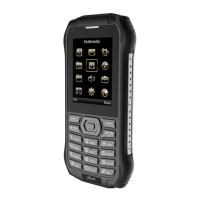
This document serves as a user manual for the Plum RAM 9 mobile phone, providing comprehensive instructions on its functions, usage, and maintenance.
Function Description
The Plum RAM 9 is a rugged mobile phone designed for durability and essential communication. It supports basic phone calls, messaging (SMS and MMS), and includes a range of utility features. The phone is factory unlocked and compatible with AT&T, T-Mobile, and most major prepaid service providers, with the exception of Verizon, Sprint, and Boost.
Key functionalities include:
- Phone Calls: Users can make calls by selecting contacts from the phonebook or by directly dialing numbers. During a call, options such as mute, volume adjustment (Vol+, Vol-), and speaker/earphone mode are available.
- Messaging: The device supports sending and receiving SMS and MMS messages. Users can compose new messages, input recipients, and type text. For MMS, attachments like images, sounds, and videos can be added. Proper APN settings are required for MMS functionality.
- Contacts: The phone allows users to store, check, and edit contacts on both the phone memory and SIM cards. New contacts can be created directly from the dial interface. A search function is available for finding contacts.
- Call Log: A record of all phone calls can be viewed in the call log interface. From here, users can manage functions such as creating new contacts from a selected number or sending messages to a selected number.
- File Manager: This feature provides access to files stored on the phone's internal memory and any inserted SD card. Users can open, search, or copy selected files.
- Camera: The phone is equipped with a camera for capturing pictures and recording videos. Users can switch between camera and video modes.
- Gallery: Captured images and videos can be viewed, shared, or edited within the gallery interface.
- Music Player: This function allows users to play audio files, share them, or set them as ringtones. Volume can be adjusted, and users can navigate backward and forward through tracks.
- Video Player: Similar to the music player, the video player enables users to play and share video files, with controls for volume and navigation.
- Recorder: Located within the Utilities folder, the recorder allows users to record audio files. The recording size can be adjusted in the options interface.
- FM Radio: The phone supports FM radio, which can be used directly or with earphones for enhanced sound quality. Users can turn the radio on/off, change channels, and adjust the volume.
- Clock: The clock function includes alarm, timer, and stopwatch features. Alarms can be set with specific ringtones or vibration.
- Calendar: A monthly-view calendar helps users keep track of appointments.
- QR Reader: This feature allows users to scan QR codes by taking a photo.
- Browser: Users can access the internet, enter URLs, and browse the web. Zoom in/out and a sliding/mouse mode are available.
- Store: The store interface enables users to download or update applications.
- Email: Users can access, view, and send emails using their email accounts.
- Facebook: The phone provides access to Facebook, allowing users to view and edit their accounts.
- WhatsApp: Users can access and use WhatsApp through this interface. The left soft key is used for adding attachments like photos and emojis, while the OK key is for making voice messages.
Usage Features
The Plum RAM 9 features a physical keypad and a display screen. Navigation and interaction are primarily done through the keypad.
- Keypad Navigation: The phone has a central OK key, left and right soft keys, and directional arrow keys (Up, Down, Left, Right).
- The OK key is used to confirm selections and, with a long press, activates the voice assistant.
- The left soft key serves as an answer key for calls and for adding attachments in messaging.
- The right soft key acts as an end key for calls and provides shortcuts/navigation.
- The Up arrow key can be used to access the Function Shortcut, allowing users to enable/disable Wi-Fi or data.
- The directional keys are also used for adjusting volume in media players and for changing FM radio channels.
- A long press on a specific key (not explicitly identified but implied for profile changes) allows for switching between profiles (e.g., Silent, Normal).
- Input Methods: When typing text or numbers, users can switch input methods using the "#" key and access symbols using the "*" key.
- SIM Card and Micro SD Card Installation:
- Ensure the phone is powered off.
- Remove the back cover and battery.
- Open the metal cover for the SIM slots.
- Insert SIM cards (SIM1 and SIM2) into their respective slots.
- Close and lock the metal cover.
- For the Micro SD card, push the card into its slot, then close and lock its metal cover.
- Charging the Battery:
- The phone uses a lithium battery that can be used immediately after unpacking.
- Charge the phone via the USB charger provided.
- The battery level icon on the upper right corner of the display indicates remaining power.
- A "Battery low" prompt and an alert tone (if set) will notify users when the battery is insufficient.
- A charging animation appears during charging and disappears when complete.
- New batteries or batteries not used for a long time may require a longer initial charge.
- If the battery voltage is too low for the phone to power on, charge it for an extended period.
- Settings: The settings menu is organized into different sections:
- Network & Connectivity: Manage mobile network, Wi-Fi, Bluetooth, and Geolocation.
- Wi-Fi: Turn Wi-Fi on/off and manage connections.
- Bluetooth: Connect to other Bluetooth devices. "Visible to all" makes the phone discoverable. "Nearby devices" allows searching and connecting, while "Paired Devices" lists saved connections.
- SIM Manager: Set default SIM for outgoing messages, calls, or data usage.
- Personalization: Adjust sound, display, date & time, and language settings.
- Privacy & Security: Manage safety settings.
- Screen Lock: Set a 4-digit password to prevent unauthorized access.
- Do not Track: Allow/disable applications or websites from tracking user behavior.
- App Permission: Enable/disable permissions for installed applications.
- Storage: Check memory usage.
- USB Storage: Must be enabled before connecting the phone to a computer.
- Device: View device information, perform software updates, or adjust accessibility functions.
Maintenance Features
Proper care and maintenance are crucial for the longevity and optimal performance of the Plum RAM 9.
- General Care:
- Use only manufacturer-approved accessories. General accessories may shorten the device's life or cause malfunctions.
- Avoid using or storing the device in dusty, dirty, hot, or cold environments.
- Keep the device away from magnetic fields.
- Do not store the device with metal objects like coins, keys, or necklaces, as these could cause damage.
- Avoid dropping the device or subjecting it to impacts.
- Battery Handling:
- Immediately stop using the battery if it produces odor, overheats, cracks, distorts, shows other damage, or leaks electrolyte.
- Power off the mobile phone before removing the battery.
- It is normal for the battery to become warm during charging.
- The battery wears out with use, and longer charging times will be required over time.
- Safety Precautions:
- Aircraft: Switch off the device in aircraft and adhere to all restrictions to prevent interference.
- Vehicles: Never use the device while driving. Place it in a safe, easily accessible location without distracting from the road.
- Electronic Devices: Be aware that the device may cause interference with other electronic devices in certain circumstances.
- Potentially Explosive Environments: Switch off the device in areas with potentially explosive atmospheres and obey all signs and instructions. Sparks could cause explosions or fires.
- Pacemakers and Medical Devices: Maintain a minimum separation of 8 inches between the wireless device and a pacemaker to avoid interference. Consult a physician or medical device manufacturer regarding potential interference with other inadequately protected medical devices.
- Operating Environment: Read user guides for other devices when connecting to ensure safety. Do not connect incompatible products. Do not place the device in the air bag deployment area. Use the device only in its normal operating positions as described in the product documentation.
- Posted Regulations: Always switch off the device when its use is prohibited or when it may cause interference and danger, especially in health care facilities or other areas with posted regulations.
- FCC Compliance:
- The device complies with part 15 of the FCC Rules, meaning it will not cause harmful interference and must accept any interference received.
- If the equipment causes harmful interference to radio or television reception, users are encouraged to try to correct it by reorienting the receiving antenna, increasing separation between equipment and receiver, connecting to a different circuit, or consulting a dealer/technician.
- SAR (Specific Absorption Rate) tests are conducted to ensure the device does not exceed FCC exposure limits. For body-worn operation, the phone has been tested and meets RF exposure guidelines when used with an accessory designated for the product or an accessory containing no metal, positioning the handset a minimum of 1.0 cm from the body. Non-compliance with these restrictions may result in violation of RF exposure guidelines.

 Need help?
 General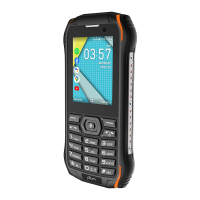

 To Next Page