8
Attention
Alternatively you may also use any plain white sheet of paper
sized in A6 (105 x 148 mm) instead; however, the calibration
effect may be less good than the special calibration sheet.
Save the Setup/Application DVD in case you need to reinstall the
driver and software in the future.
Save the Calibration Sheet in case you need to calibrate the
scanner in the future.
Step 3. Testing the Scanner
The following test procedure checks to see if the scanner is properly functioning
with your computer and the scanning software. Before testing your scanner, double
check to make sure that all connections are securely fastened.
To properly test your scanner, please perform the following steps:
1. Do one of the following to open the Button Configuration window:
Double-click the DocAction icon
in the Windows system tray.
Right-click the DocAction icon
in the Windows system tray, and then
choose Button Configuration… in the pop-up menu that opens.
2. In the Button Configuration window, choose from the dropdown list of Button
Template to select “File Utility”, and keep in mind the default saving folder show
in the “Saving folder” dropdown list.
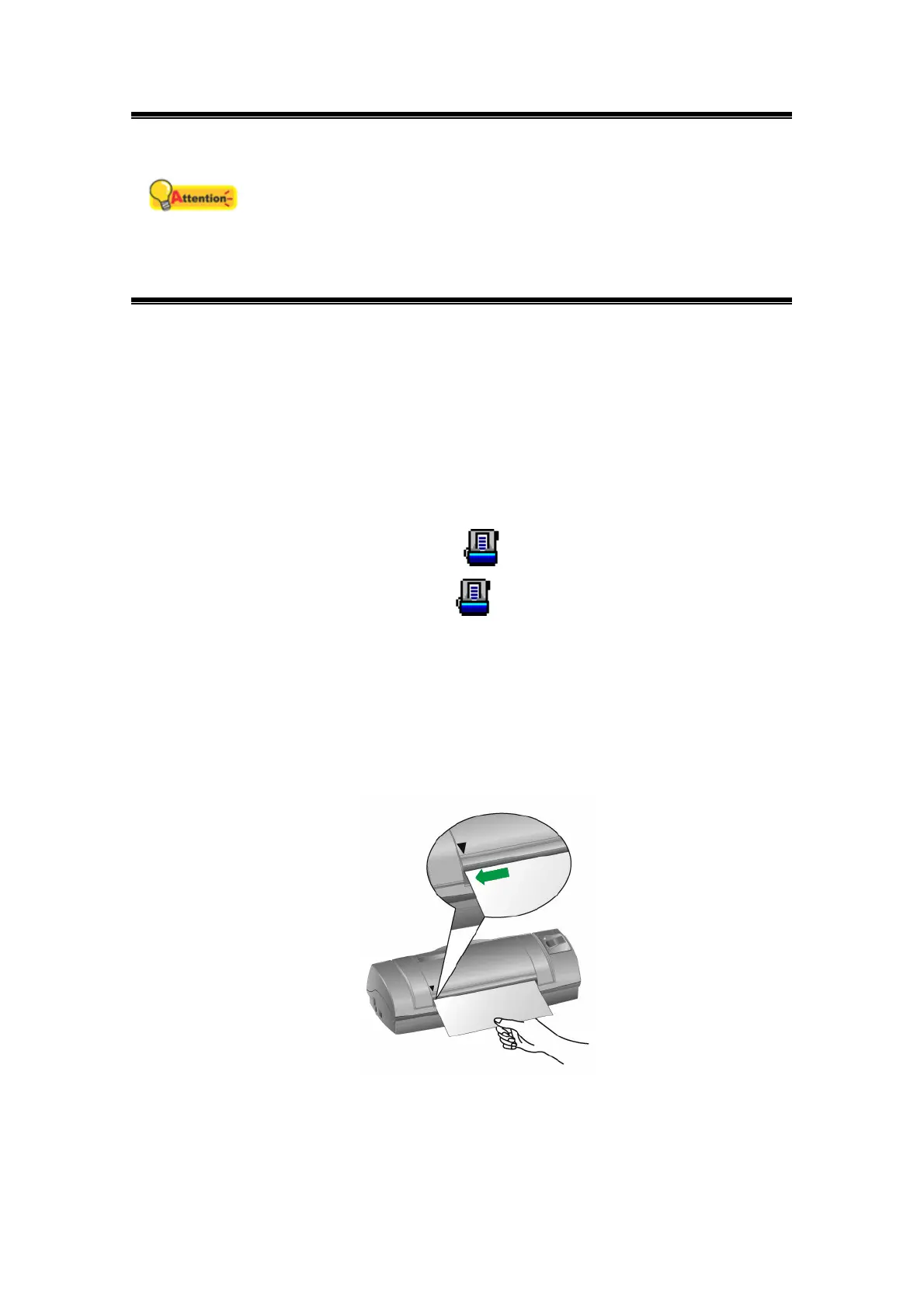
3. Insert the document face up into the scanner. Align the paper to the arrow sign
on the left of the scanner.
4. Click the Scan button, and the scanning starts immediately. After the scanner
pulls through the paper, you’ll see a scanned image of the document in the
default saving folder; your scanner is working properly.





 To Next Page