15
Press the button from the scanner's panel.
Right-click the icon
in the Windows system tray, and then choose
Execute in the pop-up menu that opens. Click the Scan button function item
in the pop-up menu.
The scanner starts to scan immediately and carry out the corresponding action
according to the settings you have set up in the Button Configuration window.
Attention
The [Scan] button can function with the default
setting “Scan”, even though you didn’t define the
function by using DocAction beforehand.
Status Indicator
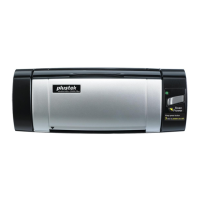
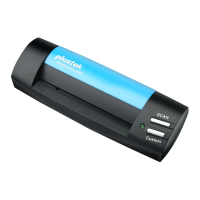
The green LED indicator (located beside Custom Button) indicates the status of the
scanner, as described below:
Light Status
On
The scanner is connected with the computer, ready to scan
images.
Flashing The scanner is busy scanning.
Off
The scanner is off, either because of disconnection with the
computer, or because the computer being turned off.
Scanner Connection
The first step to take when troubleshooting connection problems with your scanner
is to check all physical connections. The icon
, located on the Windows system
tray, indicates if the scanner software is properly launched and the scanner and
computer are communicating with each other.
Appearance Status
The program has been successfully launched and the
scanner is connected with the computer, ready to scan
mages.
The scanner is not connected with the computer.
No Display
You have chosen to terminate the program, no matter the
scanner is connected or disconnected with the computer.




 To Next Page