EasyManua.ls Logo

PNI House 1080p - User Manual

PNI House 1080p
25 pages
Print Icon
To Next Page IconTo Next Page
Loading...
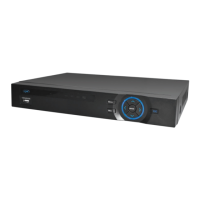
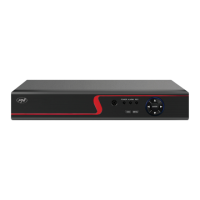
NVR PNI House 1080p
16 CH full HD 1080P 2MP
- USER MANUAL -
Question and Answer IconNeed help?

Do you have a question about the PNI House 1080p and is the answer not in the manual?

Summary

Key Features Overview

Real-time Surveillance

Describes live video monitoring via analog, VGA, or HDMI outputs.

Storage Management

Details HDD usage for energy saving and lifespan extension during recording.

Data Backup

Explains backing up data using the USB interface to external storage devices.

Playback Features

Covers real-time video recording and multi-channel playback modes with zoom.

Intelligent Operation

Describes device control via mouse and quick settings copying between channels.

Getting Started and Usage

Installing the Storage Unit

Steps for installing internal HDDs, including unscrewing, fixing, and connecting cables.

Turning the NVR On

Instructions for connecting the power cord and automatic recording start.

Turning the NVR Off

Methods for shutting down the device via the menu or power supply.

Remote Access and Control

CMS Software Control

Controlling the NVR via dedicated CMS software compatible with Windows.

Internet Explorer Access

Accessing the NVR through Internet Explorer, requiring ActiveX plug-in installation.

XMEye App Control

Managing the NVR remotely using the XMEye mobile application for iOS and Android.

User Login and Authentication

Interface Navigation: Preview and Menu

Main Menu Structure

Recording Operations

Accessing recording operations, including configuration, playback, and backup.

Recording Parameter Configuration

Setting recording parameters for channels, including 24-hour continuous recording.

Playback Functionality

Data Backup Procedures

Playback Controls and Zoom

Alarm and Event Management

Backup Configuration Setup

Setting up the backup process, including selecting channels, date, and time.

Motion Detection Configuration

Video Blind Detection Setup

Video Loss Detection Setup

Abnormality Detection Setup

System Configuration Overview

General System Settings

Video and Audio Encoding

Network Setup and Configuration

Network Services Configuration

Email Notification Setup

Dynamic DNS Setup

FTP Server Configuration

On-Screen Display Customization

Channel Tour Function

Digital Channel Support

Advanced System Settings

HDD Storage Management

Viewing HDD information, status, capacity, and performing operations like formatting or partitioning.

User Account and Permissions

Managing user accounts, groups, passwords, and permissions for system access.

Monitoring Online Users

Video Output Adjustments

Automatic System Maintenance

Restoring Factory Defaults

Firmware Upgrade Process

Device Information Display

Information Menu

System Logout and Reboot

Initial Setup Guide

Mobile Application Installation

Adding Devices to Mobile App

Recording Mode Configuration

Playback Interface Access

PTZ Control Functionality

High Speed PTZ Operation

Image Color Settings

Video Output Fine-Tuning

Troubleshooting and FAQ

Device Power and Startup Problems

Troubleshooting common problems related to the device not starting normally due to power or hardware faults.

Device Restart and Shutdown Issues

Diagnosing reasons for automatic restarts or shutdowns after turning on the device.

Storage Device Detection Issues

Identifying issues when the system fails to detect storage devices, checking connections and hardware.

Troubleshooting No Video Output

Checking firmware, brightness, and cable connections for no video signal on output.

Troubleshooting Weak Video Input

Addressing problems with weak or absent video input signals, potentially due to faulty electronic parts.

Video File Playback Troubleshooting

Resolving issues where video files cannot be found, checking cables and recording status.

Troubleshooting Unclear Local Video

Checking image quality, cable integrity, and device electronics for unclear local video.

Troubleshooting No Audio Signal

Diagnosing issues with no audio signal, checking microphone connections and audio cables.

Audio Playback Issues

Time Synchronization Errors

Motion Detection Malfunctions

Internet Authentication Failures

Unclear Viewing;Playback Image

Network Connection Instability

USB Data Copy Failures

Alarm Control Issues

NVR Technical Specifications

System & Processor Specs

Details on the processor, video compression, and coding capabilities of the NVR system.

Audio Specs

Information on audio compression standards used by the NVR.

Recording & Playback Specs

Overview of registration modes (manual, motion, scheduled) and playback channels supported.

Storage & Backup Specs

Specifies supported backup types (Network, U-disk, SATA) and HDD capacity.

Connection Interface Specs

Lists available video/audio outputs, inputs, and network interface types.

Miscellaneous Device Specs

Details on USB ports, power voltage, and device dimensions.

Overview

This document describes the NVR PNI House 1080p, a 16-channel full HD 1080P 2MP network video recorder, focusing on its functions, usage, and maintenance.

The NVR PNI House 1080p offers real-time surveillance capabilities, allowing users to monitor video feeds via analog output, VGA, or HDMI interfaces. A key feature is its storage management, where the Hard Disk Drive (HDD) operates only during recording, which helps conserve energy and prolong the HDD's lifespan. It's important to note that the HDD is not included in the package and must be installed separately. For backup purposes, the device supports USB storage devices, enabling users to save recorded data externally.

Playback functionality is robust, supporting real-time video recording and multiple playback modes, including simultaneous viewing of 1 or 16 channels on the screen. Users can also zoom in on specific areas of the image for detailed inspection. The NVR is designed for intelligent operation, primarily controlled via a mouse, and offers a convenient feature to quickly copy settings from one channel to another, streamlining configuration.

Usage Instructions:

Installing the Storage Unit:

Before initial use, the storage unit needs to be installed. The NVR casing can accommodate two internal HDDs, each with a maximum capacity of 4TB. The installation process involves unscrewing the case, removing the NVR cover, fixing the HDD, connecting the data cables, re-fixing the NVR cover, and finally connecting the power cord.

Turning On/Off the NVR:

To turn on the device, simply insert the power cord into the main power supply. If a preset recording schedule is active and the start time falls within it, recording will commence automatically. When turning off the NVR, there are two methods: either navigate to the main menu (right-click on the screen), select "Logout," and then "Shutdown," or simply turn off the power supply.

Special Warnings:

The device has a restart-after-voltage-drop feature, allowing it to back up its status and restart from that point if power is interrupted and then restored. Additionally, the manual advises replacing the mainboard battery annually. Before doing so, users must save system settings and turn off the power source, as the device's time and date will need to be reset afterward.

Remote Control:

The NVR can be controlled remotely through several methods:

  1. Dedicated CMS software compatible with Windows.
  2. Internet Explorer, requiring the installation of an ActiveX plug-in. Users need to adjust browser security levels by enabling ActiveX options in "Internet options" -> "Security" -> "Custom level."
  3. The dedicated XMEye app, compatible with iOS and Android devices.

System Authentication:

Upon powering on, users must log in. The default username is "admin" with a password of "1234." Incorrect password entry five consecutive times will block the account, which can be unlocked by restarting the device or waiting for half an hour. For system security, it is strongly recommended to change the default password after the first login.

Channel Preview and Menu Navigation:

The NVR supports displaying 1, 4, 8, 9, or 16 channels on the screen. Double-clicking a channel switches it to full-screen mode. In preview mode, right-clicking on the image brings up an on-screen menu, which includes options like Main menu, Guide, Quick set, Record Mode, Playback, PTZ Control, High Speed PTZ, Color setting, Output Adjust, Logout, and Full screen.

Record:

This section covers recording configuration, playback, and backup.

  • Record Config: Users can set recording parameters for individual channels or all channels simultaneously. The system is typically configured for continuous 24-hour recording by default. Crucially, the HDD must be set to read/write mode for recording to function. Recording modes include scheduled, manual, or off. Scheduled recording allows setting up to four periods within 24 hours with options for regular recording (time-based), motion detection recording, or alarm recording (including motion detection, image loss, and video loss). Manual recording starts regardless of current status, and "Stop" halts recording. An "Advanced" button provides access to additional settings like "Up Window," "Show desktop," "Copy," "Paste," "Default," "Restore," and storage unit configuration.
  • Playback: Recorded files on the internal HDD can be played back by right-clicking on the screen and selecting "Playback," or by navigating through "Main Menu" -> "Record" -> "Playback." The playback interface includes controls for play/pause, stop, fast forward/backward, next/previous frame, next/previous file, full screen, and cyclic play. Local Zoom is a special function that allows zooming into a portion of a single channel display by clicking the left mouse button, returning to normal view with a double-click.
  • Backup: To perform a backup, a USB memory device must be installed in the NVR beforehand. The backup configuration screen allows detection of the USB drive, formatting (erase), stopping the backup process, and initiating the backup. Once executed, the created backup file can be played back individually.

Alarm:

The alarm recording function is triggered by events such as motion detection, image loss, video loss, and other abnormalities.

  • Motion Detect: Recording starts when the system detects movement exceeding a set sensitivity threshold. Settings include enabling/disabling the function, choosing one of six sensitivity levels, and defining specific time periods for motion detection. Warning modes can be configured to display messages, play sounds, upload to an FTP server, send emails, or save the event in history.
  • Video Blind: An alarm is triggered if the video image is affected by environmental conditions (e.g., wrong lighting) or if the sensitivity threshold is reached. The settings are similar to motion detection.
  • Video Loss: An alarm is activated if the NVR does not receive a video signal. Settings are also similar to motion detection.
  • Abnormality: The device alerts users (via message or sound) when abnormal situations occur, such as lack of HDD, insufficient storage space, IP conflicts, or network connectivity issues.

System:

This menu provides access to general system settings, encoding, network configuration, and other services.

  • General: Allows setting the time zone, system date and time, date and time formats, language, and storage full policy (stop recording or overwrite old files). Users can also define the NVR number, video standard (PAL/NTSC), and auto-logout inactivity time.
  • Encode: Configures audio and video compression parameters for each channel, including compression type (H.264), resolution (D1, AHD-L/960H), frame rate (1-25fps), bit rate type (limited or variable flow), bit rate value, and video/audio recording type.
  • Network: Configures network settings such as IP address, subnet mask, gateway, DNS, media port, HTTP port, and transfer policy. DHCP can be enabled for automatic IP address assignment (though not recommended).
  • NetService: Configures advanced network services like PPPoE, Email, DDNS, FTP, RTSP, and Cloud.
    • PPPoE: Enables PPPoE connection, requiring username and password from the internet provider. After saving and restarting, the device establishes a PPPoE connection, and the IP address becomes dynamic.
    • Email: If enabled, the system sends emails with alarm information and photos to specified addresses. Configuration includes SMTP server, port, SSL option, username, password, sender, receiver (up to 3), and email title.
    • DDNS: Configures Dynamic Domain Name System, allowing access to the NVR via a domain name instead of an IP address. Requires DDNS type, domain name, username, and password. DNS settings must be correct for this to work.
    • FTP: Activates FTP only when an alarm is active or triggers a screen capture. Settings include FTP server IP, port, username, password, anonymous mode, maximum file length, and directory name. The user must have upload authority.
  • Display: Configures local preview display options, including channel title, time display, channel title display, record status, alarm status, deflicker, transparency, and resolution.
  • PTZ Config & RS232: These functions are not active for this NVR model.
  • Tour: Activates a tour of all channels based on a set interval.
  • Digital: Displays the number and type of cameras supported by the model (e.g., 1080P, 960P, 5M).

Advanced:

This menu provides access to HDD management, user accounts, online users, video output settings, self-maintenance, factory default settings, updates, device information, and import/export options.

  • Storage: Displays information about internal HDDs (number, type, status, capacity). Users can select a device to perform actions like setting read/write mode, read-only, formatting, recovering information, or creating partitions.
  • Account: Manages user accounts and groups. Usernames can be up to 8 characters long, allowing letters, digits, lower dash, minus, and points. Passwords can be up to 6 characters. Users can modify user/group names and rights, change passwords, add/delete users/groups, and update user information. The admin user can change their own and other users' passwords.
  • Online User: Displays information about users connected via the network and allows disconnecting specific users. Disconnected users can only reconnect after a system restart.
  • Output Adjust: Configures the position and color of the video image, including top/bottom/left/right deflate, black vertical/horizontal, brightness, contrast, saturation, and hue.
  • Auto Maintain: Sets automatic system restart times and automatic deletion of old files.
  • Restore: Resets the system to factory default settings. Users can select specific functions to reset.
  • Upgrade: Selects the path to an update file, which must be saved in the root directory of a USB memory device.
  • Device Info: Displays device information such as audio in/alarm in/alarm out channels, remote control type, pad type, maximum/default playback large, and enable RS232/PTZ.

Info:

Provides detailed information on the storage device, BPS (Kb/s transfer stream and MB/h storage capacity in real-time), event history, and software version.

Logout:

Used to exit the current account, shut down, or restart the system. This option is also available by right-clicking on the main screen.

Guide:

This interface presents basic setup steps, including date, time, language, network settings, and links for downloading the XMEye application and QR code for the device's serial number.

Troubleshooting (Frequently Asked Questions):

The manual also includes a comprehensive troubleshooting section for common issues:

  • Device not starting normally: Possible causes include inappropriate power, defective power adapter, wrong program update, faulty storage device/connections, defective front panel, or faulty mainboard.
  • Device restarting/stopping automatically: Could be due to low/unstable power supply, faulty storage device/connections, unstable video signal, overheating radiator, or faulty electronic parts.
  • System not detecting storage devices: Check power/data cables (connection, defectiveness, compatibility), defective storage device, or faulty SATA port.
  • No video on output: Possible causes are inappropriate firmware (update recommended), brightness set to 0 (reset device), or faulty electronic parts.
  • No video input signal/weak signal: Likely due to faulty electronic parts.
  • Cannot find video files in local play mode: Check storage device data cable (defectiveness), defective storage device, outdated firmware (update recommended), files stored elsewhere, or recording function not started.
  • Local video file not clear: Could be low image quality, local rendering not working (restart device), faulty storage device data cable, defective storage device, or faulty electronic parts.
  • No audio signal in tracking area: Check if a camera with a microphone is connected, if an active speaker is present, or if audio cables are defective.
  • Audio in tracking window but no audio in playback: Verify audio option is selected in setup, or if the channel has no audio.
  • Time is wrong: Check settings or if the mainboard battery is not connected/discharged.
  • Motion detection not working: Check if the set time interval is correct, sensitivity is too low, or if there are version limitations.
  • Cannot authenticate via internet: Check operating system (update Windows 2000 SP4 minimum), ActiveX function locked, video card driver (update if version does not exceed Dx 8.1), interrupted network connection, network settings problems, invalid username/password, or CMS incompatibility.
  • Image not clear/no image in viewing/playback area: Possible causes include unstable network, insufficient computer resources, incorrect network play mode, lack of viewing rights, or unclear real-time image.
  • Network connection not stable: Check for unstable network, IP address conflicts, MAC address conflicts, or non-functional network card/device.
  • Unable to copy to USB: Could be data exceeding storage capacity, incompatible backup equipment, or non-functional backup equipment.
  • Alarm not turning off/not working: Check if alarm settings are appropriate or if there are program version-specific problems (update program recommended).

PNI House 1080p Specifications

General IconGeneral
Video Input4 channels
Recording Resolution1080p
Mobile AppYes
CategoryDVR
Video OutputHDMI, VGA
Hard Drive Support1 SATA HDD

Related product manuals