EN
4
4. ADD DEVICE
4.1 QR code net-pairing (Recommended)
The product only support 2.4GHz Wi-Fi network. It does not support 5GHz Wi-Fi network. Before
conguring Wi-Fi, please set the router parameters. The Wi-Fi password should not contain special
characters of ~!@#$%^&*(). When conguring Wi-Fi, make sure your router, mobile and device are as close
as possible for a quick conguration of the device.
Connect smartphone to this Wi-Fi router with internet access. Activate location from phone if needed.
● App supports QR code net-pairing and Wi-Fi connection. You can choose to add device by other options.
● Power On the camera, and you can hear the broadcast “Wait for WiFi cong”, (if you heard nothing at all,
please click and hold “reset” button for 20 seconds to restore factory settings).
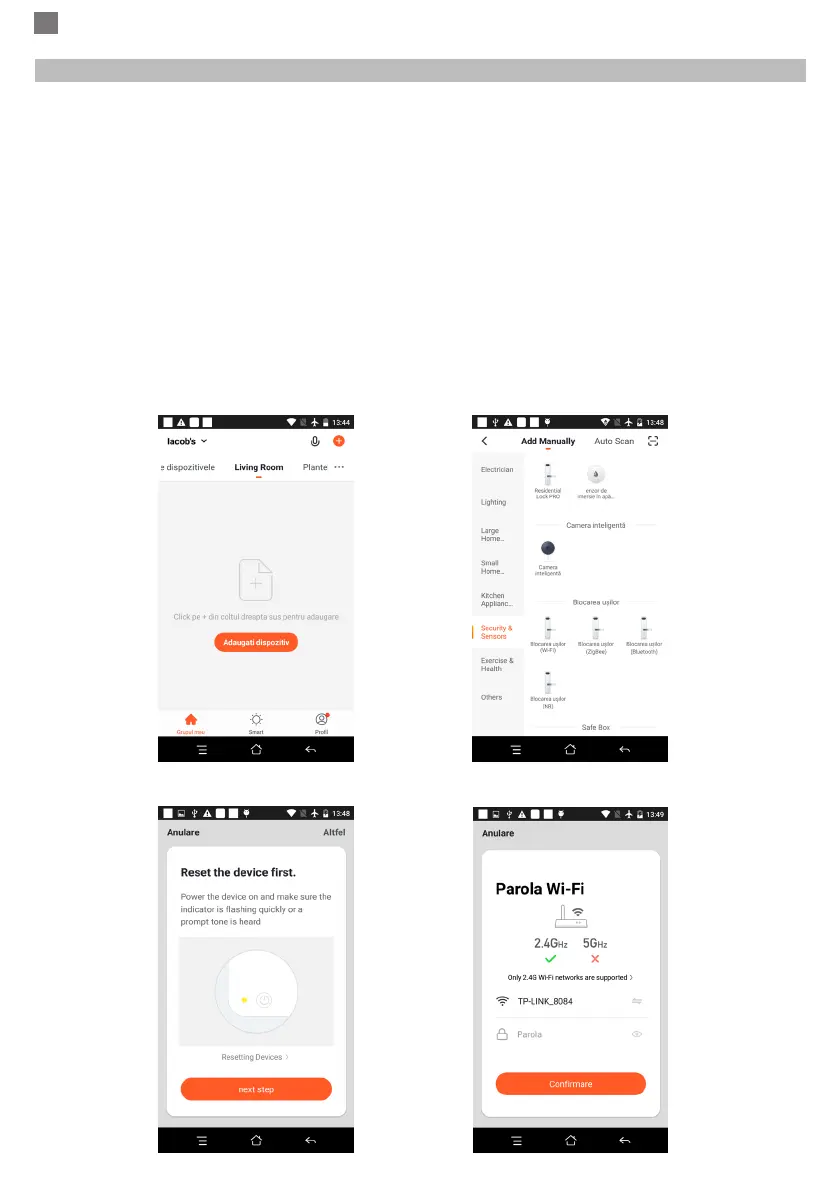
● When the mobile phone connecting to Wi-Fi, click “Add Device” or “+“ icon (gure 1) on the Home screen
of the App, select “Security & Sensor”(gure 2)→ “Smart Camera”, click “next step” (gure 3).
Enter Wi-Fi account and password, click “Conrm” (gure 4).
Figure 1 Figure 2
Figure 3 Figure 4


 To Next Page