EN
6
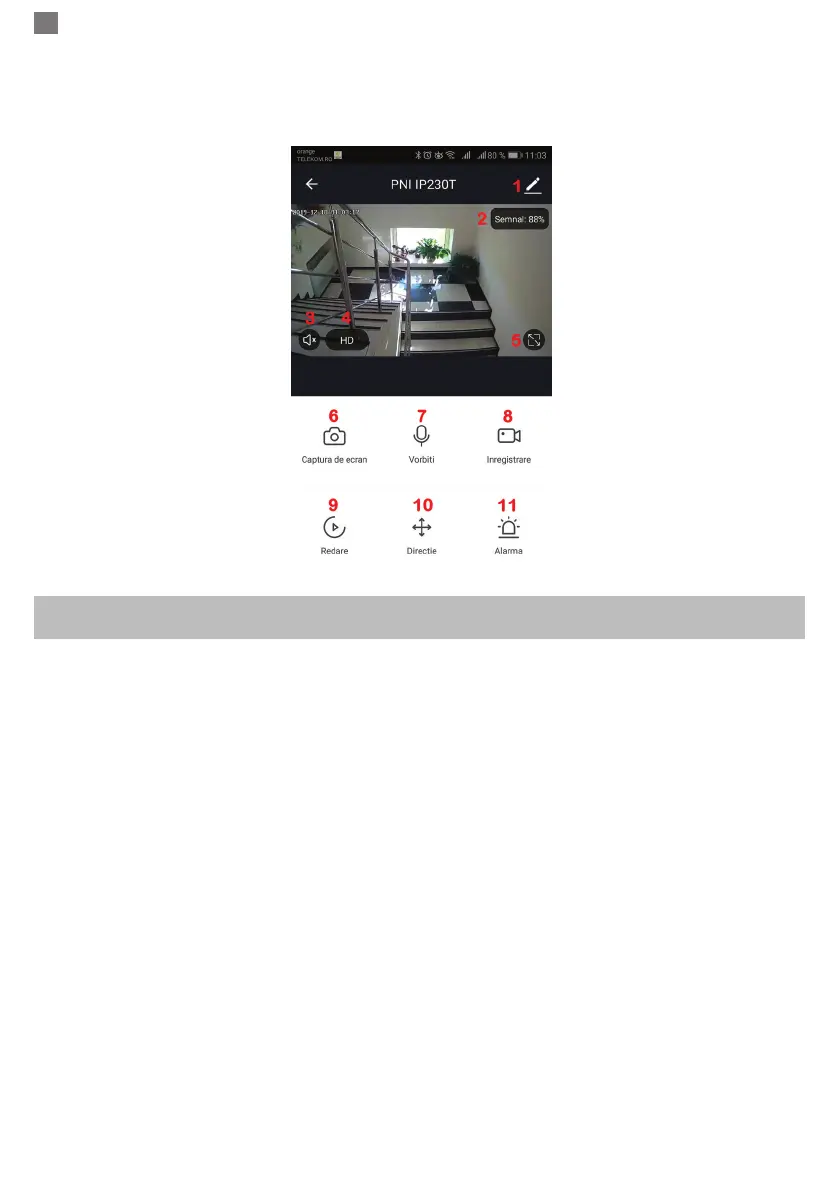
10. PTZ control (The camera can be arbitrarily rotated to give you a different perspective. You can move it up
and down, capture any corner you want to view)
11. Motion detection alarm (abnormal report notication through intelligent detection of anomaly in home. You
can go out to work and play condently. To set the alarm level according to the camera’s led of view can
make the alarm more accurate)
6. CLICK “ 1 “ IN THE UPPER RIGHT CORNER OF THE CONTROL PAGE FOR THE MANAGEMENT
AND SETTING OF THE DEVICE.
● Device Name - can modify the device name and device location;
● Device Information - to view: Device ID, Wi-Fi signal strength, IP address, Mac address, Device time zone.
● Tap-to-Run and Automation - View automations and scenaries created for this device
● Third Party Supported - Compatible smart services
● Basic Settings - Basic settings of camera
● IR Night Vision - Settings for IR function
● Detection Alarm Settings - can set the motion detection switch, motion detection alarm sensitivity and
motion tracking function
● Storage settings - Shows microSD card informations, and settings for Local Recording mode.
● VAS - Value-added service : you can purchase separately video cloud storage service for this camera for
monthly fee (optional according to customer needs)
● Offline Notification - Activates an alarm is camera goes Offline
● Share Device - can share this device to other people, enter the people’s e-mail or mobile phone number;
(Note: the entered e-mail / mobile phone number should be registered with a Tuya App account).
● FAQ & Feedback - Questions and solutions for any problems with product behaviour.
● Firmware Information - Support OTA Remote Upgrade (Do not disconnect during upgrading).


 To Next Page