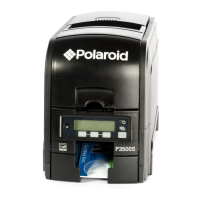
Print Instantly: From a
Digital Camera
Instantly printing images from a digital camera is as
easy as connecting the PictBridge-enabled camera
to the printer. Once connected, follow the PictBridge
screen on the camera display. Simply select what
image to send to the printer and within 60 seconds,
the print is ready to be shared.
The following is an example for connecting to the
printer and printing your images. The terminology
used in your camera may be different.
1. Connect your digital camera and printer to determine if a print option or printer icon is
automatically displayed on the camera screen.
2. If no print option appears, select “menu” and navigate to confirm that PictBridge is enabled.
Note: If “USB” is displayed under “settings,” then PictBridge is NOT enabled.
3. Once PictBridge is enabled, select the image you want to print and follow the on-screen
instructions.
Notes:
Do not disconnect the USB cord until entire printing process is complete.
Do not turn off the printer while printing.
Do not open paper tray door while printing.
To print the date on your photo, ensure the Date Stamp feature on your digital camera is enabled.
Does not print when connected to a PC.
For specific printing directions for your digital camera, review your digital camera user’s manual or
the manufacturer’s Web site.


 To Next Page
 Loading...