The POS-mate PM-BCBT2D-W is a wireless barcode scanner designed for various point-of-sale and inventory management applications. It supports both 1D (linear) and 2D (matrix) barcodes and offers multiple connectivity options, including Bluetooth (HID, SPP, BLE) and 2.4G wireless, making it compatible with a wide range of devices such as smartphones, tablets, PCs, Macs, iOS, iPadOS, and Android systems.
Function Description:
The primary function of the POS-mate PM-BCBT2D-W is to scan and decode barcodes, transmitting the data wirelessly to a connected host device. It can operate in various modes to suit different operational needs. The scanner features a physical button for triggering scans and includes LED indicators and beep sequences to provide feedback on its status, such as connection, scanning success, charging, and errors.
Important Technical Specifications:
- Product Name: POS-mate Wireless Barcode Scanner
- Product Code: PM-BCBT2D-W
- UPC: 746935310325
- Scanner Type: CMOS
- Light Source: White LED + Red LED
- CPU: 32-bit
- Resolution: 640 x 480
- Motion Tolerance: 25cm/s
- Depth of Field: 3cm – 50cm
- Scan Mode: Manual (default), Autosensing
- Scan Angle: Roll: ±360°, Pitch: ±60°, Skew: ±30°
- Print Contrast: ≥25%
- Wireless Communication Mode: Bluetooth (HID/SPP/BLE), 2.4GHz
- Wireless Communication Range: Bluetooth ≤30m, 2.4GHz ≤150m
- Storage: 16Mb (for storing barcodes in storage mode)
- Battery Capacity: 2200mAh
- Charge Time: ≈ 3 hours
- Operating Time: ≈ 16 hours
- Power Requirements: DC 5V@200mA
- Operating Temperature: -20°C to 55°C
- Storage Temperature: -20°C to 60°C
- Humidity: 5% to 95% (non-condensing)
- Certificates: FCC, RoHS, CE, RCM
Usage Features:
- Setup and Pairing: The scanner comes with a charging dock. To set up, the dock is connected to a USB power supply. The scanner can be charged by placing it in the dock, with a full charge taking approximately 3 hours. Pairing can be done automatically or manually.
- Automatic Bluetooth Pairing: Press and hold the scanner button for 8 seconds. The blue LED will flash alternatively, indicating HID pairing mode. Search for "POS-mate Scanner" on your device's Bluetooth settings and pair.
- Disabling Automatic Pairing: A barcode can be scanned to disable automatic pairing, allowing for manual control over connections.
- Manual Bluetooth HID Mode Pairing: Scan the "Bluetooth HID Mode" barcode, then the "Pair" barcode. The blue LED will flash alternatively. Connect via Bluetooth on your device.
- Wireless 2.4G Pairing: Insert the 2.4G dongle into a PC. Scan the "Wireless 2.4G" barcode, then the "Pair" barcode. The blue LED will flash, then remain solid upon connection.
- SPP and BLE Pairing: These modes support additional software and are connected by scanning specific barcodes ("Bluetooth SPP Mode" or "Bluetooth BLE Mode") followed by the "Pair" barcode. The blue LED will flash (alternatively for SPP, simultaneously for BLE) and then remain solid when connected.
- LED Indicators:
- Blue - on: Connected
- Blue - flash: Scan success
- Red - on: Charging
- Red and Blue - on: Connected and charging
- Blue - alternatively flashing: HID pairing mode
- Blue - simultaneously flashing: BLE pairing mode
- Blue only - flashing: 2.4G pairing mode or SPP pairing mode
- No LED: Not connected, not charging
- Beep Indicators:
- 1 long beep: Power ON/OFF
- 1 short beep: Scan or pairing success
- 2 short beeps: Wireless disconnection (out of range)
- 3 short beeps: Scanner memory full
- 5 short beeps: Recharge scanner
- Automatic Scanning Mode: The scanner can be programmed to automatically scan when movement is detected, without requiring the button to be pressed. This can be enabled or disabled by scanning specific barcodes.
- Barcode Type Settings: Users can enable or disable 1D (linear) and 2D (matrix) barcodes independently by scanning corresponding barcodes.
- Data Transfer Settings:
- Instant Mode (default): Data is transferred immediately to the connected device.
- Storage Mode: Scanned data is stored in the scanner's 16Mb memory.
- Data Transfer Control: In Storage Mode, users can upload stored data, clear all data, or view the total number of stored barcodes by scanning specific barcodes.
- Data Transfer Rate: The transfer rate for Bluetooth HID/SPP/BLE can be adjusted (Fast, Medium, Low, Very Low) to ensure correct data transfer in environments with electrical interference.
- Suffix Settings: The scanner can simulate a Return/Enter key press (default), a Tab key press, or no suffix after each scan.
- Letter Conversion Settings: The scanner can convert scanned letters to all capital letters, all lowercase letters, or cancel letter conversion (default).
- Hide Character Settings: Specific numbers of characters (1, 2, 3, or 4) from the start or end of a barcode can be hidden. Options to cancel these settings are also available.
- Keyboard Language Settings: The default keyboard language is American English, but it can be adjusted to British English, French, Japanese, or International General Keyboard by scanning the relevant barcodes. Additional languages can be found on the POS-mate website.
- iOS / iPadOS Virtual Keyboard Control: For iOS/iPadOS devices, double-clicking the scanner button can show or hide the virtual keyboard. This feature can be enabled or disabled by scanning specific barcodes.
- Vibration Settings: The scanner can be set to vibrate each time the scanner button is pressed. Vibration can be turned on (default) or off.
- Volume Settings: The scanning beep volume can be adjusted to mute, low volume, or high volume (default).
- Sleep Settings: The scanner can be set to go to sleep after 30 seconds, 1 minute, 2 minutes, 5 minutes (default), 10 minutes, 30 minutes, or never. There is also an option to make it sleep immediately.
- System Information: Users can scan barcodes to view the firmware version and battery level of the scanner.
- Square App Compatibility: The scanner connects to Square App for iOS, iPadOS, or Square Stand. It is not compatible with Square App for Android or Square Terminal.
Maintenance Features:
- Recharge Scanner: The scanner provides a beep sequence (5 short beeps) to indicate when it needs recharging.
- Troubleshooting: The manual provides guidance for common issues:
- Scanner not working: If the scanner is not paired, it suggests pairing the scanner. If there is no battery power, it advises charging the scanner battery.
- Scanner does not decode barcode: If a barcode is unreadable, ensure the barcode is complete and try another. If some barcodes are disabled, review the Barcode Type Settings. If the distance between the scanner and barcode is incorrect, move the scanner to between 3cm and 50cm from the barcode.
- Scanner decodes barcode but does not transmit data: If the scanner is too far from the connected device, move closer. If the scanner is in Storage Mode, upload data manually or change to Instant Mode.
- Restore Factory Settings: The scanner can be restored to its factory settings by scanning a specific barcode.
The POS-mate PM-BCBT2D-W is a versatile and user-friendly wireless barcode scanner, offering robust features for efficient data capture and management in various commercial environments.

 Need help?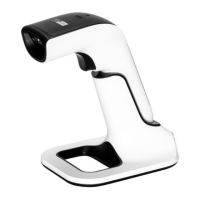

 To Next Page
 General