PM-BCBT2D-W Instruction Manual v.1.0
Setting Up Your Wireless Barcode Scanner
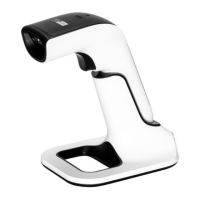
• Remove your POS-mate Wireless Barcode Scanner from its
packaging and place it on your countertop.
• Insert one end of the cable supplied into the Charging
Dock’s USB Power Inlet, the other end into a USB power
supply, i.e. PC or wall socket.
o Insert a USB cable into the Dock’s USB Power Outlet to
charge your smartphone or tablet.
• Place your POS-mate Wireless Barcode Scanner into the
Charging Dock. It will fully charge within 3 hours.
• Pair to your device.
Connecting to Square App for iOS/iPadOS
To connect your POS-mate Wireless Barcode Scanner to Square
App for iOS, iPadOS or Square Stand, follow the setup
instructions at
http://square.com/help/article/5143
or use your scanner to scan the
QR code into your browser
POS-mate Wireless Barcode Scanner is not compatible with Square App
for Android or Square Terminal.


 To Next Page