EasyManua.ls Logo

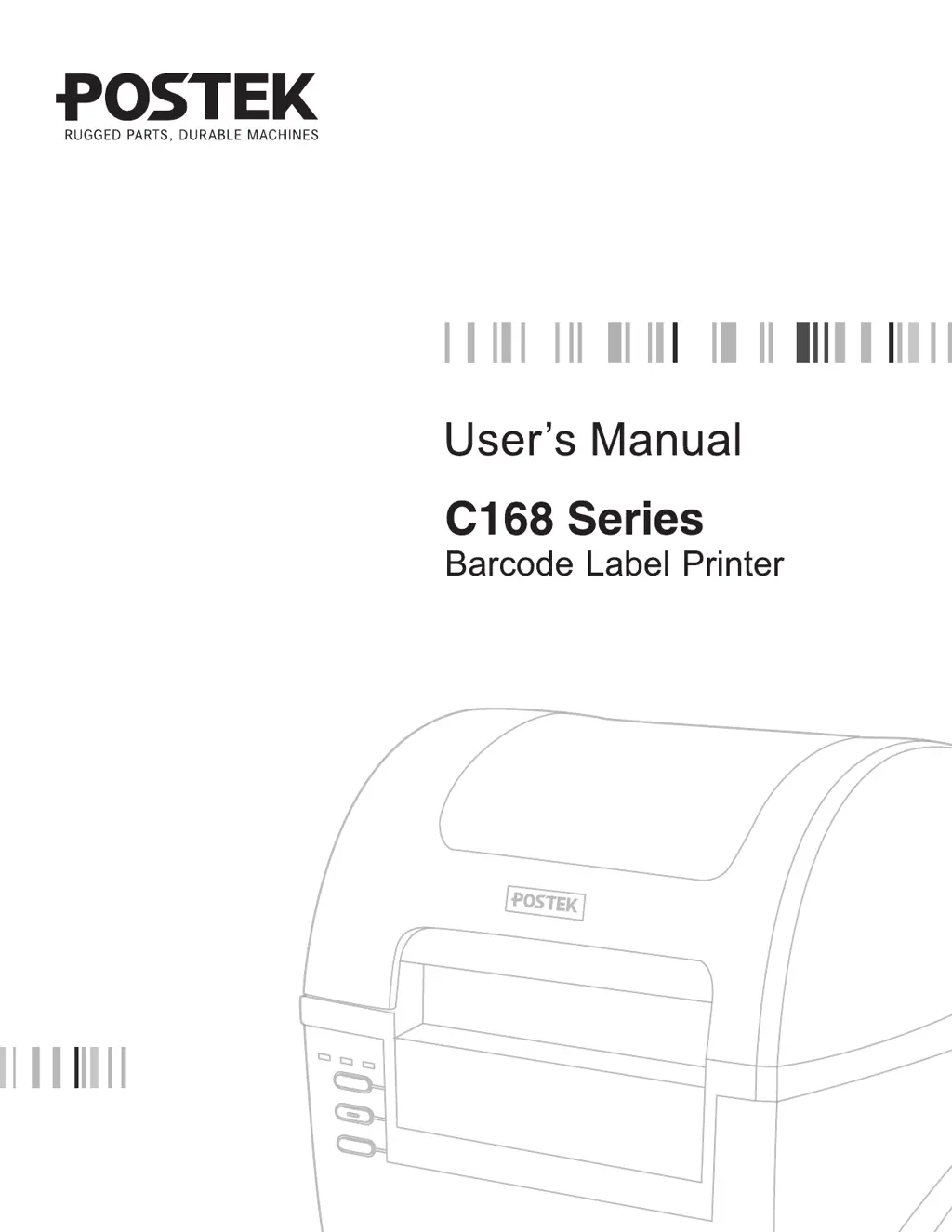
Postek C168 Series - User Manual

Postek C168 Series
45 pages
Print Icon
To Next Page IconTo Next Page
Loading...

Questions and Answers

Summary

Disclaimer and Legal Notices

Manual Accuracy and Liability

Manual accuracy, product changes, and liability for errors or omissions.

Manufacturer Warranty Limitations

Limits manufacturer liability for unpredictable conditions and damages.

Important Safety Instructions

General Safety Precautions

Covers handling, environment, power, and maintenance safety.

Product Warnings

Highlights Class A product interference and static electricity risks.

Preface and Important Notices

Printer Overview

Introduces the C168 Series printer features and benefits.

Printhead Care and Handling

Crucial instructions for preventing printhead damage and ensuring longevity.

Consumable Quality Guidelines

Emphasizes using high-quality labels, tags, and ribbons for optimal performance.

Print Method Considerations

Explains Direct Thermal vs. Thermal Transfer printing and warranty impact.

Chapter 1: Introduction

Printer Specifications

Details technical specifications for C168/200s and C168/300s models.

Power Adapter Specifications

Lists input, output, and environmental specifications for the power adapter.

Contents of Box

Packing List Details

Itemizes all components included in the printer package.

Chapter 2: Setup and Use

Printer Setup Considerations

Guidelines for adequate space and cable accessibility before initial setup.

Main Printer Parts Identification

Identifies key external components of the C168 Series printer.

Connecting the Printer

Power Connection Warnings

Safety warnings regarding liquids, chemicals, and correct power adapters.

Power Connection Steps

Step-by-step instructions for connecting the printer to a power source.

Interface Connection

Supported Interface Types

Details supported RS-232 Serial and USB connections for communication.

USB Connection Best Practices

Advice for using the same USB port during driver installation for optimal performance.

Cable Noise Reduction Tips

Tips for minimizing cable noise to ensure reliable data communication.

Loading the Ribbon

Ribbon Loading Precautions

Precautions for loading ribbon, especially for direct thermal printing.

Ribbon Installation Procedure

Detailed instructions for installing a ribbon roll into the printer.

Loading the Media

Media Loading Modes

Explains Standard, Peel-off, and Cutting modes for media handling.

Standard Mode Media Loading

Standard Mode Loading Steps

Step-by-step guide for loading media into the printer in Standard Mode.

Peel-off Mode Setup

Peel-off Mode Requirement

Notes that the optional Peeler Kit is required for Peel-off mode operation.

Peel-off Mode Configuration

Instructions for enabling and setting up the printer for Peel-off mode.

Cutting Mode Setup

Cutting Mode Requirement

Notes that the optional Rotary Cutter is required for Cutting mode operation.

Cutting Mode Configuration

Instructions for enabling and setting up the printer for Cutting mode.

Using the External Media Stand

Media Stand Capacity

Explains how the stand accommodates larger media rolls up to 8" OD.

Installing the Media Stand

Media Stand Installation Guide

Guides on positioning the media stand relative to the printer feet for stability.

Loading Media with External Stand

Media Spindle and Guide Assembly

Instructions for assembling media roll on spindle with guides and adapters.

External Media Path Routing

Details on routing media from the external stand through the printer mechanism.

Adjusting Media Sensor Position

Media Sensor Adjustment Steps

Steps to access and reposition the media sensor for accurate label detection.

Chapter 3: Operations and Settings

Power Switch Functionality

Explains the operation and function of the printer's power switch.

Front Panel Overview

Identifies indicator lamps and function buttons on the printer's front panel.

Indicator Lamp Status Meanings

Describes the meaning of READY, MEDIA, and RIBBON indicator lamp states.

Panel Button Functions

Button Operation Guide

Details basic and advanced functions of panel buttons like Feed, Pause, Cancel.

Advanced Printer Functions

Media Sensor Calibration

Procedure for calibrating the media sensor after loading new media.

Printer Self-Test Procedure

How to perform a self-test to print a configuration report.

Reset Printer Settings

Factory Reset Procedure

Steps to reset the printer to its default factory settings.

Reset Parameter Overview

Lists parameters that are reset to factory defaults upon reset.

DIP Switch Panel

DIP Switch Configuration

Overview of the DIP switch panel and notes for setting.

DIP Switch Functions

DIP Switch Settings Table

Detailed table mapping DIP switch bits to functions and remarks.

Windows Printer Driver

Driver Compatibility Information

Lists compatible operating systems and download sources for the printer driver.

Label Editing Software

Included Label Software

Information about the powerful barcode label editing software included with the printer.

Chapter 4: Maintenance

Maintenance Safety Warnings

General safety warnings to observe before performing any maintenance operations.

Cleaning the Printhead

Printhead Cleaning Procedure

Step-by-step instructions for cleaning the printer's thermal printhead.

Printhead Cleaning Frequency

Recommends intervals for cleaning the printhead based on ribbon and label usage.

Cleaning the Platen Roller

Platen Roller Cleaning Guide

Instructions and recommended frequency for cleaning the platen roller.

Cleaning the Printer Interior

Printer Interior Cleaning

Guidance on cleaning the printer's interior to prevent debris damage to parts.

Chapter 5: Troubleshooting

Error Indication Overview

Explains printer status based on blinking indicator lamps.

READY;MEDIA Lamp Error

Troubleshooting for simultaneous blinking of READY and MEDIA lamps.

READY;RIBBON Lamp Error

Troubleshooting for simultaneous blinking of READY and RIBBON lamps.

READY Lamp Only Error

Troubleshooting for scenarios where only the READY lamp blinks.

Miscellaneous Troubleshooting

Vertical Blank Lines

Identifies causes and solutions for vertical blank lines in printouts.

Printer Timeout Error

Troubleshooting steps for printer timeout error messages.

Data Sent, Not Printing

Solutions for when data is sent but the printer fails to print.

Poor Printing Quality

Printing Quality Improvement

Steps to improve print quality, including settings and consumables.

Error Recovery

Error Recovery Procedures

How to clear alarms or restart the printer to resume printing operations.

Appendix A: Interface Specifications

RS232 Connector Pinout

Details the pin assignments for the DB9F RS232 connector on the printer.

Host Connection Wiring

Provides wiring diagrams for connecting the printer to host computers via RS232 serial ports.

Serial Communication Settings

Specifies baud rate, data format, parity, and flow control for serial communication.

Port Detection and Data Notes

Explains automatic port detection and cautions against simultaneous data transmission.

Appendix B: ASCII Table

ASCII Character Mapping

A table mapping ASCII codes (0-9, A-F) to their corresponding characters.

Postek C168 Series Specifications

General IconGeneral
Ribbon Length300 m
TypeDesktop Barcode Printer
Print MethodThermal Transfer / Direct Thermal
Print Resolution203 DPI
Memory8MB Flash, 8 MB SDRAM
Media TypeRoll
Media Roll Diameter127 mm (5 inches)
Ribbon Core25.4 mm (1")
Processor32-bit RISC
InterfacesUSB, Serial
Power SupplyAC 100-240V, 50/60Hz
Media Width25.4 mm - 108 mm
Media Thickness0.06 - 0.19 mm
Ribbon Width25.4 mm - 110 mm

Related product manuals