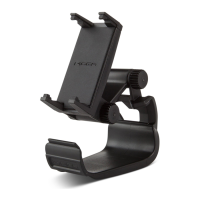
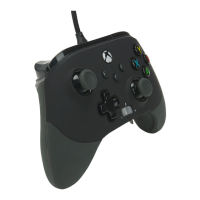
CONTENTS
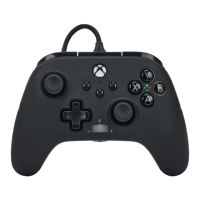
Enhanced Wired Controller for Nintendo Switch™
Detachable 10ft (3m) USB Cable
User Manual
SET UP
1. Make sure your Nintendo Switch system is powered on and connected to your TV.
2. Insert the USB cable into a USB port on the Nintendo Switch dock. Connect the other end of the cable to the wired controller. Your wired controller is now ready for
use.
Contents [ hide
1 BASIC USAGE
2 ASSIGNING ADVANCED GAMING
BUTTONS
3 TROUBLESHOOTING
4 FCC STATEMENT
5 WARRANTY
6 ADDITIONAL LEGAL
7 File Downloads
8 References
9 Related Manuals
BASIC USAGE
Connect multiple wired controllers to the Nintendo Switch console at a time. On-screen notifications will indicate which USB channel each controller is connected to.
ASSIGNING ADVANCED GAMING BUTTONS
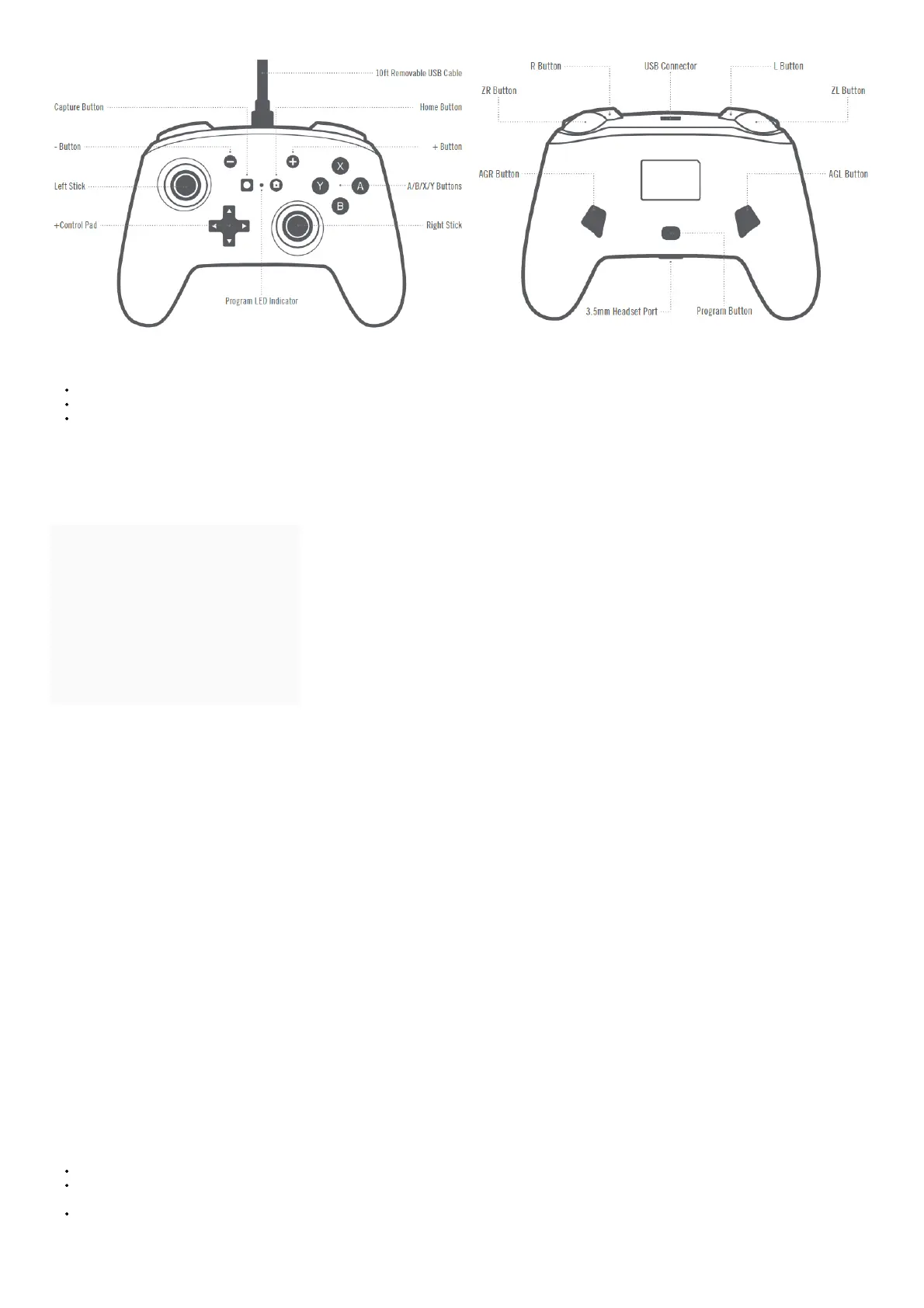
1. Press and hold the program button for 2-3 seconds on the back of the controller. The program LED indicator will flash,
signaling the controller is in assign mode.
2. Press 1 of the following buttons (A/B/X/Y/L/R/ZL/ZR/Left Stick Press/Right Stick Press/+Control Button) to re-assign. Then press the Advanced Gaming Button (AGR
or AGL) that you wish to assign. The Program LED indicator will stop flashing, signaling the Advanced Gaming Button has been set.
3. Repeat for the remaining Advanced Gaming button.
NOTE: Advanced Gaming Button assignments will remain in memory even after disconnected.
RESETTING ADVANCED GAMING BUTTONS
1. Hold the program button down for 2-3 seconds. The LED Connection Indicator will slowly flash, signaling the controller is in program mode.
2. Press and hold the Assign Program Button for 5 seconds to reset to no function.
TROUBLESHOOTING
Q1. Why isn’t my controller connecting to my Nintendo Switch console?
A1. Confirm that the USB cable is securely connected to the Wired Controller and the Nintendo Switch dock.
A2. Confirm that the Nintendo Switch is powered on and connected to an external display before connecting your wired controller.
A3. Confirm that your Nintendo Switch has the latest System Update installed.
Q2. Why don’t I feel any vibration when using this controller?
A1. This product does not support vibration functionality
MOTION WARNING
Playing video games can make your muscles, joints, skin, or eyes hurt. Follow these instructions to avoid problems such as tendinitis, carpal tunnel syndrome, skin
irritation, or eyestrain:
Avoid excessive play. Take a 10 to 15-minute break every hour, even if you don’t think you need it. Parents should monitor their children for appropriate play.
If your hands, wrists, arms, or eyes become tired or sore while playing, or if you feel symptoms such as tingling, numbness, burning, or stiffness, stop and rest for
several hours before playing again.
If you continue to have any of the above symptoms or other discomforts during or after play, stop playing and see a doctor.
FCC STATEMENT



 To Next Page