GET TO KNOW YOUR POYNT
Your Poynt device will come with the app that applies to
your business: Terminal, Register, or Lodging.
To access
the menu, simply swipe down from the top of the merchant
screen.
SET UP YOUR POYNT ACCOUNT
Your Poynt HQ dashboard provides real-time views of customer and
transaction data.
CREATE/ADD USER
When you fi rst log in, you will be prompted to log in as one
of the users set up for the account. The default user is the
account owner.
For card present credit/debit transactions, follow these steps:
CREDIT/DEBIT CARD SALE
1. Tap on the “Terminal” icon on the merchant display.
2.
Enter the sale amount and press
CHARGE.
3. On the next screen, open the drop-down menu in the top
right corner and select CREDIT or DEBIT.
4. Insert the card fully into the slot and wait for the
authorization confi
rmation. Remove when instructed.
5. For credit transactions, the customer will be prompted for
their signature. For debit transactions, the customer will be
prompted to enter their debit card PIN.
6. The customer can opt to have the receipt printed or sent
via email or SMS text.
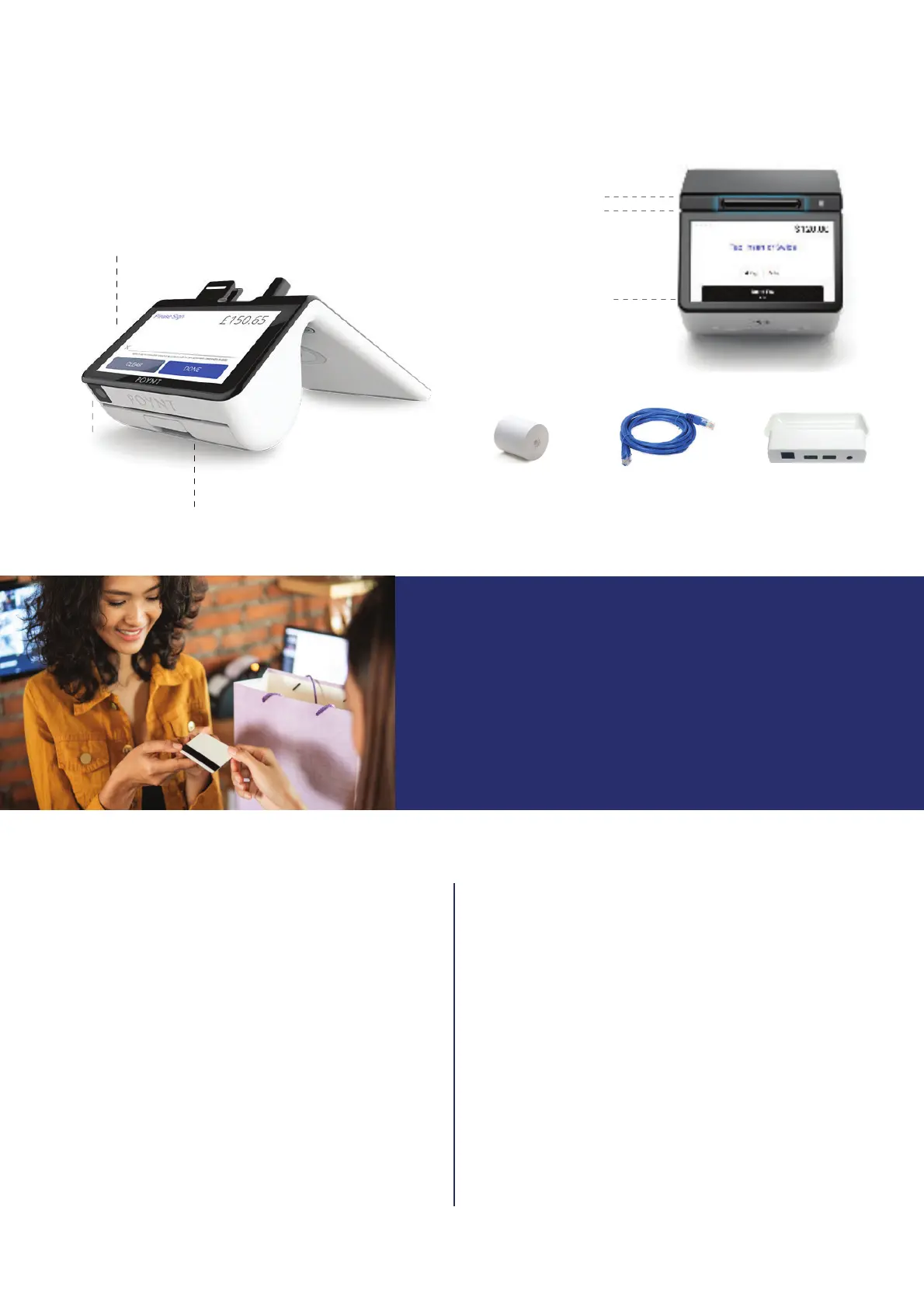
The chip reader and swipe reader are located just above the
customer-facing display. The customer display allows cus-
tomers to sign, enter their PIN, and select a receipt option.
Chip reader
Swipe reader
Contactless
(tap-to-pay)
Receipt paper compartment*
(lift catch and insert with end pulled out from under the roll)°
Customer-facing color
touchscreen display
Ethernet cable
(if using Ethernet)
Receipt paper
(2 1/4” x 16’)
* Receipt paper is pre-installed on new devices.
Charging cradle
(optional add-on)
1. You will receive a confi rmation email from Poynt. In the email,
click “Get Started” to create your login credentials.
2.
Visit https://poynt.net and sign in with your new credentials.
3. Download the “Poynt HQ” app to your mobile device from the
Apple
App Store or Google Play Store.
Steps for basic transaction types are provided for your convenience. Please note that the steps may vary based on the specifi c ser-
vices set up for the account. Refer to the user manual for your payment device for more information.
There are two screens. The bigger one is the merchant display,
and the smaller screen should face the customer.
QR code/
bar code scanner
The terminal will walk you through the steps needed to add/
modify a User Name and 6-digit PIN.
• If you have not set up your user account (User ID and
PIN) on a previous Poynt terminal or on the Poynt HQ
website, you may be prompted to set up a new user
account.
•
To
create a new user account on the terminal, use the
Add User link at the bottom of the screen to set up
your new User ID and PIN.
© 2023 Elavon, Inc. All rights reserved. Elavon is a trademark in the United States and/or other countries. This information is prepared by Elavon as
a service for its customers. All features and specifi cations are subject to change without notice.


 To Next Page
 Loading...