955205_01 11/11 18
Sensor Setup
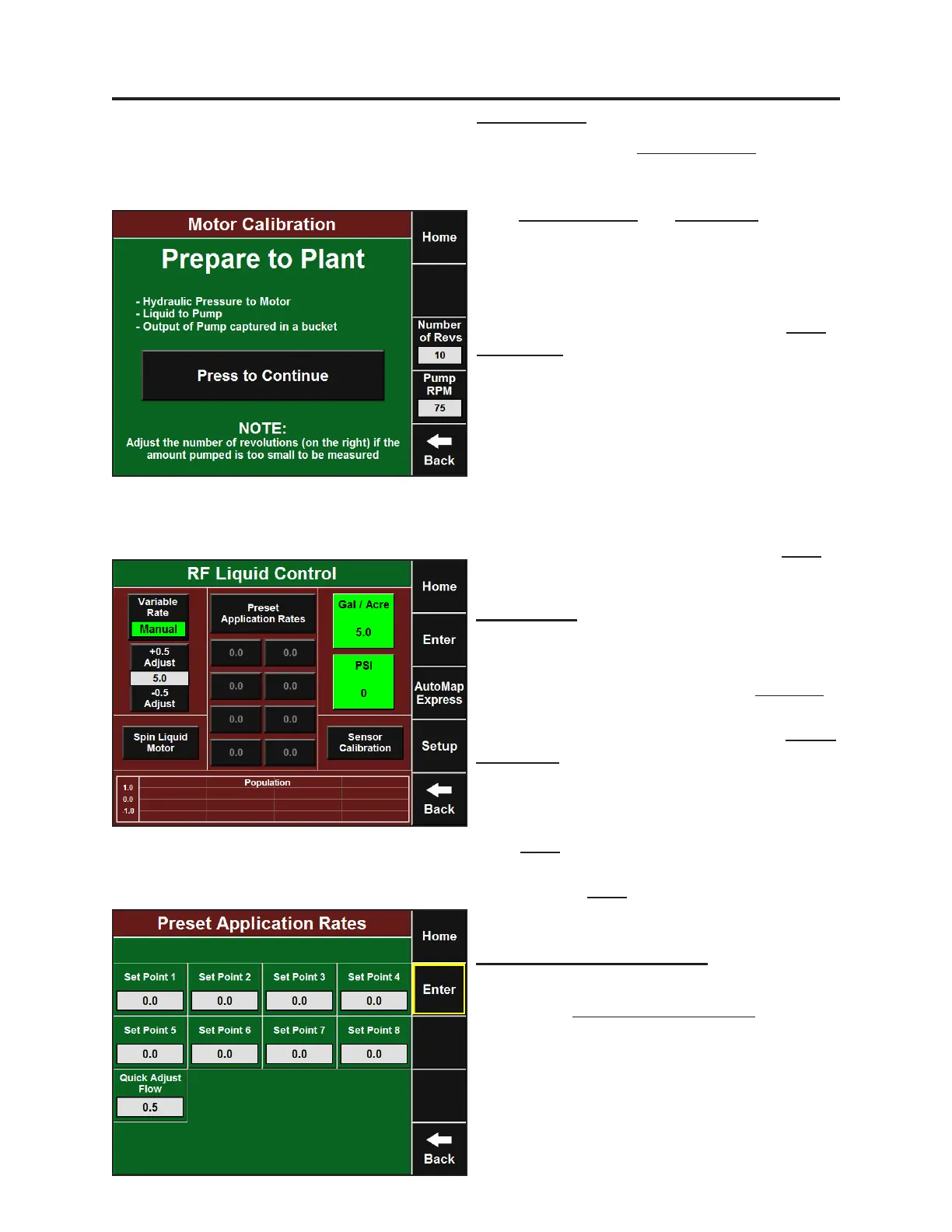
Navigate to the RowFlow Liquid control page to
setup the Flow Sensor and Pressure Sensor. This
page can be reached by pressing the RF Liquid
buon from the Home screen or by going to
Setup-Systems-RF Liquid (Control). Press Sensor
Calibraon and then enter the ow calibraon
value for the Flow Meter installed on your liquid
system. The ow calibraon value is stamped
on the metal tag aached to the Flow Meter.
Press Enter and then enter the Pressure Sensor
Range (200 psi for Precision Planng Pressure
Sensor). Press Enter again to nish the Sensor
Setup.
Liquid Run Cal
Start by entering the Number of Revs you would
like the pump to spin and enter the Pump
RPM’s that you would like to run the calibraon
with. Number of Revs and Pump RPM will vary
based on the pump and the size of the
container you have to catch the product. If
you do not pump enough product to measure,
you may need to increase these values. Once
you have set those two values, press the Press
to Connue buon (be sure to have hydraulic
pressure to the motor, liquid to the pump, a
container for measurement). Li and hold the
two Auto-Load Switches unl the calibraon is
complete and you are returned to the
previous screen. Measure the output of the
pump (in ounces) and divide by the actual
number of pump revoluons listed in the box
at the boom of the screen. This is the number
that should be entered at the top. Press Enter
to complete.
Setup and Operaon (Planter)
Rate Presets and Quick Adjust
To setup preset rates or change the quick adjust
values press Preset Applicaon Rates. From
this screen you can enter commonly used rates
that you can jump to from the RowFlow Liquid
Control page in the eight Set Point boxes. You
may also set the value for which your manual
rate adjustment increments in the Quick Adjust
Flow box.


 To Next Page
 Loading...