Fold Tables
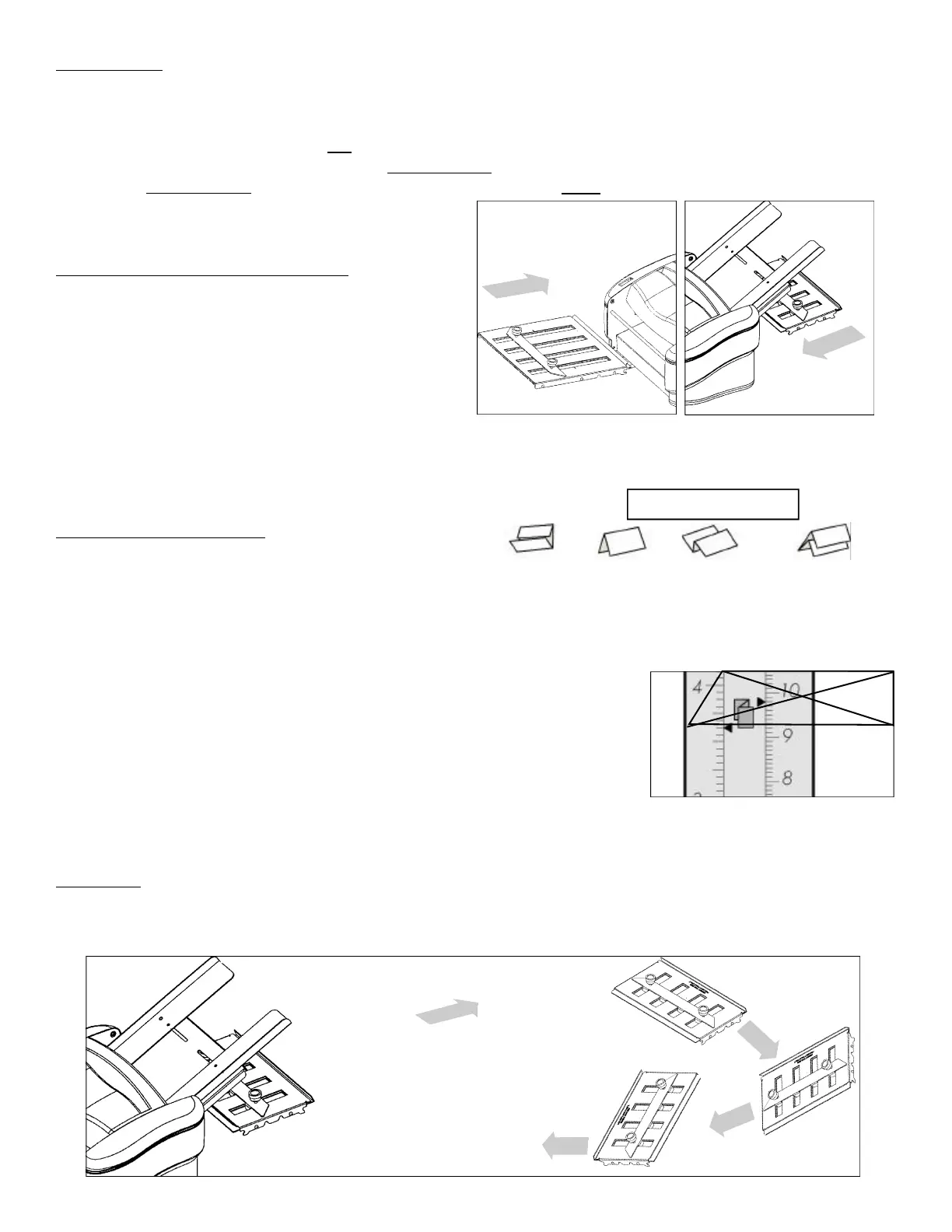
The Front and Back Fold Tables should come already inserted in the machine. If you need to remove them for
jam removal, insert them back into the machine as shown in Figures #7 and #8.
• Slots on the ends of both Fold Tables fit onto the 2 silver colored pins inside the machine (figure #6).
• The Fold Tables should rest on top of the silver tie rods (see figure #6).
• The Tables should go into the machine open end first (exception: W
hen doing a half fold, the Back Fold Table
should go in closed end first. See Half Fold section on the next page.) Hint:
Many users find it easier to install
the fold tables while looking at them from the bot-
tom (as seen in figure #6).
ADJUSTING THE FOLD TABLES
Note: The RapidFold
TM
(110 Volt version)
comes factory preset to fold a 8 1/2” X 11”
sheet of paper to a letter fold appropriate
for a standard business envelope. 230 Volt
machines (UK and Europe) are factory pre-
set to fold an A4 sheet of paper to a letter
fold.
Before attempting to set the P7200 to a fold different than the factory setting, one must understand the differ
ent types of folds (see figure 9 for examples of several common folds and their corresponding icons). A half
fold requires that only the first fold table be set and used. All other folds require that both fold tables be set up
and used.
Double Fold Operation
All folding operations apart from the half fold require two
folds be placed in the stock. This is the case in the typ-
ical letter fold or Z-fold. The second fold table must be
in the double fold position (position it is in as received) to accomplish this. Use the following steps to create the
different types of folds:
1. Loosen both locking knobs on both folding tables to loosen the paper
stops.
2. Locate the icons on the fold table rulers that are the type of fold that the
operator desires. Note: The icons are color coded for clarity as indicat-
ed above.
3. Move the Paper stops to the corresponding arrows next to the desired
icons. 8 1/2” X 11” paper uses the inch scale on the left side of the
rulers. A4 paper uses the metric scale on the right side of the rulers
(see figure 10).
4. Tighten the paper stop locking knobs down to lock the paper stops into position.
Half Fold
To set the machine for half fold, you will need to take out the Back Fold Table, reverse it, and re-insert it (closed
end first) see Figure 11. Adjust the Front Fold Table as described in step 3 above.
DOUBLE PARALLEL
(yellow)
Z-FOLD
(green)
HALF
(blue)
LETTER
(orange)
Figure 9
Fold types possible on the P7200
Figure 7
FRONT FOLD TABLE
Figure 8
BACK FOLD TABLE
Figure 10
Example of a Z-FOLD setting
for US Letter 8.5” x 11” paper.
U.S.
8 1/2” X 11”
Metric
A4 Scale
1. Take out Back Fold Table
Lift up and pull out
from machine
2. Reverse Table
Knobs should
be facing up
3. Insert back into machine
Closed end first,
knobs still facing up
Figure 11


 To Next Page
 Loading...