11
USER MANUAL MultiPad PMP810T series
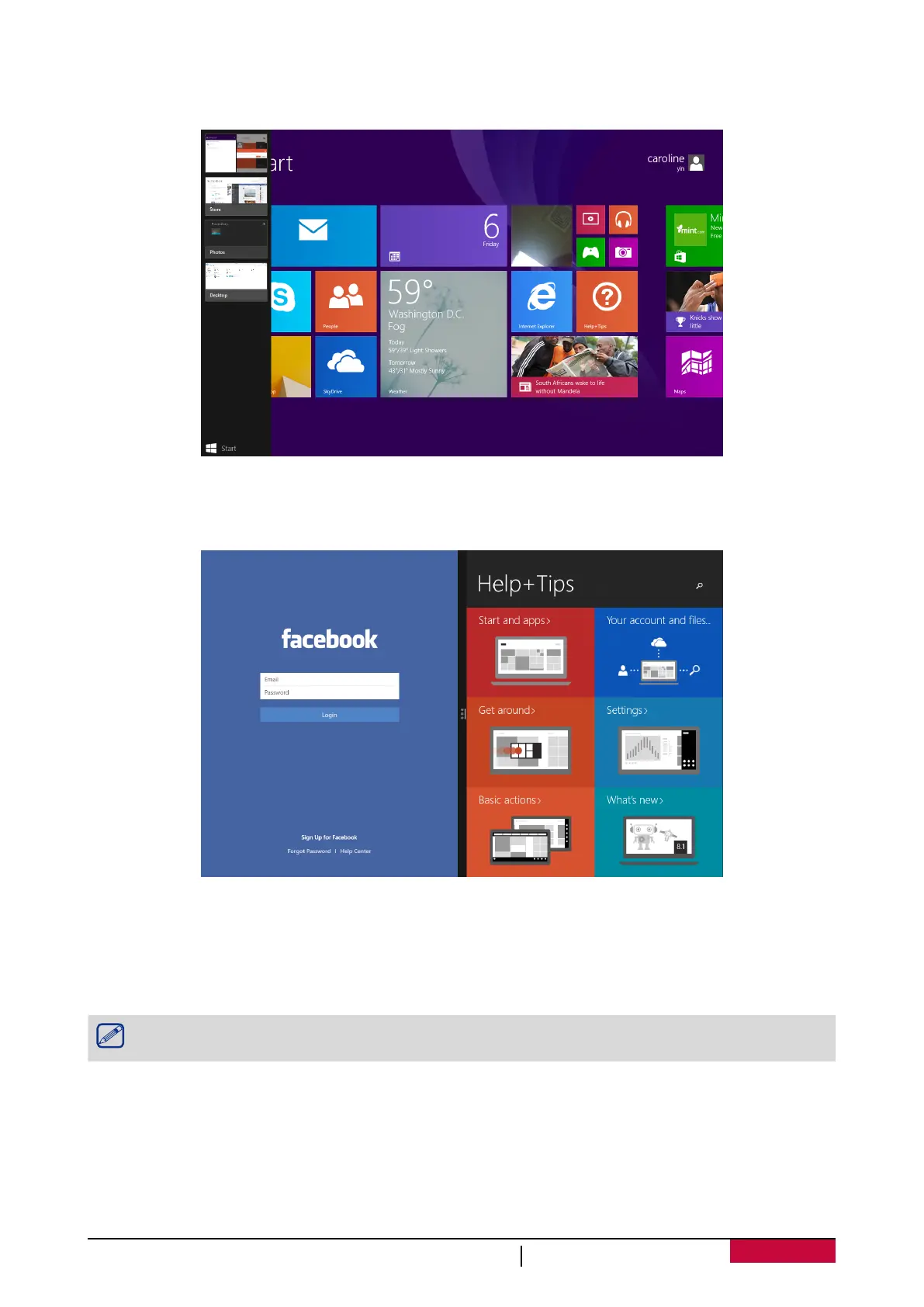
Switch to a specific app
•Swipe in from the left edge, and with your finger still on the screen, move it back toward the left
edge. Tap the app you want.
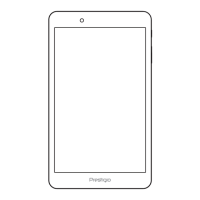
Use apps together (side by side)
You can use two apps at the same time by snapping them side by side. This way you can see two
apps on the screen at once.
1. Open each of the apps you want to use.
2. Open the recently used app list (swipe in from the left edge, and with your finger still on the
screen, move it back toward the left edge).
3. Drag an app from the app list until the current app changes size, then let go of the app.
4. To adjust the size of the apps, drag the bar between the apps.
If you want to change one of the apps, go to Start or the Apps view and tap an app. It will
appear on top of the first two apps. Tap the left or right side of the screen.
Close an app
You do not need to close apps from the Windows Store. When you switch to another app,
Windows leaves the app running in the background. It will close eventually if you do not use it.
If you really want to close a Windows Store app, here is how:
•Swipe downwards from the top edge of the screen, and drag the app down and off the screen.




 To Next Page