Menu: SET (Setup)
SET 2
Set date / time
Setting the correct date and time is important because each measurement
value is saved with a date and time stamp.
The time can also be very easily set via the “PrimeLab Desktop Assistant”.
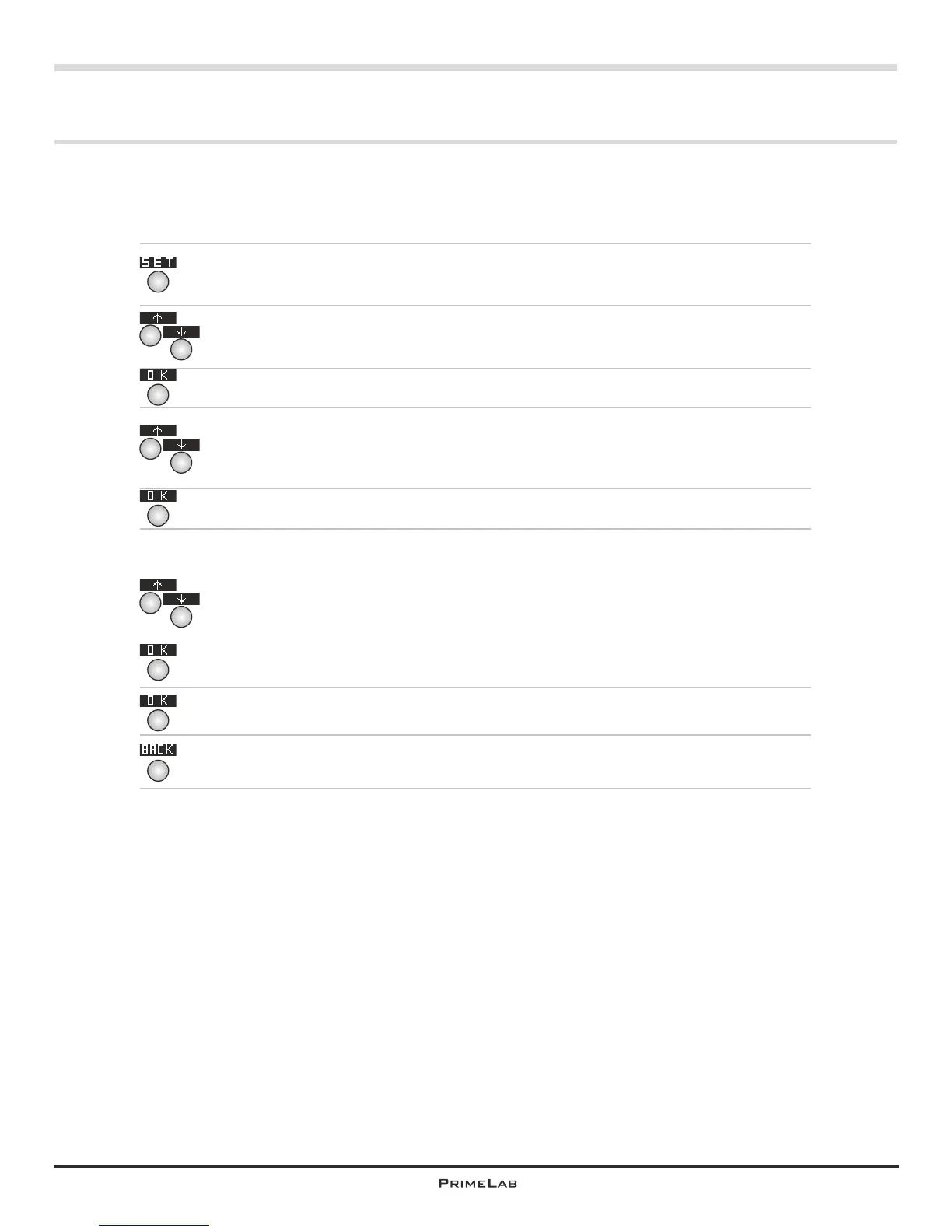
In the start menu press button 4 to access the SETUP menu.
In the setup list scroll up with button 2 and down with button 3 until the
entry “Date/Time” appears in white on black.
Then press button 4.
In the list scroll up or down with button 2 or 3 respectively until the
required entry (Date or Time) appears in white on black.
Confirm your selection by pressing button 4.
Below the number to be changed you will see a cursor (^).
The time must be entered in the 24:00 hour mode, the date in the format
DD.MM.YY.
Use buttons 2 or 3 to increase or decrease the respective number.
If and when the number is correct, press button 4 to confirm and move to
the next position.
When the last entry for the time or date has been made return to the sub-
menu “Date/Time” by pressing button 4.
When you are finished with setting the date and time, leave the sub-menu
by pressing button 1 to return to the SETUP menu.
4
4
4
1
4
4
2
3
2
3
2
3
SET 2


 To Next Page
 Loading...