PrimeLab Desktop Assistant
PDA-7
Start software & automatic synchronisation of test data
Continued...
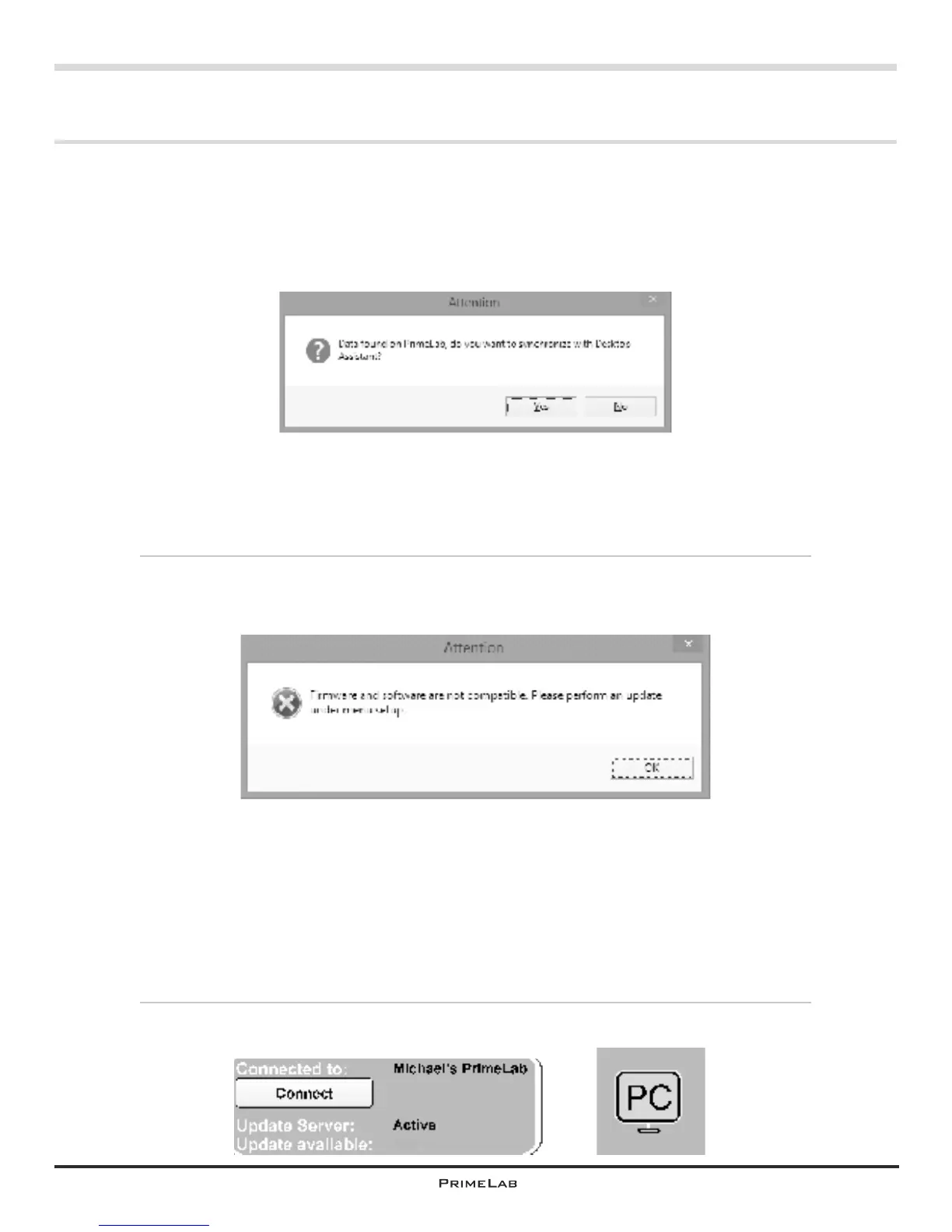
5a) When the software has detected measurement data on the PrimeLab there is a
message “Data found on PrimeLab. Do you want to synchronize?”
Select “Yes” or “No”. The data sets are then automatically synchronized between
software and device within a few seconds, and the software will assign the data
to respective “accounts”.
In the following query window you are asked whether you want to delete the
data just synchronized from the device; select “Yes or “No”. Please remember
that the memory of the PrimeLab device is limited to 100 data sets.
You can delete occasionally or the PrimeLab will automatically add ´new´ data
and delete ´old´ data one at a time on a ´rolling´ basis.
5b) If the firmware supplied with your device and the software stored on your
computer are not compatible there will be an error message recommending an
update after the loading of the software through the menu “SETUP”.
6) Please note there are two checks that can be done to confirm your PrimeLab
photometer and the software package “PrimeLab Desktop Assistant“ are properly
connected.
1) Above the ´Connect´ button you should see ´Connected to:´ and this narrative
should be followed by the correct ´name´ and/or PrimeLab ´serial number´ that
you have assigned to your PrimeLab photometer.
2) To the right side of the main screen is a small square ´PC´ box symbol. This
box will be ´green´ when properly connected and ´red´ when connection is
failed.
If you want to connect a different PrimeLab device with your software click on
“Connect”. The software will restart.
PDA-7
Yes


 To Next Page
 Loading...