PrimeLab Desktop Assistant
Menu: Setup / Set up Proxy
So that the PrimeLab Desktop Assistant can provide updates and further test
procedures the software needs to be able to connect to the internet through your
PC.
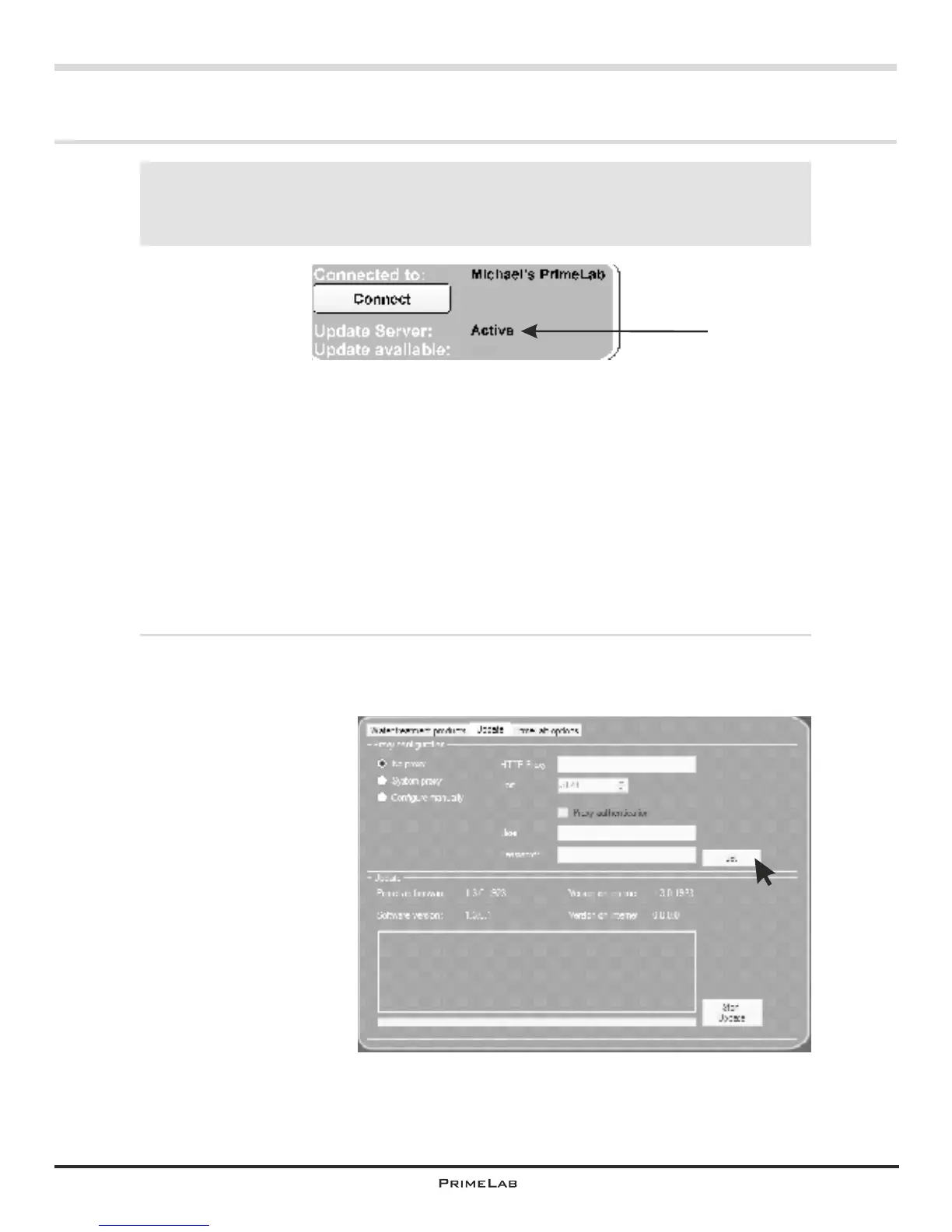
In most cases this is not a problem. The software uses the standard settings of your
web browser (e.g. MS Internet Explorer) and the word “Active” appears next to
“Update server:” on the screen.
Some networks, especially corporate networks are configured in a way that the
connected computers access the internet through a separate machine, a so-called
proxy server, which is set up so that a user name and password need to be entered.
These settings must also be entered in this software.
For this purpose click on the menu Setup and select the second tab (Update).
It may be possible to achieve internet connection by selecting the field ´System
Proxy´ and then clicking on ´Apply´. If, after restarting the software the entry next to
“Update server” is still on
“inactive” (below the
“Connect” button you will
need to provide more
details on the proxy used
by your system. For this
please ask your system
administrator!
If the word “Active” is displayed under the “Connect” button and
next to “Update server”, everything is fine and you can skip this
chapter! If the word ´Inactive´ is displayed , follow the instructions
below.
!
Yes
PDA-11PDA-11


 To Next Page
 Loading...