ACTIVslate User guide
10
© Promethean Ltd 2001
The name of each ACTIVslate is shown on its LCD panel. When changing the
name of an ACTIVslate, the name on its LCD panel will only be updated when the
ACTIVslate is next used (i.e. when communication takes place between the
ACTIVslate and the ACTIVboard).
Note: Each ACTIVslate has a unique ID number that is displayed in the
ACTIVslate LCD panel. In the above example only ACTIVslate with ID No 1 will be
renamed 'Jack', the other two slates will ignore this 'name change' command.
Using this facility you may name any/all of your ACTIVslates. All names will be
retained by the application in a configuration file. Also, each ACTIVslate will
permanently store its own name on the Slate itself.
It is important to understand that the system will use the ACTIVslate ID to identify
Slates and NOT the ACTIVslate name. The Control program assumes your Slates
are numbered 1, 2, 3 … n, so you should ensure you number your slates
accordingly (see Chapter 1 of the ACTIVslate manual).
For reasons of clarity we recommend you give each of your ACTIVslates a
different name.
2.3 Enabling/Disabling an ACTIVslate
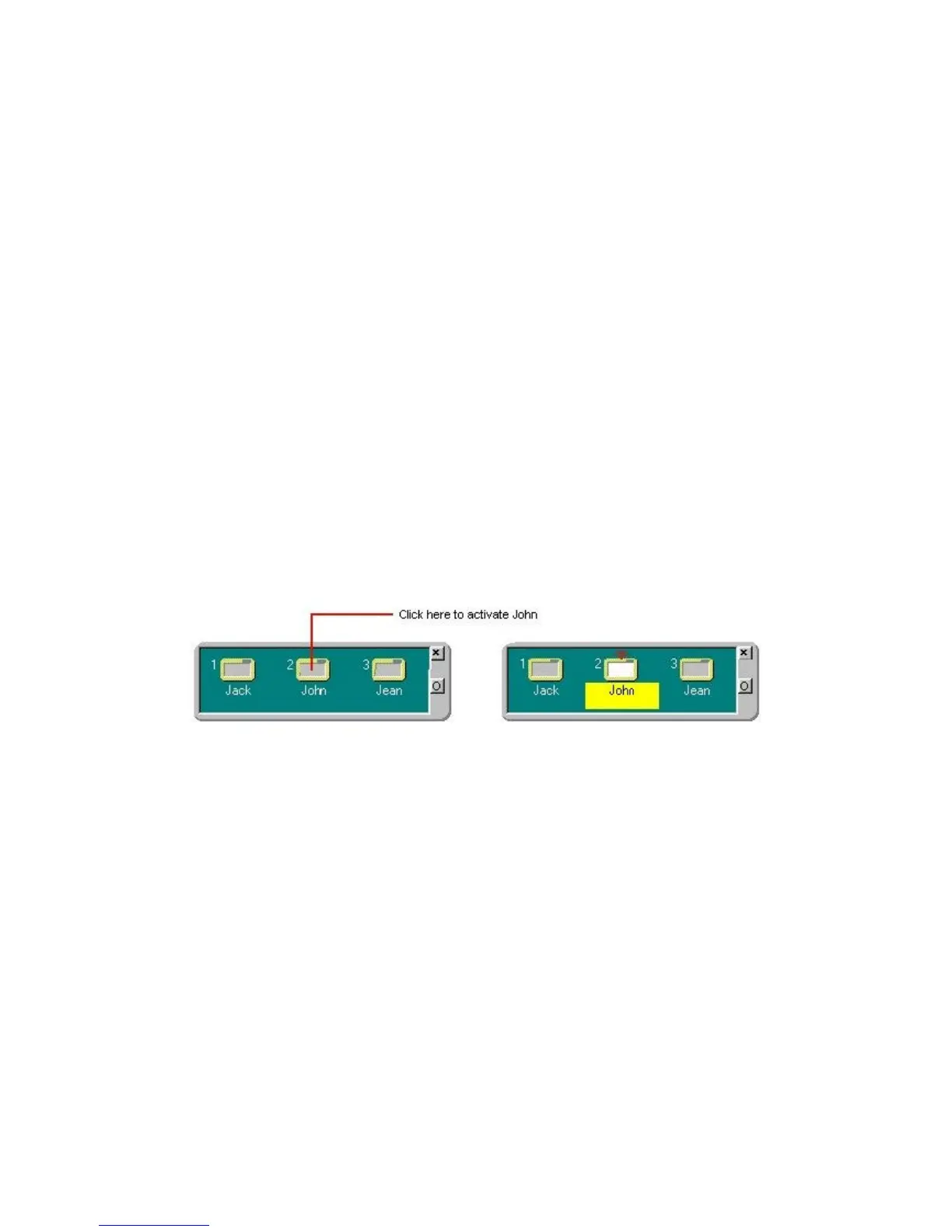
The default condition is that ACTIVslate No 1 is enabled. In order to enable an
ACTIVslate, simply click on the required Slate icon to enable it. In the following
example we have named all three Slates and are enabling ACTIVslate ID No 2:
Once enabled, the ACTIVslate can be used to control the computer mouse cursor.
In order to disable an ACTIVslate, simply click on the highlighted ACTIVslate icon
a second time, removing the highlight.
Note: You may enable and disable any ACTIVslate at any time but only one
ACTIVslate can be enabled at once.



 To Previous Page