®
Quick Start Guide
Owner’s Reference NuWave DSD
©2015 PS Audio Inc. All rights reserved.
Quick Start Guide
4826 Sterling Drive, Boulder, CO 80301 15-074-01-1
PH: 720.406.8946 www.psaudio.com Rev A
(<+06
7:
Once you have decided on the location and chosen the appropriate power cable, you are ready to
install the NuWave DSD.
We would recommend you power your entire system down before inserting the NuWave DSD.
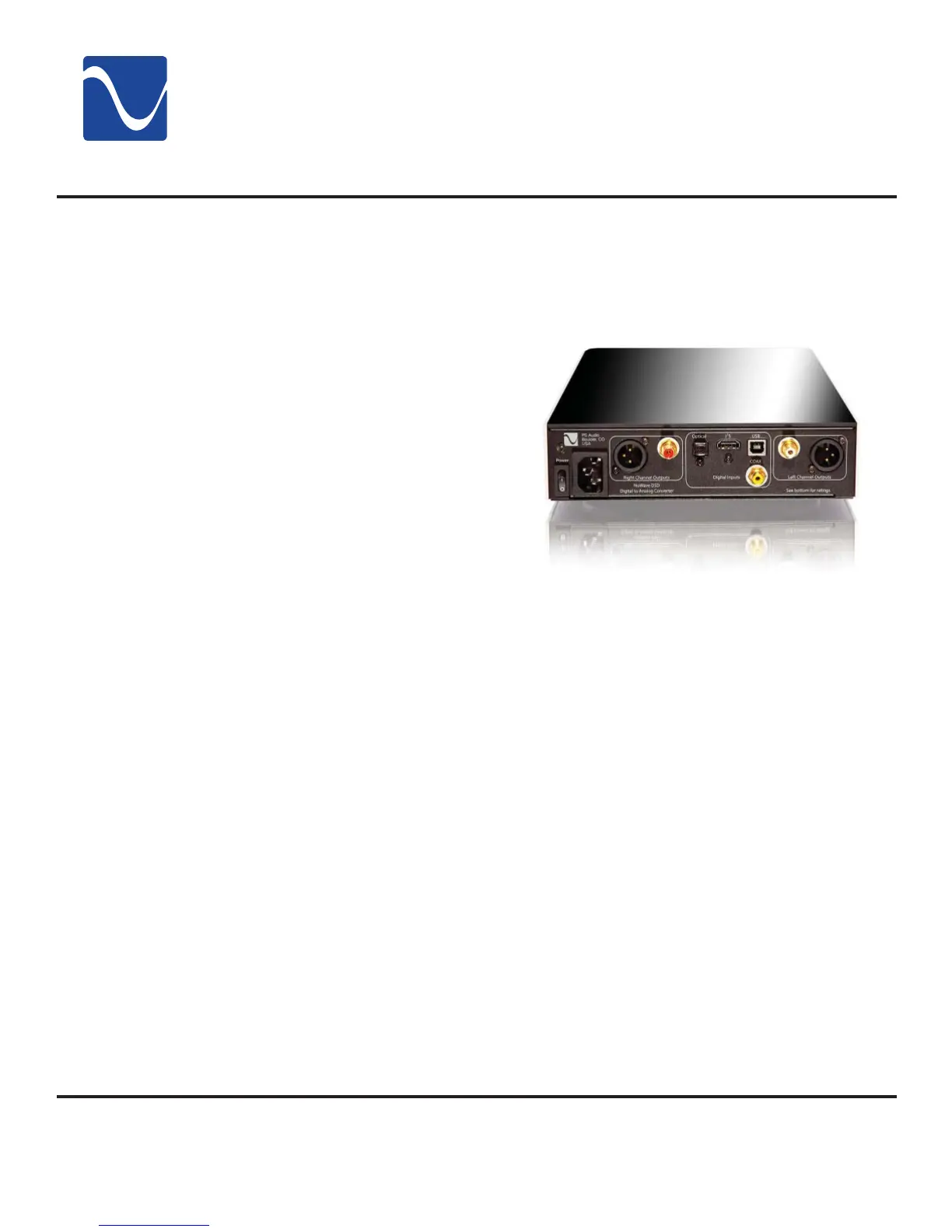
There are four methods of connecting the
digital inputs of the NuWave DSD: S/PDIF,
AES/EBU, USB and I
2
S. S/PDIF and AES/
EBU are serial digital interfaces available
as either an optical source (TOSLINK), a
coaxial source (RCA), or balanced XLR.
This is the typical output you would fi nd
on a CD player, DVD player, or even a few
computer products.
Any type of S/PDIF input is most likely
going to be fi ne for the NuWave DSD. If
you are connecting through the TOSLINK
optical output of a transport, Sonos, or
computer sound card, be advised that
optical is typically restricted to 96kHz and
below. We recommend the coax input over optical TOSLINK if your situation permits.
i
2
s is a superior format of digital audio and is available on most PS Audio digital sources as well as
through other manufacturers who have adopted our I
2
S standard, available through HDMI connectors.
Though the connector on the rear panel of the NuWave DSD is an HDMI connector, the DAC will not
accept HDMI signals, only I
2
S.
The preferred method to connect a computer is through USB. Connect the NuWave DSD to your
computer using a well regarded high-end USB cable that is as short as possible. If you have a Mac
the required driver is already installed. If you are using a Windows computer you will need to download
and install the driver. If you have questions, refer to the Q and A section for greater details.
Please note that digital bits aren’t just bits. The quality of your digital interconnect cable, HDMI or USB
cable can have a major impact on the sonic performance of your NuWave DSD. Make sure you invest
some time in choosing the right digital interface cable.
You can connect one or all three inputs at the same time. For instance, you can connect the USB
input to your computer and the coax input to your CD player. Then you can simply choose which
one to listen to from the front panel button that selects the input. The USB input requires a driver
which is already installed on a Mac computer but will need to be installed on a Windows computer.
The computer should recognize the new hardware once the proper driver has been installed. The
necessary driver can be found on psaudio.com under the resources -> downloads tab.
Power down fi rst
“Bits ain’t bits”
Connect the
inputs
Choose your input
2


 To Next Page