Audio Connectivity
1. First, turn on the display by pressing the crown button on the right side of the dial.
2. Now, open the Bluetooth function on your smartphone.
3. Search for "pTron Audio" in the available Bluetooth devices list.
4. Click and connect with "pTron Audio".
5. Now, your smartwatch is connected with your smartphone for Bluetooth calling purpose.
Note: Keep the smartwatch closer to your mouth while making or receiving calls through this watch for clearer
voice capture.
.
Phone Call
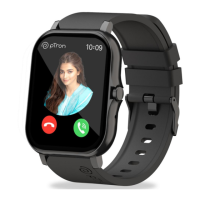
1. After connecting the smartwatch with the phone, you can use this watch for calls (making & answering calls).
2. You can save up to 8 contacts in the smartwatch through the mobile App.
3. Open the mobile App, go to the smartwatch option & then tap on 'Frequent/Common Contacts' there you can
select 8 contacts in the address book and display their shortcuts in the smartwatch.
Music Player
1. After connecting the smartwatch with a smartphone, you can remote control the music player on your phone
through this smartwatch.
2. You will see Play/Pause/Next Song/Previous Song options on the display.
3. You can listen to music on this watch when it is connected to your phone via Bluetooth Mode.
Note: 'pTron_Audio' is the BT name of the smartwatch and it must be connected. If this is not connected then
please connect it.
Health Tricycle
There are 3 options:
1. Steps
2. Training
3. Stand
Smartwatch automatically tracks the steps and can be seen in the watch and the Step details (Daily, weekly &
monthly) can be seen in the pTron Fit+ app. You need to wear the smartwatch properly to get real data.
Note: At midnight the data or the movement stats will get zero automatically.
Sleep
Wear the smartwatch properly before sleeping. It will track the data of hours slept and the quality of sleep stats in
the mobile App and in the smartwatch.
Note: It will enter sleep mode automatically at 10:00 PM. It will only record the sleep if it is more than 4 Hours.
Heart Rate
1. Tap on HR function icon to start measuring your heart rate. The optical sensor at the backside of the dial will
start flashing green light.
2. On the Heart rate page, you can view the Blood Pressure data of a minute ago.
Caution: This smartwatch is not a medical device.
Blood Pressure
1. Tap on the Blood Pressure function icon to start measuring your blood pressure. The optical sensor at the
backside of the dial will begin flashing green light.
2. On the Blood Pressure page, you can view the Blood Pressure data of a minute ago.
Caution: This smartwatch is not a medical device.
Blood Oxygen (SpO2)
1. Tap on the Blood Oxygen function icon to start measuring your SpO2.
Caution: This smartwatch is not a medical device.
Awaking Voice Assistant - Google & Siri
1. Turn on the smartwatch display.
2. Slide the screen from top to bottom.
3. You will find a Mic icon there. Just click on that and Speak Now.


 To Next Page
 Loading...