ADD DEVICE MANUALLY
If you are having issues with setting up your PumpSpy
device via the app, you can manually setup the device.
This process works on all Apple and Android devices.
• On your Apple/Android device, go to Wi-Fi
settings and connect to the PumpSpy device’s
Wi-Fi network
• If your device warns you that there is no internet
connection available, that is normal. Stay
connected to the PumpSpy Wi-Fi network.
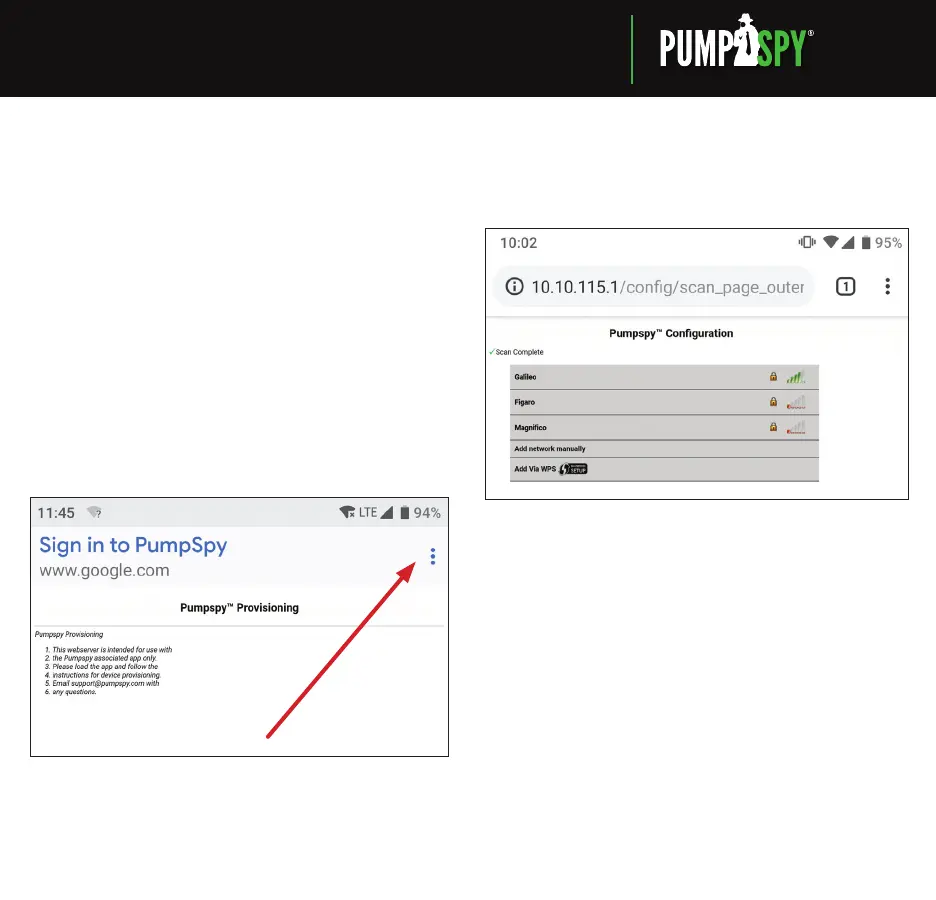
• Some Android devices will request that you sign in
to the PumpSpy network. In this event, click the
sign in notication. When you reach the PumpSpy
Provisioning page, select options (3 dots) at upper
right, then select “Use this network as is”.
• Once successfully connected, open a web browser
on your Apple/Android device
• Enter the following address:
10.10.115.1/cong/scan_page_outer.html
• Select your Wi-Fi network from the displayed
list of available networks
• Enter your network password
• The screen will go dark and a message will
be displayed. Close your browser.
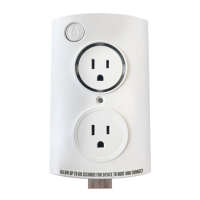
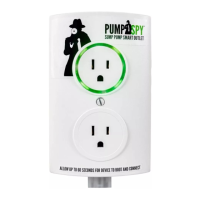
• Your PumpSpy devices Wi-Fi indicator will turn red
for several seconds, then green once successfully
connected to PumpSpy’s servers. If it stays red after
60 seconds, start over. (Make sure you enter the
correct Wi-Fi password!)
• Once the Wi-Fi indicator is green, open the
PumpSpy app and select “Connect Device Manually”
• Enter your PumpSpy device’s 15-digit serial number
and press “Submit”
MANUAL SETUP INSTRUCTIONS
WATCHING YOUR SUMP PUMP SYSTEM 24
/
7


 To Previous Page