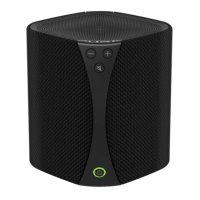
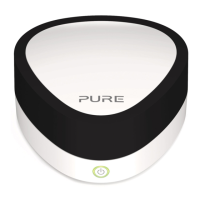
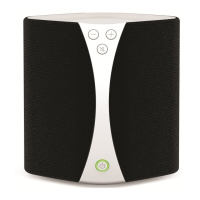
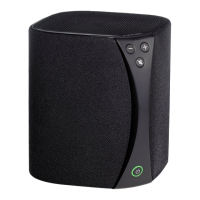
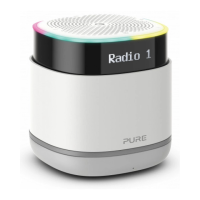
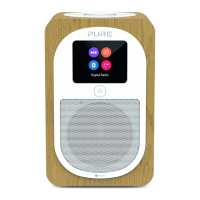
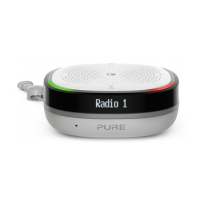
Need help?
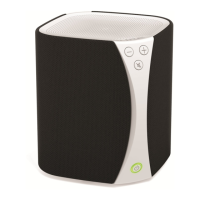
Do you have a question about the PURE Jongo and is the answer not in the manual?
Ensure Jongo and mobile device are on the same Wi-Fi network for proper connection.
Verify that the mobile app is updated to the latest version for optimal performance.
Check the Jongo device's software version via its setup page at 192.168.1.1.
Confirm that the Jongo device is within the wireless range of the router.
Restart your Wi-Fi router by power cycling to resolve potential network issues.
Power cycle the Jongo device to refresh its operation and resolve temporary glitches.
Restart the mobile device being used to control the Jongo for a fresh start.
This document outlines troubleshooting steps for users experiencing issues with their Pure Jongo wireless music systems, specifically when their mobile device reports "0 Jongo products found" or fails to display an expected Jongo device.
The Pure Jongo system is designed to provide a seamless wireless audio experience, allowing users to stream music across their home network. It integrates with various Pure devices, including the Sensia 200D connect, One Flow, and Evoke F4 with Bluetooth, creating a connected audio ecosystem. The core functionality revolves around connecting these Jongo devices to a Wi-Fi network and controlling them via a mobile application, the Pure Connect App. This setup enables multi-room audio, allowing users to play the same music across multiple Jongo speakers or different music in different rooms, all managed from a single mobile device. The system is built for ease of use, aiming to provide a straightforward setup and reliable performance for enjoying digital music collections and streaming services.
The Jongo system is primarily controlled through the Pure Connect App, which serves as the central interface for managing all connected Jongo devices. To begin using the system, users must ensure their Jongo devices are properly connected to their home Wi-Fi network. This involves a setup process where the Jongo device is put into a "Setup mode," typically by pressing a dedicated Wi-Fi button. In this mode, the device emits a temporary wireless network (e.g., "Jongo Wireless Network") that a setup device (such as an iPod touch, iPhone, iPad, laptop, or Android device) can connect to. Once connected to this temporary network, users can access the Jongo's setup page by opening a web browser and navigating to a specific IP address (e.g., 192.168.1.1). This setup page allows users to configure the Jongo to join their main home Wi-Fi network, ensuring it can communicate with other devices and access the internet for streaming services.
Once connected to the home Wi-Fi, the Jongo devices become discoverable by the Pure Connect App. The app allows users to browse their music libraries, select streaming services, and control playback across individual Jongo speakers or groups of speakers. Users can adjust volume, skip tracks, and create multi-room audio zones directly from their mobile device. The system is designed to be flexible, accommodating various user preferences for audio distribution throughout their living space. The integration with devices like the Sensia 200D connect, One Flow, and Evoke F4 with Bluetooth expands the system's versatility, allowing for different types of audio sources and playback options within the Jongo ecosystem. The Bluetooth capability on some devices, like the Evoke F4, further enhances flexibility by allowing direct connection from mobile devices without relying solely on Wi-Fi for certain scenarios.
Maintaining the optimal performance of a Pure Jongo system involves several key steps, primarily focused on software updates and network connectivity. Regular software updates are crucial for ensuring compatibility, improving performance, and accessing new features. Users can check if their Jongo device is running the latest software by accessing its setup page, as described in the usage features. This involves putting the Jongo into Setup mode, connecting a setup device to its temporary wireless network, and browsing to the specified IP address. The setup page will display the current software version, and users are advised to ensure they are running the most recent iteration. All available software updates are typically provided through a dedicated link, allowing users to download and apply them to their devices.
Beyond device software, the Pure Connect App itself requires regular updates. Users should periodically check their mobile device's app store for any available updates to the Pure Connect App. Keeping the app updated ensures it remains compatible with the Jongo devices and the latest operating system versions on mobile devices, preventing potential communication issues.
Network connectivity is another critical aspect of maintenance. The Jongo system relies heavily on a stable Wi-Fi connection. Therefore, troubleshooting often involves verifying that both the Jongo device and the mobile control device are connected to the same Wi-Fi network. If connectivity issues arise, a common maintenance step is to reboot the home router. This involves powering off the router for about 10 seconds and then powering it back on, which can often resolve temporary network glitches. Similarly, rebooting the Jongo device itself is a standard troubleshooting step. For mains-powered Jongo devices, this means disconnecting them from the power supply for 10 seconds and then reconnecting. For battery-powered products, such as the Jongo S3, a forced reboot is performed by holding the power key for 10 seconds. Finally, rebooting the mobile device used for control can also resolve app-related or connectivity issues. These maintenance steps are designed to be user-friendly, allowing individuals to quickly diagnose and resolve common problems without requiring specialized technical assistance. If difficulties persist after these steps, users are encouraged to contact the support team, providing detailed information about their router and setup to facilitate further assistance.
 General
| Manufacturer | PURE |
|---|---|
| Type | Portable Speaker |
| Water Resistance | No |
| Audio Output | Stereo |
| Connectivity | Bluetooth, Wi-Fi |
| Power Source | Rechargeable battery |
| Compatibility | iOS, Android |
| Control | App |

 To Next Page