EasyManua.ls Logo

PXN V99 - Page 3

PXN V99
4 pages
Print Icon
To Next Page IconTo Next Page
To Previous Page IconTo Previous Page
Loading...
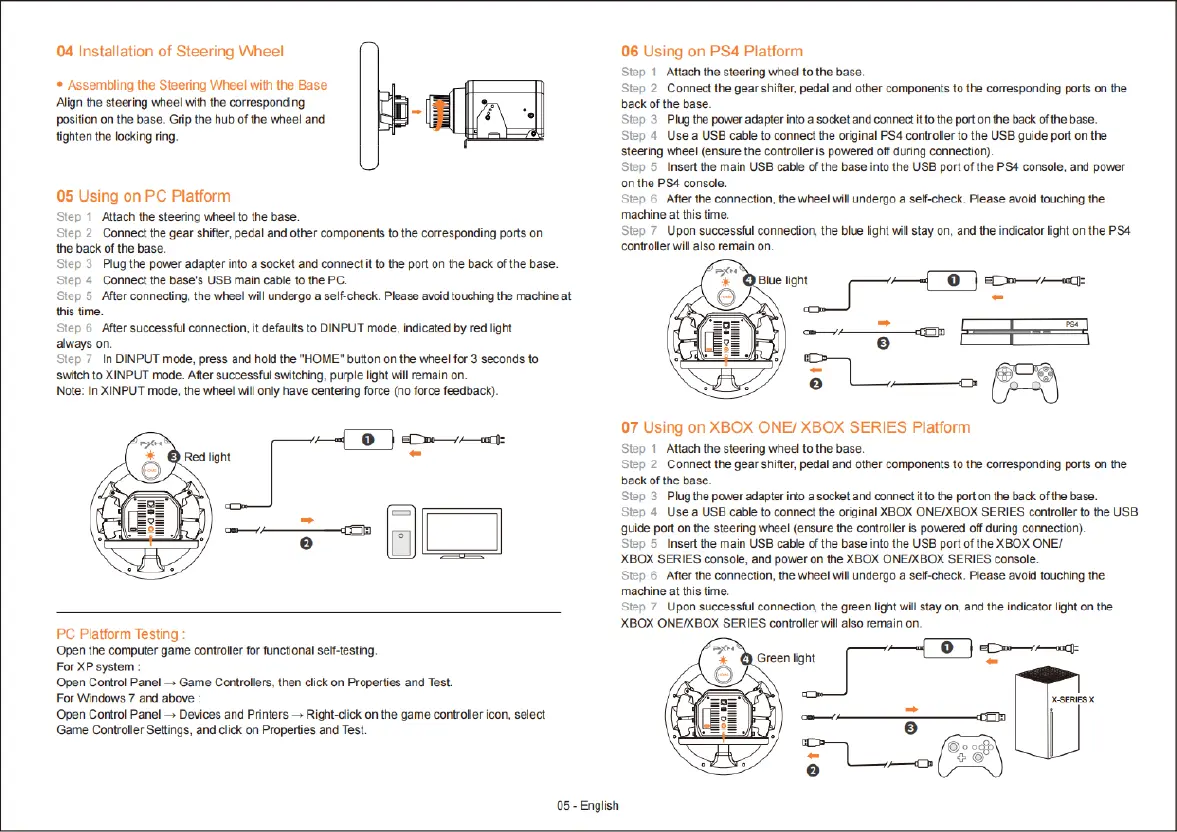
04
Installation
of
Steering
Wheel
*
Assembiing
the
Steering
Wheel
with
the
Base
Align
the
steering
wheel
with
the
corresponding
position
on
the
base.
Grip
the hub
of
the
wheel
and
fighten
the
locking
ring.
05
Using
on
PC
Platform
P
1
Altach
the
steering
wheel
(o
the
base.
Siep
2
Conneet
the
gear
shiftr,
pedal
and
other
components
to
the
corresponding
ports
on
the
back
of
the
base.
Slep
5
Plug
the
power
adapter
info a
socket
and connectit
to
the
port
on the
back
of
the base.
Step
4
Connect
the
base's
USB
main
cabie
10
the
PC.
Step
5
Afer
connecting,
the wheel
vl
undergo
a
self-check.
Please
avaid
touching
the
machine
at
this
time.
Siep
6
After
successtul
connection,
it
defaults
to
DINPUT
mode,
indicated
by
red light
aways
on.
Step
7
In
DINPUT
mode,
press and
hold
the
"HOME"
button
on
the
wheel
for
3
seconds
to
switeh
to
XINPUT
mode.
After
successful
switching,
purple
light
will
remain
on
Note:
In
XINPUT
mode,
the
wheel
will
only
have
centering
force
(no
force
feedback).
PC
Platform
Testing
:
Open
the
computer
game
controller
for
functional
seff-testing
For
XPsystem
:
Open
Control
Panel
Game
Controllers,
then
click
on
Properties
and
Test.
For
Windows
7
and
above
Open
Control
Panel
Devices
and
Printers
Right-clck
on
the
game
controler
icon,
select
Game
Controller
Settings,
and
ciick
on
Properties
and
Test.
06
Using
on
PS4
Platform
o1
Aftach
the
steering
wheel
to
the
base.
Step
2
Connect
the
gear
shifter,
pedal
and
other
components
to the
coresponding
ports
on
the.
back
of
the
base.
Step
3
Plug
the
power
adapter
into
@
socket
and
connect
it
o
the
port
on
the
back
of
the
base.
Step
4
Use
a
USB
cable to
connect
the
original
PS4
controller
to
the
USB
guide
port
on
the
Steering
wheel
(ensure the
controlleris
powered
off
during
connection)
Step
5
Insert
the
main
USE
cable
of
the
base
into
the
USB
port
of
the
PS4
console,
and
power
on
the
PS4
consde.
Step
6
After
the
connection,
the
wheel
will
undergo
a
self-check.
Please
avoid
fouching
the
‘machine
at
this
time.
Step 7
Upon
successful
conneclion,
the
biue
light
will
stay
on,
and
the
indicator
light
on
the
PS4
controller
will
aiso
remain
on
07
Using
on
XBOX
ONE/
XBOX
SERIES
Platform
Step
1
Attach
the
steering
wheel
to
the
base.
Step
2
Connect
the
gear
shifter,
pedal
and
other
components
to
the
comesponding
ports
on
the
back
of
the
base.
Step
&
Plugthe
power
adapter
into
a
socket
and
connect
i
1o
the
port
on the
back
of
the
base.
Sten
4
Use
a
USB
cable to
connect
the
original
XBOX
ONE/XBOX
SERIES
controller
to
the
USB
g\.lm
port
on the
steering
wheel
(ensure
the
controller
s
powered
offduring
connection).
Insert
the
main
USE
cable
of
the
base
into
the
USB
port
of
the
XBOX
ONE/
XBOX
SERIES
consol,
and
power
on
e
XBOX
ONEIXBOX
SERIES
console.
Step
6
After
the
connection,
the
wheel
wil
undergo
a
self-check.
Please
avoid
touching
the
‘machine
at
this
time.
Step
7
Upon
suecessful
connection,
the
green
light
wil
stay
on,
and
the
indicator
light
on
the
XBOX
ONE/XBOX
SERIES
controler
will
also
remain
on.
05
-
English

Related product manuals