Need help?
Do you have a question about the Pyle PLINTBL10 and is the answer not in the manual?
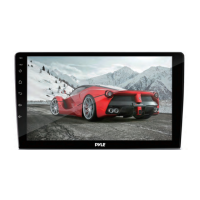
This document describes the Pyle PLINTBL10, a 10.1-inch Double DIN Car Stereo Receiver.
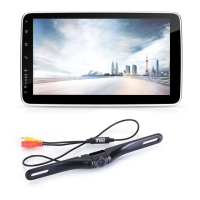
The PLINTBL10 is an Android-based car stereo receiver designed to provide a comprehensive in-car entertainment and navigation experience. It features a 10.1-inch 1080P HD touch screen and supports various multimedia functions. Users can download and install thousands of Android applications, though compatibility with all third-party apps is not guaranteed. The unit integrates wireless Bluetooth for hands-free calling and audio streaming, Wi-Fi for internet connectivity, GPS for navigation, and AM/FM radio. It also includes a multimedia player, mirror link functionality for Android and iOS devices, and support for a rearview camera. Dual USB ports are provided for additional connectivity.
System Installation and Power: The unit requires disconnection of the battery terminal before installation to prevent short circuits. It should be installed using the included screws and in a location that does not obstruct steering, gearshift, safety devices (like airbags), or visibility. To power on, the engine key must be in the “ACC” or “ON” position, then press and hold the power button for 3 seconds. The unit status bar can be swiped down for more options.
User Interface and Navigation: The main interface provides quick access to Navigation, Radio, All Apps list, Music, and Settings. Navigation software can be loaded, and if multiple maps are present, a default can be set via Settings > Car setting > Navi setting. Map data can be downloaded and managed directly from the navigation interface, allowing for offline use.
Multimedia Playback: Local music can be played from an SD card or USB interface, supporting various media files. The music player includes folder browsing, sound settings access, loop playback, and track navigation. Video playback supports 1080P HD video from SD cards or USB, with options to switch between different storage locations and full-screen mode.
Radio: The AM/FM tuner allows storing up to 40 effective platforms per band. Users can search for channels forwards or backwards, switch between FM1/FM2 bands, and access audio settings.
Wireless Bluetooth: The Bluetooth interface enables hands-free calling and audio streaming. When not connected, the unit prompts to connect an HFP device. It supports BT 4.0+ compatible devices. Features include contact list access, dial pad, call history, and device pairing management (set device name, PIN, auto connect, auto answer).
Equalizer and Sound Settings: The equalizer allows for fine-tuning of audio output with adjustable sliders for 32Hz, 64Hz, 125Hz, 250Hz, 500Hz, 1KHz, 2KHz, 4KHz, 8KHz, and 16KHz frequencies. Pre-set sound modes (Rock, Custom, Classic, Jazz, Pop) are available. Speaker position settings can be adjusted by clicking icons on a speaker diagram. A "default" icon restores sound settings to the system default.
Phone Link and Third-Party Apps: The unit supports Phone Link for mirroring Android/iOS devices. For specific instructions on Phone Link or other third-party apps like Google Maps or YouTube, users are advised to consult the app provider or the unit's instructions.
Steering Wheel Learning: This feature allows the unit to learn controls from the original car's steering wheel (for non-bus control, voltage input type). The process involves pressing a key on the steering wheel, accessing the docking function on the screen, and then pressing the corresponding function button on the steering wheel. A reset option is available to clear saved keys.
System Settings:
Troubleshooting: The manual provides solutions for common issues such as:
 General
| Brand | Pyle |
|---|---|
| Model | PLINTBL10 |
| Category | Car Video System |
| Language | English |

 To Next Page