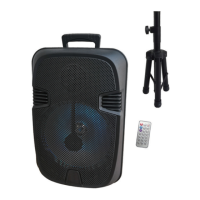
Key function:
This product has five operation buttons
,
1. Switch on/off / function switch: long press the power switch on / off. Short press
for function switching。
2. Next song / add volume: long press for volume, short press for the next song,In the
FM state for the next radio station。
Pause / light switch: long press for LED lights on and off function and flash mode
3. Switch. Short press to pause playback。FM status for short press automatic search
4. Move previous/ minus volume:long press for volume reduction, short press for the
next function, in the FM state for the next radio。
5. Hands free call: short press for telephone answering. long pres to call back。
Connect handset
1.Turn on the power switch, you will hear a "Ding" tone, after 3 seconds you will
hear a "beep" tone, LED Flash, audio description is in search mode.
2. Open Bluetooth settings (different brands, different methods to turn on the
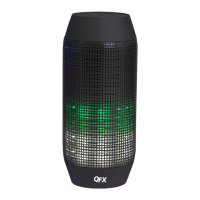
Bluetooth) to search. Phone displayed "QFX BT-300", phone tips entered
password "0000" to confirmed phone connection success, you will hear a "beep
beep" sound, confirming that phone and audio connection success, whole
paired process about need 30 seconds, second times using not entered password,
directly in phone in points "QFX BT-300", can paired success
3.While connection success, phone of music play device interface control audio
play, then using loudspeakers of control button to play music,
4. Use the volume control key to control the volume,
5. Answer the telephone handset to a call, short press the call key to answer
directly, in order to ensure call quality, with stereo microphone distance should
not be more than 50 cm, finish answering short press to hang up the phone after
6. Tablet PC connection
7. Please refer to the mobile phone connection method.
8. Connect laptop
9. Because many laptop Bluetooth version, different connection methods, if you
are unable to connect for the first time, you should install the latest Bluetooth
drivers.
Frequently questions and solutions
Bluetooth not connected
Ensure that the Bluetooth search, connecting Bluetooth devices often.
Bluetooth loudspeaker no sound
Check that the speaker volume switch whether it is turned off, also check the
output correctly connect to the Bluetooth device


 To Next Page