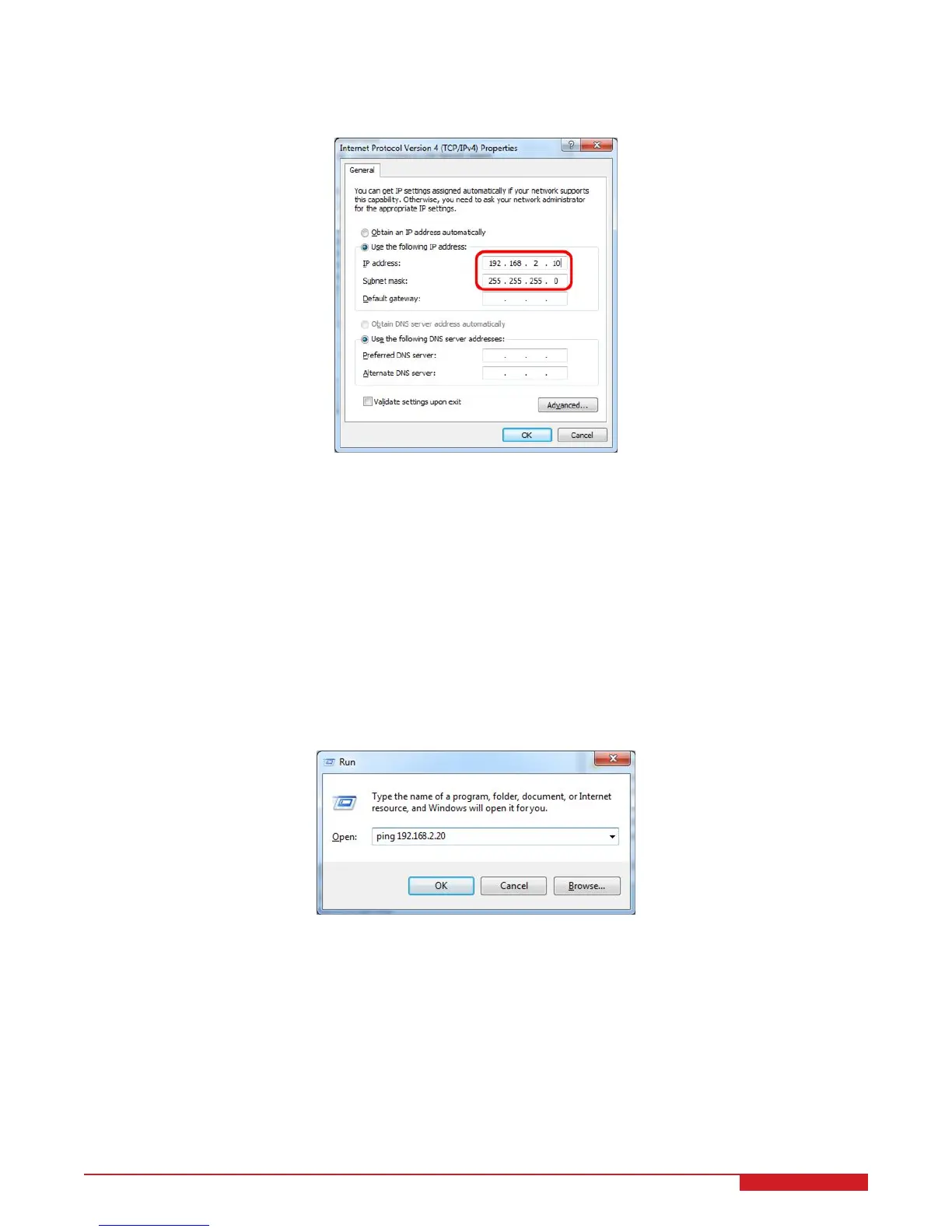
IP address: 192.168.2.10 (For multiple host PCs, use different IP addresses within the valid range)
Subnet mask: 255.255.255.0
Figure 3.3: IP settings
9. Make sure you can ping the router by typing ping 192.168.2.1 in the Run box in Windows (go to the Start menu
and search for Run and click Run, Figure 3.4). If the connection to the router is successful you will see the ping
replies in the command window. If you cannot ping the router, check network connectivity and your IP address
before going to the next steps.
10. If the QBot 2 is powered on, the QBot 2 can be pinged by typing ping {IP of the QBot 2} in the Run box in
Windows (go to the Start menu and click Run, Figure 3.4). The QBot 2 IP address is labeled on the DAQ PCB
as shown in Figure 3.5. If the connection is successful you will see the ping replies in the command window.
If you cannot ping the robot, power cycle the QBot 2 and wait for about 60 seconds to reboot.
Note: You may need to disable Windows firewall to establish a connection.
Figure 3.4: Pinging the QBot 2
QBOT 2 - User Manual 20


 To Next Page
 Loading...