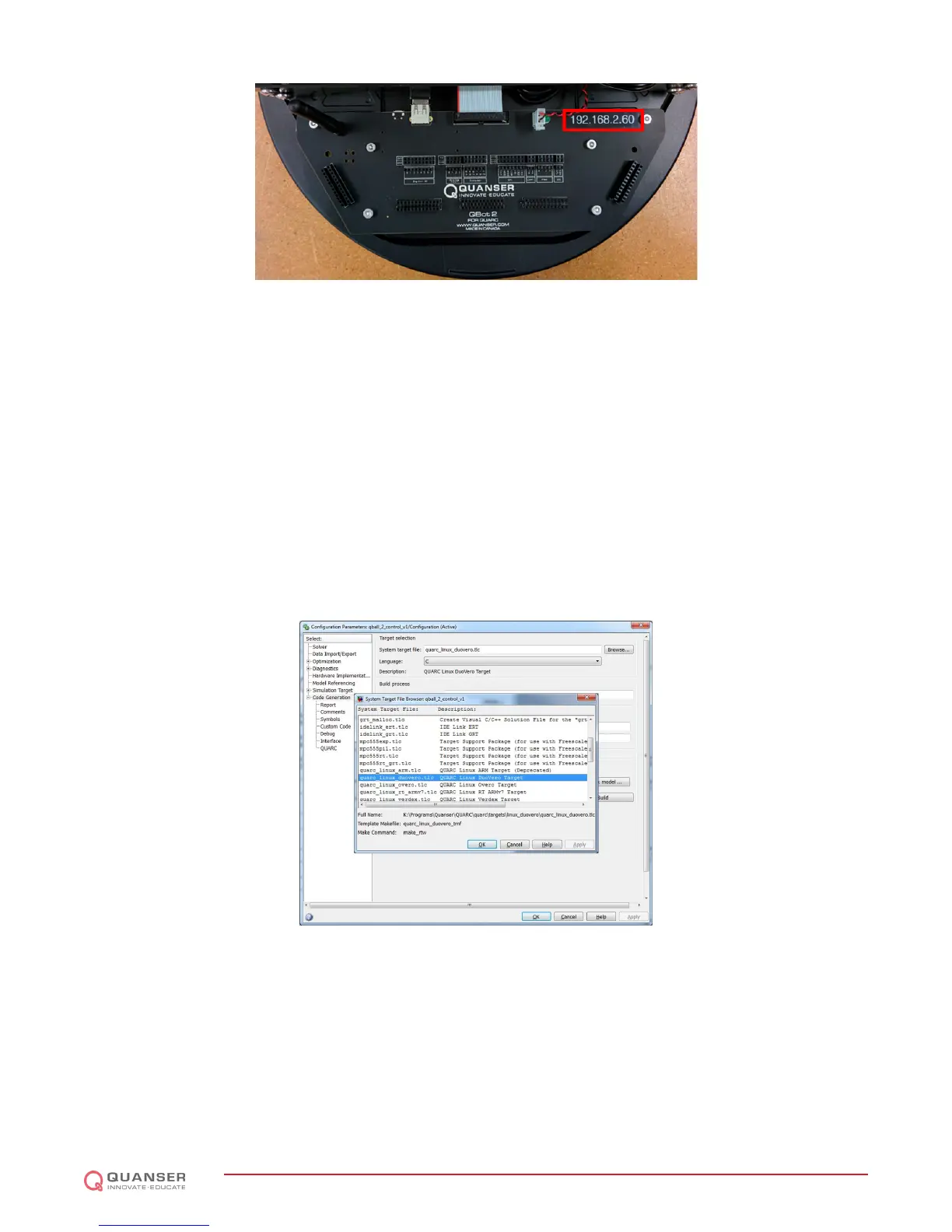
Figure 3.5: QBot 2 IP address label
3.3 Configuring models for the QBot 2 target
Note: This section applies only to files that are run on the Gumstix target (i.e., on the QBot 2) such as qbot_2_control_v1.mdl.
Simulink
r
should have a new menu item called QUARC once QUARC
r
has been installed. The following steps are
required to setup a new QUARC
r
model for the QBot 2:
1. Create a new Simulink
r
model, or open an existing model to be run on the Gumstix.
2. Click on the QUARC menu, then select Options.
3. The System target file under Code Generation should be quarc_linux_duovero.tlc. Browse through the
system target list to locate the proper file if necessary (Figure 3.6).
Figure 3.6: QUARC
r
Option Menu
4. In order to run the QUARC
r
model on the target vehicle, the target's IP address must be specified. To setup
the default target address for all linux-duovero targets, go to the QUARC menu and select Preferences. The
Target type parameter should be set to linux_duovero. Replace the Default Model URI with the IP address
of the desired target vehicle, e.g., tcpip://192.168.2.20:17001.
Alternatively, to set the target address for the current model only open the model options under the QUARC |
Options menu and choose Code Generation > Interface on the left hand pane. Under the MEX-file arguments,
type '-w -d /tmp -uri %u', 'tcpip://{IP of Gumstix}:17001'. Include the single quotation marks
(Figure 3.7). Replace {IP of Gumstix} with the IP of your Gumstix, e.g. 'tcpip://192.168.2.20:17001'.
QBOT 2 - User Manual
DRAFT - April 14, 2015


 To Next Page
 Loading...