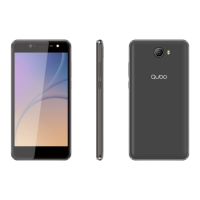
The Qubo Vito is a mobile phone running Android Marshmallow 6.0, offering optimized system performance for a faster, simpler, and smoother user experience.
Before using the device, it is crucial to read all safety precautions and the manual carefully to ensure safe and proper use. The descriptions in this manual are based on the device's default settings. Available features and additional services may vary by device, software, or service provider. Application functions can also vary based on country, region, software, or hardware specifications. Qubo is not liable for performance issues caused by third-party applications.
Charging the Battery:
For the first-time use, it is recommended to charge the battery for a minimum of 4 hours. The device can be charged using a travel adapter or by connecting it to a PC via a USB cable.
Home Screen Navigation:
- Notifications: When a notification appears in the status bar, touch the bar and slide your finger down to open the list of notifications. Ongoing notifications report activities like call forwarding, current call status, or music playback. Notifications also alert you to new messages, calendar events, and alarms. You can clear the notification list by selecting 'Clear' at the top of the window. To open a message, reminder, or other notification, simply touch the item. To close the notification window, slide your finger up the screen.
- Shortcuts and Widgets: From the Home screen, touch and hold a blank area, or click the MENU Key and select 'Wallpaper'. Slide your fingertip left in the main menu screen to reveal widgets. You can select a shortcut to saved information (like a playlist) or a widget (like a clock) for your Home screen.
- Moving Objects: To move an icon or other item on the Home screen, touch and hold it to enter move mode. The object will magnify when ready to be moved.
Calling and Messaging:
- Making a Call: Tap the phone icon on the menu screen or home screen. By default, the dialer displays a list of frequently called contacts. Tap the keypad icon to view the numeric keypad.
- Sending a Message: Tap the message icon on the menu or home screen, then tap the compose icon to write a new message. Tap the '+' icon to view and select types of files to attach. Tap the text box to enter your message. Enter the contact name (if it exists) or phone number; you can also tap the contact icon to select contacts from your list. Tap the send icon to send the message.
Airplane Mode:
Some locations may require disabling wireless features. Airplane Mode disables all incoming and outgoing calls, Wi-Fi, and Bluetooth connections. To activate, press and hold the Power button and select 'Airplane mode', or drag down the notification panel and select 'AIRPLANE MODE'.
- Camera: All captured or viewed pictures are stored on a memory card. Ensure a card is installed before using the Camera or viewing pictures in the Gallery.
- Gallery: View pictures, play videos, and share files. Tap an album to open and view its contents.
- Music Player: Supports various audio formats including MP3, ARM, OGG, and WAV. Songs are categorized by Artist, Albums, and Songs. Create playlists by long-tapping a song and selecting 'Add to Playlist'.
- FM Radio: Listen to FM channels using the inbuilt FM receiver. Plug in a headset, which acts as an antenna, before starting the FM function. Use the intuitive buttons and icons in the radio interface.
Settings and Networks:
The phone can connect to various networks and devices, including Internet, Wi-Fi, GPRS, Bluetooth, and headsets. Files can also be transferred to/from a PC via a data cable.
Connecting to the Internet:
- Data Usage: Go to Settings -> Data usage -> Cellular data and select the SIM for data connection. You may need to configure the access point name (APN).
- APN Configuration: Go to Settings -> More -> Cellular networks -> Access Point Names and select the SIM. Choose the APN from the list. By default, the APN is configured upon SIM insertion or sent via SMS by your network provider. If APNs are not listed, contact your provider.
Tethering & Portability:
Use your device as a modem to connect your PC or laptop to the Internet.
- USB Tethering: Connect your phone to your PC/Laptop via USB cable. Select the 'USB tethering' option. Select your phone network as the network connection on your PC/laptop to access the Internet.
- Bluetooth Tethering: Pair your phone with a Bluetooth-enabled PC/laptop. Select the 'Bluetooth tethering' option on your phone. On the paired PC/laptop, select your phone's Bluetooth device and choose to connect to the internet.
- Wi-Fi Hotspot: Turn on the 'Wi-Fi hotspot' option on your phone. On other Wi-Fi enabled devices, choose your phone as a Wi-Fi network. View and configure Wi-Fi hotspot settings by tapping the 'Wi-Fi hotspot' option. Note: Your mobile operator will charge you based on GPRS data usage.
Pairing with Bluetooth Devices:
Go to Settings -> Bluetooth. If Bluetooth is off, turn it on. Your phone will scan and display nearby Bluetooth devices. Tap the ID of the other device to pair. You will be prompted to confirm a passkey on both devices. Tap 'Pair' to confirm and connect.
Device Care:
The Qubo Vito is a product of superior design and craftsmanship and should be handled with care.
- Keep Dry: Keep the device dry. Moisture can rust electronic circuits. If wet, remove the battery, wipe with a dry cloth, and take it to an authorized service center.
- Temperature: Avoid storing in high or cold temperatures, as extreme temperatures can shorten the life of electronic devices and damage batteries.
- Cleanliness: Do not use or store in dusty, dirty areas, as moving parts and electronic components can be damaged.
- Opening the Device: Do not attempt to open the device unless instructed in this guide.
- Handling: Do not drop, knock, or shake the device, as rough handling can break internal circuit boards and fine mechanics.
- Cleaning: Do not use harsh chemicals, cleaning solvents, or strong detergents. Use only a soft, clean, dry cloth.
- Magnetic Fields: Do not store near magnetic fields or allow contact with them for extended periods.
Battery Recommendations:
- Storage: Store the battery in a cool, well-ventilated place away from direct sunlight.
- Charging Temperature: Charge the battery within room temperature range.
- Battery Life Cycles: Batteries have life cycles. If the power reserve depletes faster than usual after a full charge, the battery life is at an end. Replace it with a new battery of the same make and specification.
- Disposal: Do not discard the battery with household trash. Dispose of used batteries according to local environmental laws and guidelines.
Recycling Your Phone:
The WEEE logo (a crossed-out wheeled bin) on the product (battery, handset, and charger) indicates that it should not be disposed of with other household waste. You are responsible for disposing of electronic or electrical waste equipment at a specified collection point for recycling hazardous waste. Proper collection and recovery help preserve the environment and ensure human health and environmental safety. For more information on disposal best practices, visit www.qubomobile.com/soporte.
Disclaimer:
Qubo is not responsible for any non-compliance with the guidelines or improper usage of the mobile phone.
- Product Variation: Colors, specifications, functions, and graphics in the manual may differ from the actual product; the latter shall govern. Images are for representation only. Specifications are subject to change without prior notice. Qubo reserves the right to modify the content of this user guide without prior notice.
- Data Transmission: Upon first use, your device will automatically send information related to your mobile, IMEI numbers, location details, and other software via SMS*. This information may be used as specified in Qubo's privacy policy.
- Performance Factors: Talk and standby times are affected by network preferences, SIM card type, connected accessories, and individual usage patterns. Services and features may depend on the network, service/content providers, SIM cards, device compatibility, and supported content formats.
- Trademarks: Other product logos and company names mentioned are trademarks or trade names of their respective owners.
- SMS Charges: *Operator tariff shall be applicable for SMS.
Qubo Mobile Phones in the EU:
Qubo's mobile phones work in many countries worldwide and in all EU countries, including Austria, Belgium, Bulgaria, Croatia, Cyprus, Czech Republic, Denmark, Estonia, France, Finland, Germany, Greece, Hungary, Ireland, Italy, Latvia, Lithuania, Luxembourg, Malta, Netherlands, Poland, Portugal, Romania, Slovakia, Slovenia, Spain, Sweden, and the United Kingdom.
Qubo Global SL, Carrer de Joan d'Àustria 95-97 4-3, Barcelona 08018, declares that the Qubo Vito Mobile Phone complies with Directive 1999/5/EC on Radio and Telecommunications Terminal Equipment (R&TTE) and the following harmonized standards: EN 60950-1:2006+A11:2009+A1:2010+A12:2011+A2:2013, EN 50360:2001+A1:2012, EN 62209-1:2006, IEC62209-1:2005, IEC 62209-2:2010, EN62209-2:2010, EN 50566:2013, EN 50332-1:2013, EN 62479:2010, EN 301 489-1 V1.9.2, EN 301 489-3 V1.6.1, EN 301 489-7 V1.3.1, EN 301 489-17 V2.2.1, EN 301 489-24 V1.5.1, EN 301 908-1 V7.1.1, EN 301 908-2 V6.2.1, EN 301 908-13 V6.2.1, EN 55022:2010/AC:2011, EN 61000-3-2:2014, EN 61000-3-3:2013, EN 55024:2010, EN 301 511 V9.0.2, EN 300 440-1 V1.6.1, EN 300 440-2 V1.4.1, EN 300 328 V1.9.1. Signed by CEO Qi Zhou in Barcelona, October 2016. The device bears the CE0700 mark.

 Need help?
 General

 To Next Page