www.rainforestautomation.com
EMU™
User Manual
How to Use Your EMU™
Most of the time, your EMU™ will be in Sleep Mode. The Display screen will be blank,
but the Indicator LED Lights will flash as noted below in Table 1. To put the unit into
Active Mode, simply press one of the buttons. After 4 minutes of inactivity, your EMU™
will automatically return to Sleep Mode.
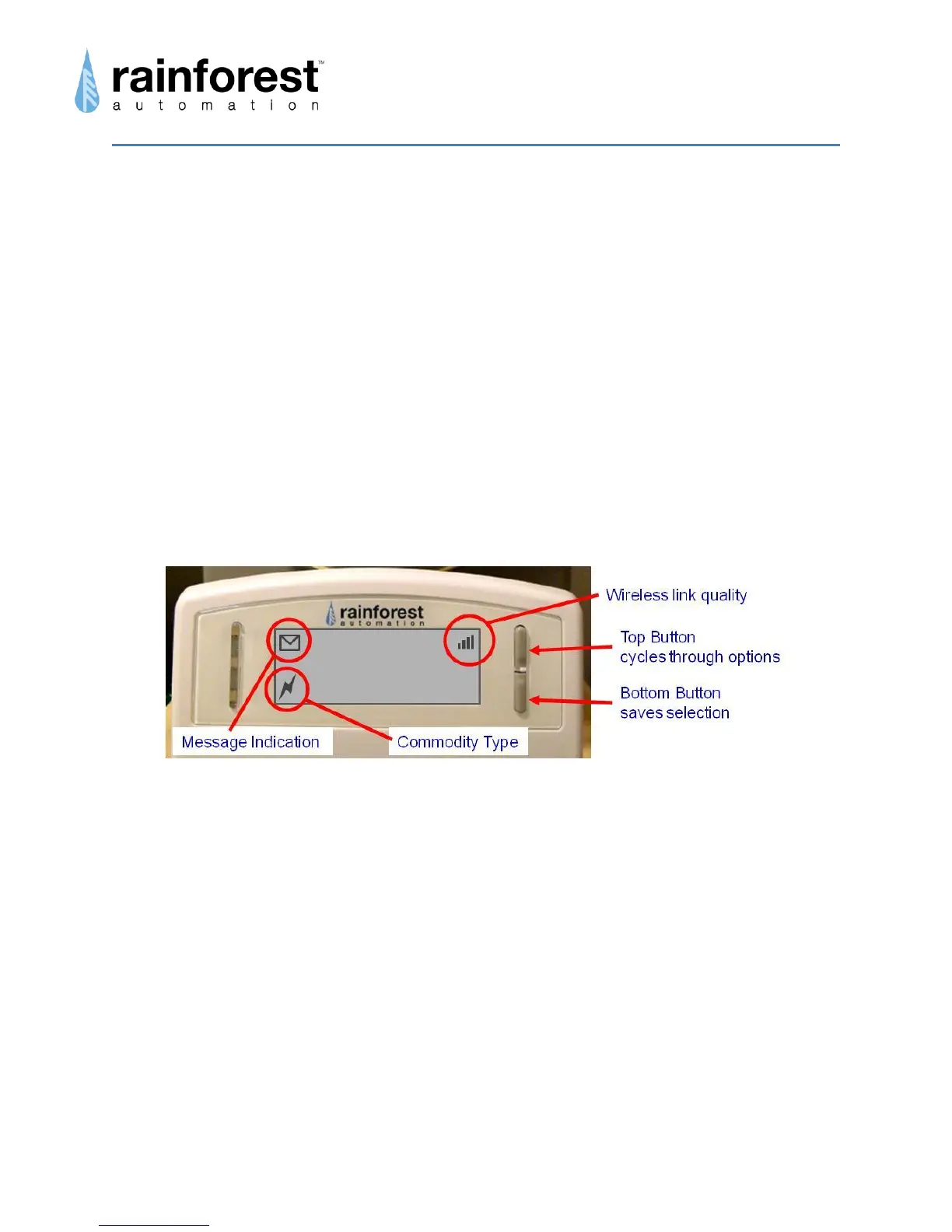
Your EMU™ has two buttons that are used to make selections. By default, they are
used to scroll through the different Display screens. The Top Button pages up, and the
Bottom Button pages down. The screens are displayed in a circular sequence. Once
you cycle through to the end of the sequence, the first screen is displayed again.
On some screens, the EMU™ may need a response from you. For these screens the
buttons will behave differently. The button functions will be indicated on the right side of
the screen. When the EMU™ presents you with options to choose from, pressing the
Top Button cycles through the different options to select, and pressing the Bottom
Button saves the selected option and pages to the next screen.
Your EMU™ communicates wirelessly with the smart meter to get price and usage
information, and presents this information on the Display. The accumulated usage
information is updated every minute while the unit is in Active Mode. You may have to
manually enter the price per unit (kWh for electricity, or cubic foot for gas), but it can
also be provided by the smart meter, and is checked every 2 minutes. The EMU™
automatically detects whether the data from the meter is for electricity or gas, and the
commodity type is indicated by an icon in the lower left corner: a lightning bolt icon
indicates electricity; a flame icon indicates gas.
Your EMU™ checks every 2 minutes for a new text message from your utility. An
envelope icon is shown in the upper left hand corner of the screen if there is an active
message stored on your EMU™.
The quality of the wireless signal from the smart meter is indicated by the small bar
graph in the upper right hand corner of the Active Mode screens. Four bars are shown



 To Next Page