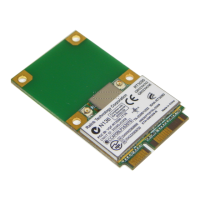
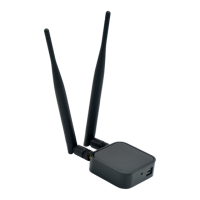
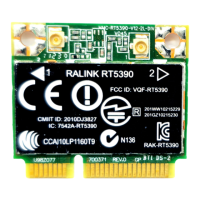
This document describes the Ralink RT3092, an 11b/g/n 2T2R WLAN Mini Card, which is a wireless local area network (WLAN) device designed to connect computers to a wireless network. It utilizes Radio Frequency (RF) technology to transmit and receive data without physical connections, ensuring data security and isolation from interference generated by other radio frequencies. This device offers the advantage of computer mobility, real-time information, and online services anywhere and anytime, eliminating the need for cables and allowing flexible placement of the system.
Function Description:
The Ralink RT3092 functions as a wireless network adapter, enabling computers to connect to a WLAN. It supports both Peer-to-Peer networks and Access Point networks. In a Peer-to-Peer network, it allows small wireless workgroups to share files and printers directly between PCs and laptops. In an Access Point network, it facilitates sharing files, printers, and Internet access by connecting to a wired global network via an Access Point.
Important Technical Specifications:
- Wireless Standard: 11b/g/n 2T2R WLAN Mini Card.
- Channels: For products available in the USA market, only channels 1-11 can be operated. Selection of other channels is not possible.
- FCC Compliance: The device complies with Part 15 of FCC Rules, ensuring it does not cause harmful interference and accepts any interference received. Changes or modifications not expressly approved by the manufacturer could void the user's authority to operate the equipment.
- RF Exposure: A 20cm minimum distance must be maintained between the antenna and all users for the host module to be integrated into. This ensures compliance with FCC radiation exposure limits.
- Antenna: The module is intended for OEM integrators, and the OEM integrator is responsible for FCC compliance requirements of the end product, which integrates this module. The transmitter must not be co-located or operating in conjunction with any other antenna or transmitter.
Usage Features:
- Installation:
- Hardware Installation: The device is installed by turning off the computer, removing the expansion slot cover, and carefully sliding the 11b/g/n 2T2R WLAN Mini Card into the mini PCI slot.
- Driver & Utility Installation: The installation process starts by inserting the included CD-ROM into the computer. The user must accept the license agreement and choose between "Configuration Tool" or "Microsoft Zero Configuration Tool" for utility. The setup also offers "WiFi mode" or "performance mode" (TxBurst mode) options.
- Network Connection:
- Windows 2000/XP: Users can access network settings through "Start -> Settings -> Control Panel -> Network and Dial-up Connections -> Local Area Connection -> Properties."
- IP Address Configuration: The device can obtain an IP address automatically from a broadband router (DHCP technology) or be configured with a fixed IP address. For fixed IP, users enter the IP address, subnet mask, and default gateway.
- Configuration Utility (Ralink Wireless Utility):
- Launch: The utility can be launched from "Start -> All Programs -> Ralink Wireless -> Ralink Wireless Utility" or by double-clicking the icon in the system tray.
- Profile Management: Users can create, edit, delete, and activate network profiles. Each profile can have a distinct name, SSID, network type (Infrastructure or Ad-hoc), authentication mode (Open, Shared, LEAP, WPA, WPA-PSK, WPA2, WPA2-PSK), and encryption type (WEP, TKIP, AES).
- Power Save Mode: Options include "CAM (Constantly Awake Mode)" or "Power Saving Mode." CAM is recommended for optimal performance, while Power Saving Mode is suitable for high volume throughput.
- Tx Power: Allows adjustment of the transmit power percentage (Auto, 100%, 75%, 50%, 25%, 10%, and Lowest).
- Preamble: Can be set to "Auto" or "Long" to synchronize transmitting timing.
- RTS Threshold: Adjusts the RTS threshold number by sliding a bar or entering a value. The default is 2347. This mechanism helps prevent the "Hidden Node" problem.
- Fragment Threshold: Adjusts the fragment threshold number by sliding a bar or entering a value. The default is 2346. This improves efficiency in high traffic flows.
- Authentication and Encryption: Supports various authentication modes (Open, Shared, LEAP, WPA, WPA-PSK, WPA2, WPA2-PSK) and encryption types (WEP, TKIP, AES).
- WEP Key: Supports 64-bit (10 hex/5 ASCII) and 128-bit (26 hex/13 ASCII) WEP keys.
- WPA Pre-shared Key: For WPA-PSK and WPA2-PSK, a shared secret between 8 and 63 characters is entered.
- 802.1x Settings: When using a radius server for WPA authentication, users can configure EAP methods (PEAP, TLS/Smart Card, TTLS, EAP-FAST, MD5-Challenge).
- Network Tab: Displays information about surrounding APs, including SSID, Network type, Channel, Wireless mode, Security-Enabled, and Signal strength. Users can rescan for APs, connect to existing profiles, or add new profiles.
- Advanced Tab: Provides advanced settings for the wireless network, including:
- Wireless mode: Selects between 802.11b/g/n mixed, 802.11b only, or 802.11b/g mixed modes.
- Enable Tx Burst: Enables transmit burst mode.
- Enable TCP Window Size: Increases the transmission quality.
- Fast Roaming at: Sets the roaming interval for quick roaming between APs.
- Show: Determines whether to display the "Authentication Status Dialog."
- Select Your Country Region Code: Allows selection of the country region code.
- Enable CCX (Cisco Compatible extensions): Enables CCKM, Radio Measurements, and Non-Serving Measurements.
- Statistics Tab: Displays statistics on current network settings, including transmit and receive frames.
- Transmit Statistics: Shows frames transmitted successfully, retransmitted, failed to receive ACK, and RTS frames successfully received CTS.
- Receive Statistics: Shows frames received successfully, frames received with CRC error, frames dropped due to out-of-resource, and duplicate frames received.
- WMM / QoS (Wi-Fi Multi-Media / Quality of Service): Allows configuration of Wi-Fi Multi-Media power save function and Direct Link Setup to ensure wireless network quality.
- WMM Enable: Enables Wi-Fi Multi-Media function.
- WMM- Power Save Enable: Selects which ACs (Access Categories) to enable power save for.
- Direct Link Setup Enable: Enables Direct Link Setup.
- MAC Address: Fills in the MAC address of the Direct Link STA.
- Timeout Value: Sets the disconnect automatically after few seconds. Default is 60 seconds.
- WPS (Wi-Fi Protected Setup): Simplifies security setup and management. Supports PIN (Personal Identification Number) configuration or PBC (Push Button Configuration).
- WPS AP List: Displays information about surrounding APs with WPS IE.
- Rescan: Rescans for wireless NIC to update information.
- Information: Displays information about WPS IE on the selected network.
- PIN Code: 8-digit numbers to enter for Registrar using PIN method.
- Config Mode: Station role-playing as an Enrollee or an external Registrar.
- Detail: Information about Security and Key.
- Connect: Connects to the selected network.
- Rotate: Rotates to connect to the next network inside credentials.
- Disconnect: Stops WPS action and disconnects the active link.
- PIN: Starts to add to Registrar using PIN.
- PBC: Starts to add to AP using PBC.
- WPS associate IE: Sends the association request with WPS IE during WPS setup.
- WPS probe IE: Sends the probe request with WPS IE during WPS setup.
- Progress Bar: Displays rate of progress from Start to Connected status.
- Status Bar: Displays current WPS Status.
- Radio On/Off: Icons are available to turn the radio function on or off.
- About: Displays information about the wireless card, including RaConfig Version, Driver Version, Date, EEPROM Version, Firmware Version, and Phy_Address.
Maintenance Features:
- Uninstallation: The utility and driver can be uninstalled via "Start -> Programs -> Ralink Wireless -> Uninstall." The uninstallation wizard provides options to remove all components or overwrite the older version. Users are prompted to confirm removal and can choose to restart the computer immediately or later.
- Regulatory Compliance: Users are advised to avoid unauthorized changes or modifications to the unit to maintain compliance with FCC rules.
- Safety: Maintain a minimum distance of 20cm between the antenna and all users to comply with RF exposure limits.

 Need help?
 General

 To Next Page