Audio Jack Operation
• The Audio Jack allows a portable device, such as an MP3 player or a cassette
player, to be plugged into the radio and utilize the vehicle’s audio system,
using a 3.5 mm audio cable, to amplify the source and play through the vehicle
speakers.
• Pressing the “MEDIA” hard-key and then the “AUX” soft-key to change the
mode to auxiliary device if the Audio Jack is connected, allowing the music
from your portable device to play through the vehicle's speakers.
• The functions of the portable device are controlled using the device buttons.
The volume may be controlled using the radio or portable device.
Hard Disk Drive (HDD) Operation
• The Hard Disk Drive (HDD) mode gives you access to the audio files on the
internal hard disk drive. It functions similar to a CD player, with the exception
that the internal HDD can hold more tracks.
• It is also possible to import display pictures to the internal hard disk drive. The
pictures can be displayed on the right half of the radio screen.
• Before using the HDD mode, you will need to copy songs and pictures to the
internal hard drive. Songs and pictures can be added to the hard drive by
using a CD or USB device (e.g. thumb drive or memory stick).
NOTE: WMA/MP3 Files and Selective Songs from a CD can also be added to the
HDD. See the Media Center 430/430N User's Manual for more information.
Copying Music From CD
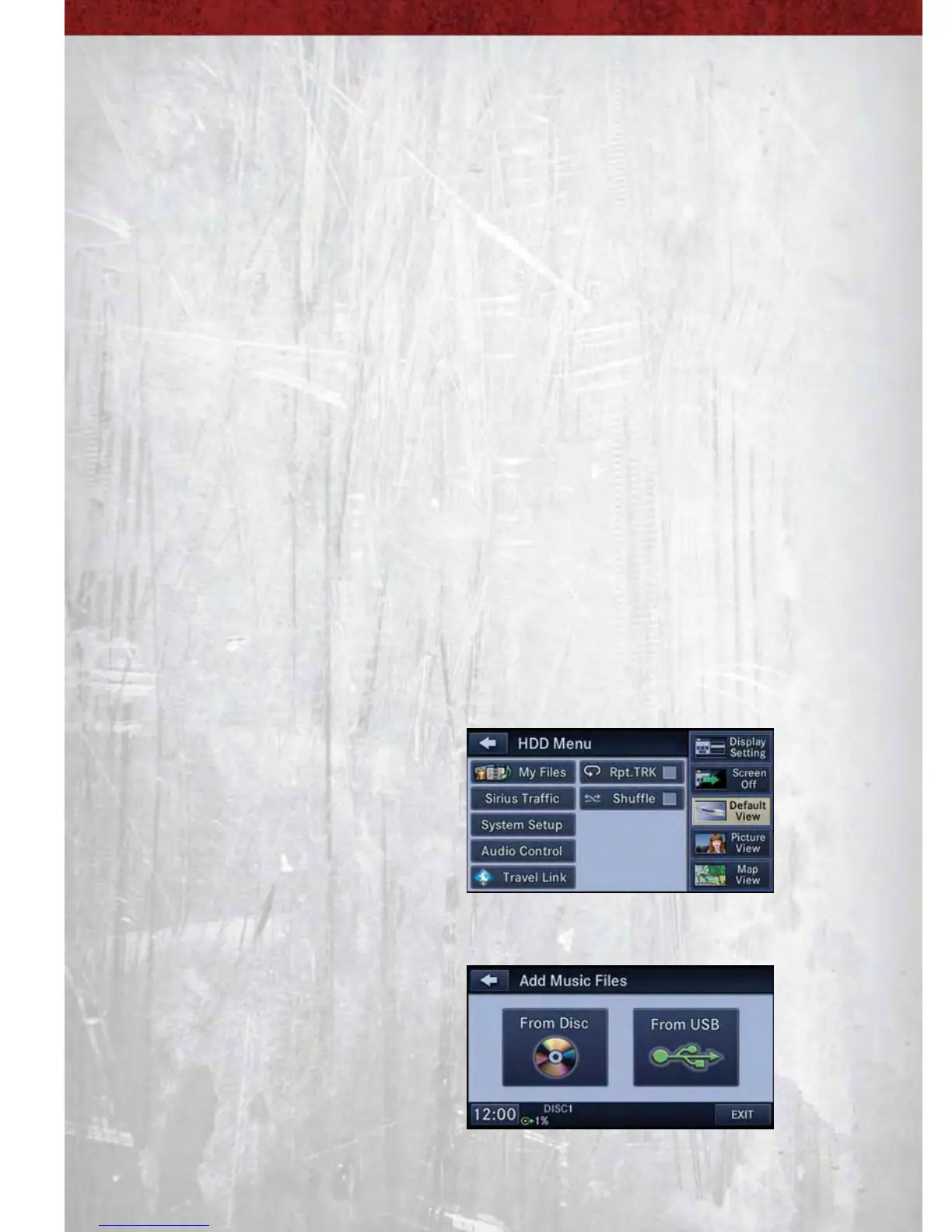
• Press the “LOAD” hard-key.
• Insert a disc, then press the “MENU” hard-key.
• Touch the “MY FILES” soft-key, then
select “MY MUSIC.”
• Touch the “Add Music Files to HDD” soft-key, then touch the “From Disc”
soft-key in the next screen to start the process.
NOTE:
• You might need to select the folder or
title depending on the CD, then press
“DONE” to start the copy process.
• The copy progress is shown in the
lower left corner of the screen.
ELECTRONICS
38


 To Next Page